

By default, Windows have some themes that makes to look your PC better. They provide us different looks and sensation. However if you are customization lover, you might have used third party themes or personalization themes released from Microsoft. If that is the case with you, the default theme will be obviously useless for you.
[How To] Delete Default Themes In Windows 8
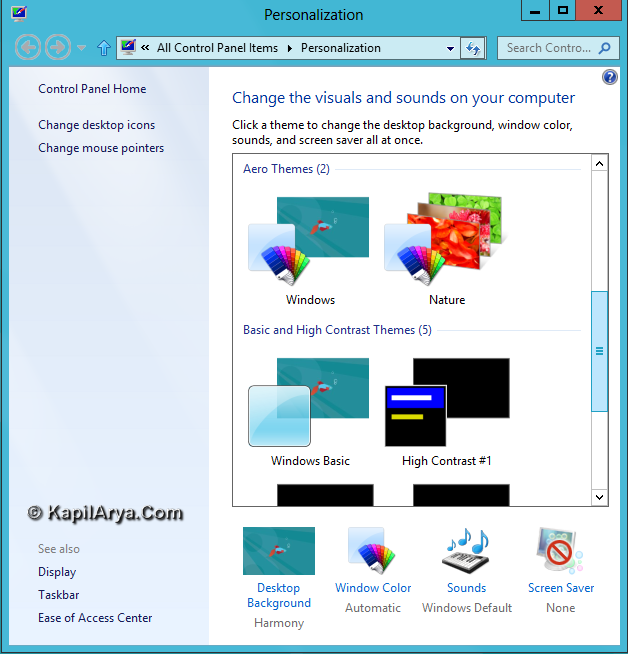
In this article, we’ll tell how to remove these useless default themes. So here we go…
Basically there are 3 types of default themes:
- My themes
- Aero themes
- Basic and high contrast themes
As far as My themes are concerned, you can delete them via right click option on particular theme and select Delete theme.
Delete Aero Themes
1. Type following location in Run dialog box (press  + R):
+ R):
C:\Windows\Resources\Themes
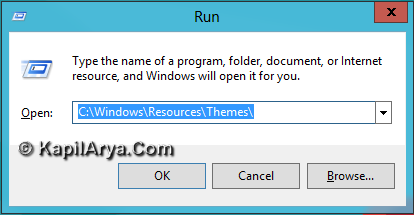
2. Now take the ownership of theme files and allow them to full permissions and delete them manually.
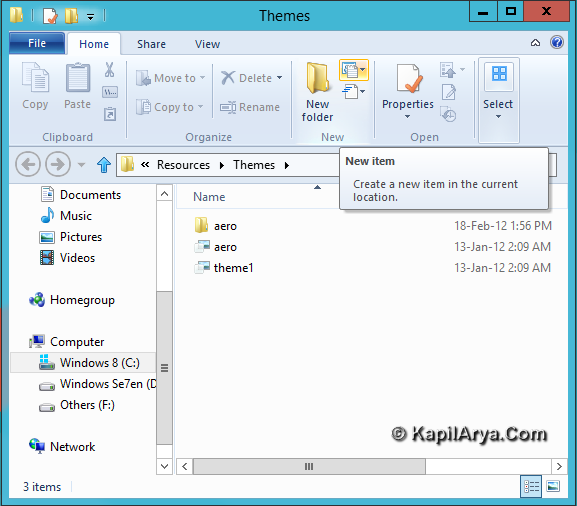
Windows (Aero) – aero.theme
Nature (Aero) – theme1.theme
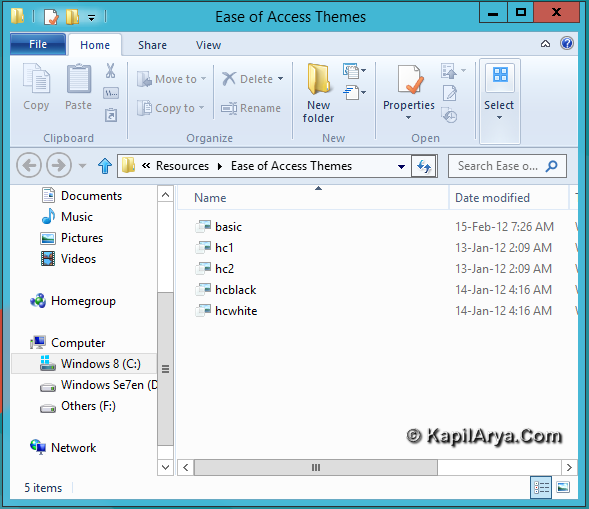
Delete Basic & High Contrast Themes
1. Open Run dialog box (press + R):
C:\Windows\Resources\Ease of Access Themes
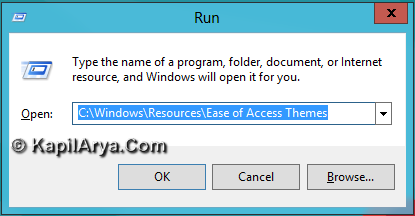
2. Pick the theme you want to delete, take its ownership and allow full permission to it.
Windows Basic – basic.theme
High Contrast #1 – hc1.theme
High Contrast #2 – hc2.theme
High Contrast Black – hcblack.theme
High Contrast White – hcwhite.theme
P.S. : Please make a copy of theme file at another location before deleting it.
That’s it!








1 Comment
Add your comment
thanks for the way