

If you performed a refresh of Windows 8, upgrade to Windows 8, or a custom install of Windows 8 without formatting the drive for a clean install and selected to install Windows 8 on the same partition of the previous Windows installation, then you may have a C:\Windows.old folder left over in your new installation. It contains a copy of the previous Windows 8 installation, and can be quite large in size.
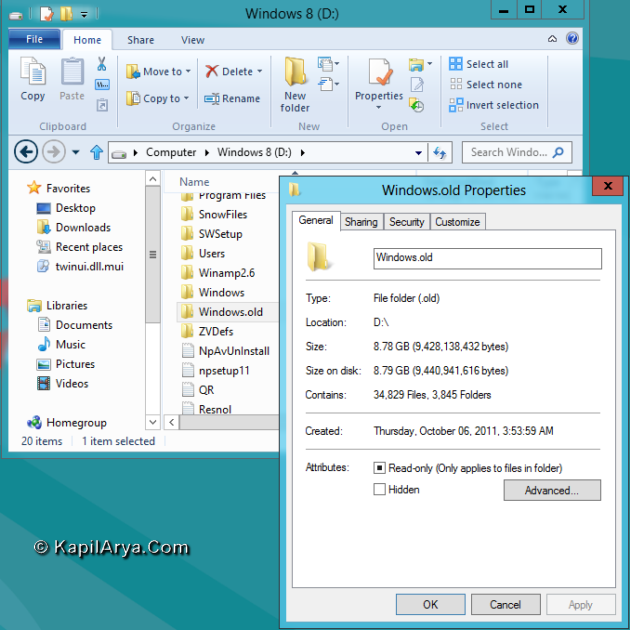
If you already had a C:\Windows.old folder in the installation that you performed a refresh, upgrade install, or a custom install on, then it may be renamed to say C:\Windows.old.000 (older previous installation) in addition to the C:\Windows.old folder. The most recent previous installation will always be in the C:\Windows.old folder.
This article will show you how to delete the Windows.old folder(s) generated during the installation to free up the hard drive space that the Windows.old folder(s) takes. So lets start…
How To : Delete “Windows.old” Folder In Windows 8.1
1. Open Command Prompt with administrative privileges.
2. Type the following command:
RD /S /Q %SystemDrive%windows.old
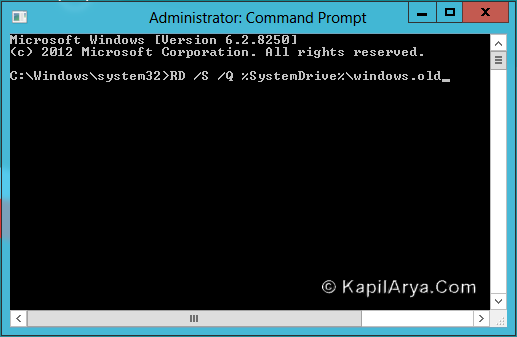
3. Close the Command Prompt window. Congrats… you have successfully deleted Windows.old folder.
P.S. :
1. Be sure to copy any files that you may want out of the Windows.old folder before you delete it. Once deleted, they are gone.
2. You must be logged in as an administrator to be able to do above steps.
3. If you had another say windows.old.000 folder that you also wanted to delete, then you could repeat the command in step 2 by substituting that name instead of windows.old to also delete it.
That’s it!







that;s gr8
shud we need to take ownership of dat folder?
@ lee, I don’t think so ;)
Thanks,guys i hv deleted dt useless folder now.
Greetings!
I’ve encountered a minor hiccup – I’m currently using the administrator account, yet it keeps on showing access is denied right after i enter the command. Is their any way around this?
Hi! I’ve been trying to delete the folder,
But unfortunately whenever I enter the command, “Parameter format not correct – “QC:windows.old”” Pops up. Am i doing something foolishly wrong here? Thank you for your reply.
Another thing right after, If I may add, I’ve run the cmd as admin, unfortunately i keep getting “Access is denied” for every file right after entering the command.
^^ Make sure you’re the administrator and re-try.
The command didnt work in my windows 8 its says The system cannot find the file specified
^^ Please retry the command, making sure that Windows.old folder exists.