

In Windows 8 & 7, Windows has in-built feature for searching files, folders and programs. It allows us to instantly search for files and folders on your computer from the Start menu or Windows Explorer. For indexing of a files & folders, search feature actually works on system resources.
Although if we don’t not want to use search feature, then its a waste for our system. And hence we need a working solution to disable such a waste feature. Now here is how to do this:
How To : Disable “Search Feature” In Windows 7, 8
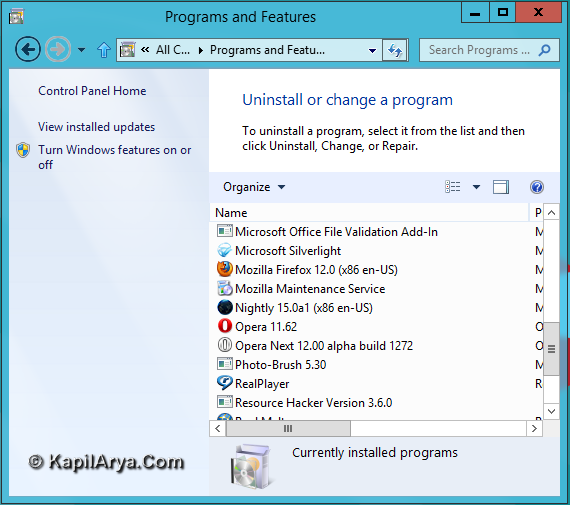
1. Press  + E to open Windows Explorer. Now click on Uninstall or change a program. It will open the below shown window. In the left pane of this window, click on Turn Windows features on or off.
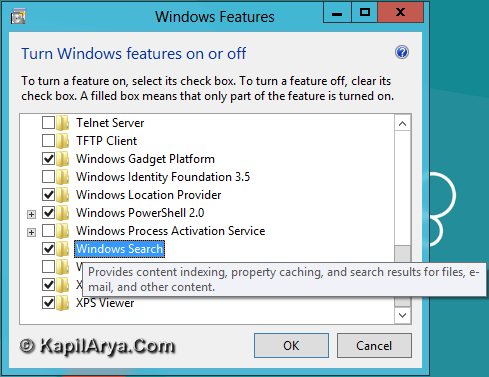
2. Now you’re on Windows Features window, scroll down to find Windows Search. By default, it has a check mark. Remove that check mark.
3. Windows will ask to confirm that you really want to disable search feature. Make affirmation.

4. After making the internal changes, following message will pop-up and we need to reboot to complete the disabling process.

After reboot, you’ll no longer see the default search option. To re-enable it, again follow step 1 and put a check mark in step 2 and make a reboot.
P.S. : Making reboot make take time, while Windows configures for the changes you’ve made in step 2.
That’s it!







What is the benefit of disabling search?? this trick is useles…
good tip though
>> What is the benefit of disabling search??
So he can install FileSearchEX !!!
Search cannot be disabled like this in Windows 8