

Splash screens are the mono or trademarks shown at the start up of the program. When it comes to leading software like Adobe Photoshop, Nero, Microsoft Office, Netscape Navigator etc. splash screen is shown by default.
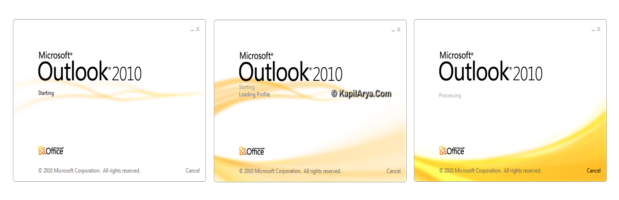
In this article, we’ll tell you how to disable this splash screen in component programs of Microsoft Office 2010. Now the question arises that why we’re doing so? There may be different reasons to this question like slow start of program, splash screen looks annoying etc. So lets see how to disable them…
How To : Disable Splash Screen In Microsoft Office 2010
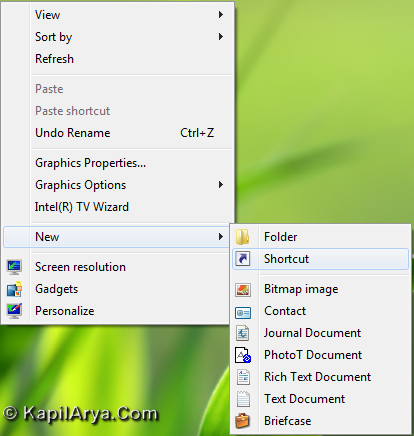
1. We are showing screenshots for Microsoft Word 2010 assuming OS installed in C: drive. Right click on Desktop and select New followed by Shortcut.
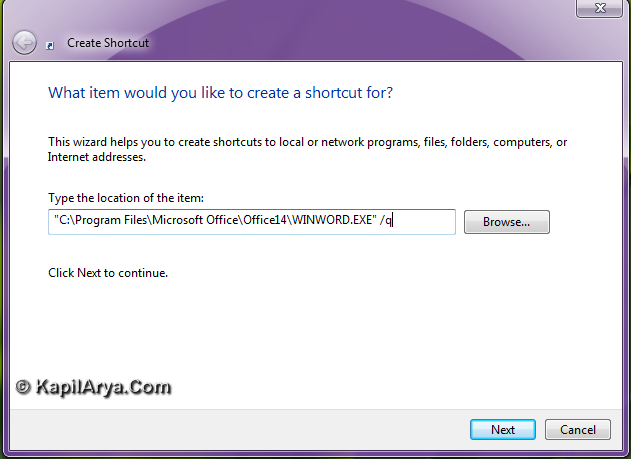
2. In the Create Shortcut window, type following and click Next:
“C:\Program Files\Microsoft Office\Office14\WINWORD.EXE” /q
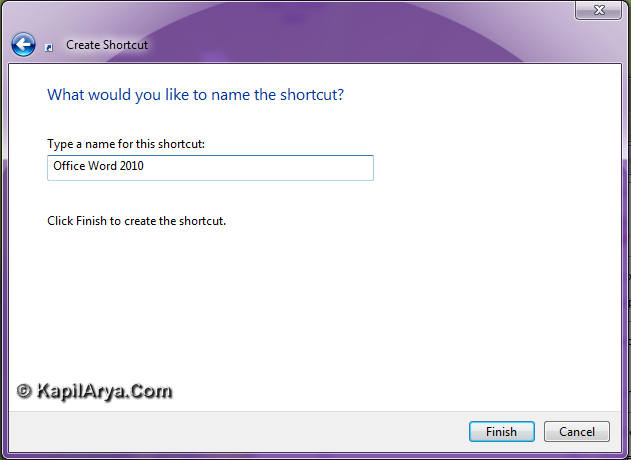
3. In the next window, type the name of the shortcut, for example Microsoft Word 2010. Click the Finish button and your shortcut for the program without splash screen is ready.
4. For Microsoft PowerPoint 2010 & Microsoft Excel 2010, use following commands in 2nd step respectively:
“C:\Program Files\Microsoft Office\Office14\WINWORD.EXE” /s
“C:\Program Files\Microsoft Office\Office14\WINWORD.EXE” /e

That’s it!






wow.. cool method!
So you write on Office also, good job friend ;)
what to do in case of adobe photoshop and imageready?