

If you’re troubled with inputting password on every log on of Windows 8, we’re now here to help you. You and many others want to make this issue very clear. No one wants to enter the password again and again along with username.
If security isn’t is the big problem for you, you can set Windows 8 to make sign in to your account automatically. This will obviously save your time to log in and complete your work.
So without wasting your time anymore here is how to make this possible:
How To : Make Windows 8 Auto Logon
1. Press the  + R combination on your keyboard. Type netplwiz command.
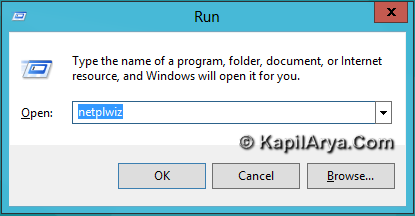
2. Make the UAC affirmation. Now switch to Users tab. Uncheck the option “Users must enter a user name and password to use this computer”.
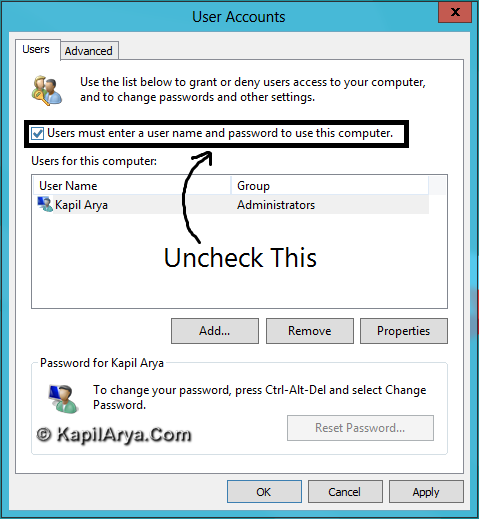
3. Click on Apply. Now in Automatically sign in window type your password and confirm it.
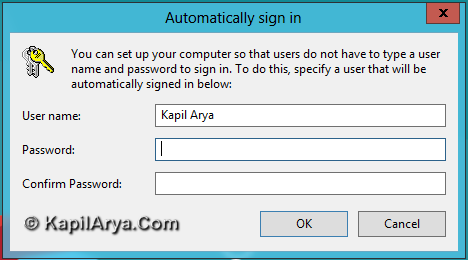
4. Click on OK and that’s it. Now whenever you open windows, you will be automatically sign in.
Cool! Isn’t it?








13 Comments
Add your comment
thanks bbut i dont like anyone else to take ownership on my files.
thats great for now.. nice find mate ;)
nice post ilike
Hi Kapil, need your help on a serious issue. I accidentally connected by Windows 8 local account with LIVE ID. Now each time I want to login, it asks to enter the LIVE password and not the local account password. So conclusion is it can’t connect web on log in. hOw to make login from this segment??
Pls. help urgently
Rgds. Dastan
really handy !!1
I’ll try to put this to good use imemdaitley.
Dear Kapil Arya,thanks so much for the help!
^^ Glad we could help :)
This does not work in Win 10 . Users must enter a username and password . The box was already unchecked . Now what ?
^^ Just checked it my Windows 10 and it works well :) Make sure your system is not a part of domain. Also try this method I’ve posted there: thewindowsclub.com/cannot-auto-logon-windows
thanks so much for the help!
^^ Cool :)
I got no success. Reached step 2 but ‘Apply” process is not highlighted so to click it for step 3. If I click OK my email is asked and on entering I get rep;ly that it is already in computer. What to do?