

It is well evident that Microsoft has used Hybrid Boot since Windows 8 in their operating systems, which helps to start and shut down our system speedily. Hybrid Boot received positive feedback from users and it is also continued in Windows 10, the successor to Windows 8.1. However, if you notice the power menus in Windows 8 and later, you’ll see the Hibernate option is missing. Only the Sign out, Sleep, Shut down and Restart options are available to users, even though they can also hibernate their systems.
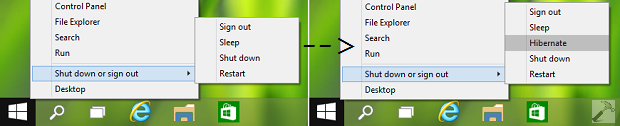
Hibernate basically puts your open documents and programs on your hard disk, and then turns off your computer. Of all the power saving states in Windows, hibernate state uses the least amount of power. But since it is disabled in power menus, users are forced to use sleep option. If you’re looking forward to add Hibernate option too in power menus, here is how to:
How To Enable Hibernate Option In Power Menus For Windows 10/8.1
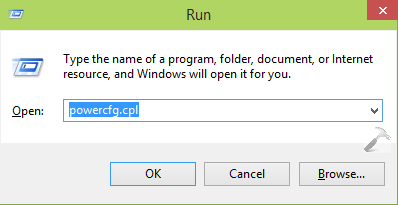
1. Press  + R, and type powercfg.cpl in Run dialog box and hit Enter key.
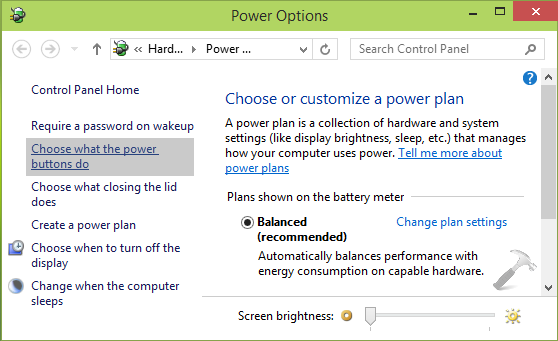
2. Next, in the Power Options window, click Choose what the power buttons do link in the right pane.
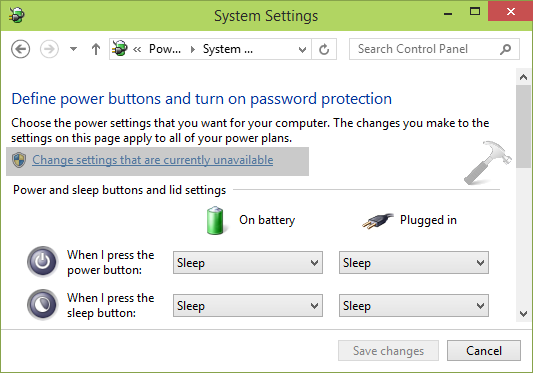
3. Moving on, in the System Settings windows so appeared, click on the Change settings that are currently unavailable link. You may prompted to enter your user account password, if asked, enter it.
4. Finally in the same System Settings windows, scroll down and under Shutdown settings label, you’ll found Hibernate option which is disabled/unchecked by default. So put a check mark against this option and enable it. Click Save Changes.
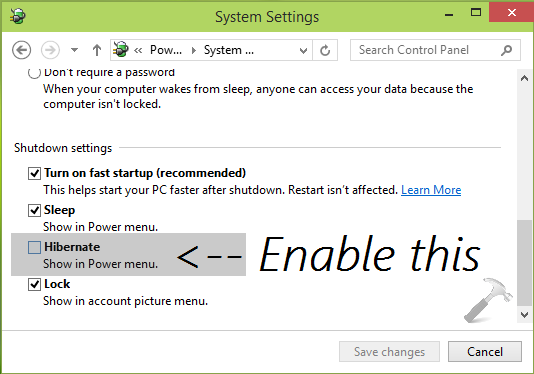
Now check the power menus for your Windows 10 and you’ll see the Hibernate option too, in addition with other power saving states/options available earlier.
That’s it!




Nice tip Kapil, helped me a ton. Thankx
+1 for this article.
I could not get back start menu.
Hi Kapil, help needed.
Your article is very useful. But, on my laptop I don’t have option “Hibernate” nowhere in configuration for Windows 10 Pro. That’s picture https://htse.kapilarya.com/How-To-Enable-Hibernate-Option-In-Power-Menus-For-Windows-10-4.png from this article. So, I only can see options: “Turn on fast startup”, “Sleep” and “Lock” (there is no “Hibernate”). I always used Admin mode, Change settings that are currently unavailable etc. I also tried Command prompt commands, changing Registry etc. but, no luck. Are someone else have problem like this? I working hibernate option in Windows 7.
Thanks,
Sasa
I have the same problem.
I can do it successfully. Thanks a lot.
I’ve been having trouble with my start menu for a few months & I tried everything I found on the net. Some suggestions worked for a while while others didn’t help at all & the disappearing start menu would return after a short hiatus.. I’m hoping this will finally correct my start menu from playing hide & seek once & for all.
Thanks for your dedication to helping us self taught users.