

Windows Key on keyboard usually brings Start Menu or Start Screen in modern Windows editions. Using this key in combination with other keys, various operations cab be performed. For example, using Windows Key + E ( + E), you can open File Explorer. You can checkout complete list of shortcuts available in Windows 8 or later, with incorporation of Windows Key in following article:
Ultimate Collection Of Windows 8 Commands & Shortcuts
Well, sometimes, it may possible that Windows Key present on your system keyboard is not reacting at all. This could be so weird since the key is not only for single operation, as it could act in parallel for various tasks. Hence all of those tasks couldn’t be operated due to non-functioning of single Windows Key.
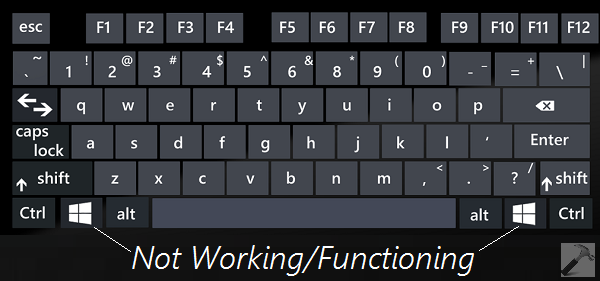
So here is what you need to fix this issue:
FIX : Keyboard Windows Key Not Working In Windows 10/8/7
Registry Disclaimer: The further steps will involve registry manipulation. Making mistakes while manipulating registry could affect your system adversely. So be careful while editing registry entries and create a System Restore point first.
1. Press + R and put regedit in Run dialog box to open Registry Editor (if you’re not familiar with Registry Editor, then click here). Click OK.
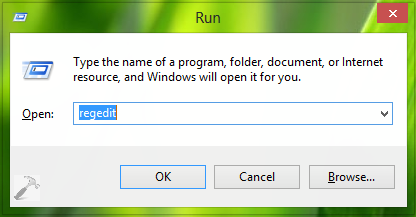
2. In the left pane of Registry Editor window, navigate here:
HKEY_LOCAL_MACHINE\SYSTEM\CurrentControlSet\Control\Keyboard Layout
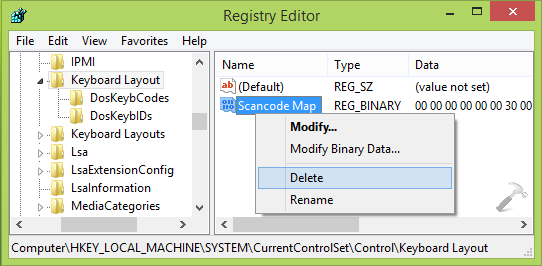
3. In the right pane of above shown window, you must be able to Scancode Map named binary registry (REG_BINARY) having its Value data set to 00000000000000000300000000005BE000005CE000000000.This Value data is culprit of this issue, which blocks functioning of Windows Key. Hence right click over Scancode Map and select Delete. Provide a confirmation with Yes here:
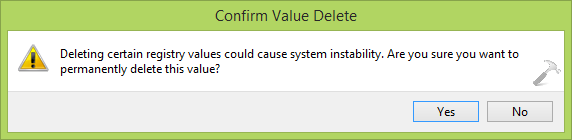
Finally, close Registry Editor and reboot your system. After restarting the machine, Windows key will start functioning as usual.
If you’re not comfortable in manipulating registry, you can try the Fix It instead. Checkout following link:
Hope this helps! Go here if keyboard volume & mute keys aren’t working on your Windows.





my windows key is not working on my keyboard. I have a new computer Windows 10