

Yesterday, a guy suddenly asked me that how he can hide the Ubuntu partition on Windows 8. I told him that Ubuntu or Linux partition is not readable by Windows and it got already hidden when you install Ubuntu in parallel drive to Windows. So he asked me his next question, how he can hide Windows partition in parallel with Windows itself. The answer to his query, led me to write this article.
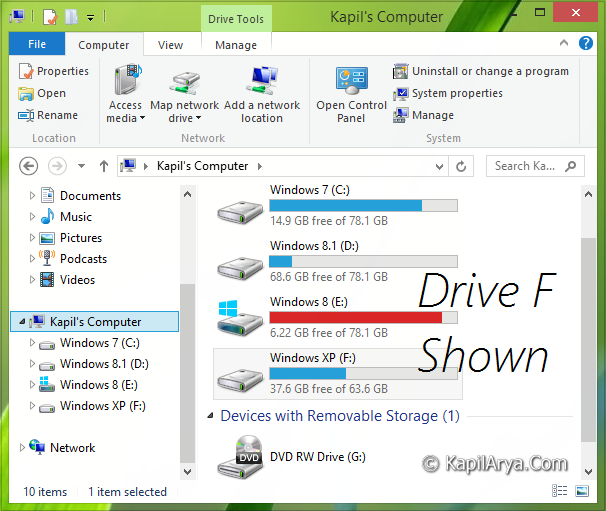
There are various reasons why you want to hide your specified drives and in this article, I’ll show you the way to hide a particular drive or all drives or pair of drives. Hiding a drive will led you the drive inaccessible from Run dialog, Command Prompt etc. The method involves modification of registry, so its already recommended for you to create a System Restore point before proceeding.
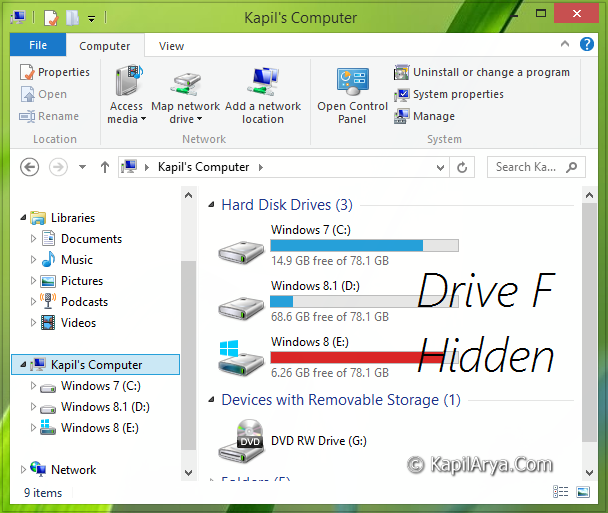
Now, here is how to:
How To Show Or Hide Drives In Windows 10/8/7
Registry Disclaimer: The further steps will involve registry manipulation. Making mistakes while manipulating registry could affect your system adversely. So be careful while editing registry entries and create a System Restore point first.
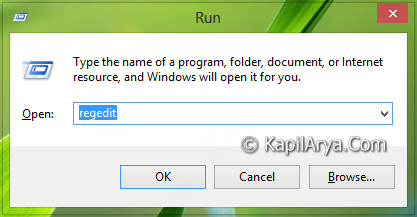
1. Press  + R and put regedit in Run dialog box to open Registry Editor (if you’re not familiar with Registry Editor, then click here). Click OK.
2. Navigate here:
HKEY_CURRENT_USER\Software\Microsoft\Windows\CurrentVersion\Policies\Explorer
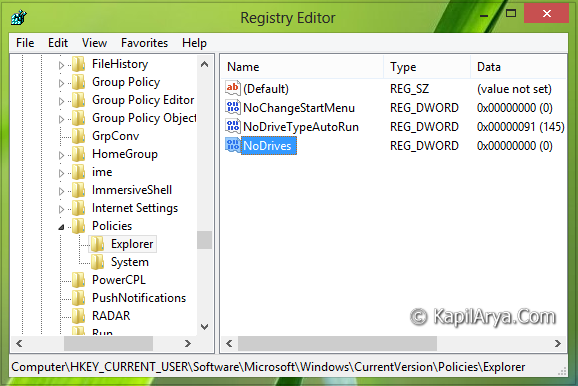
3. In the right pane of this location, create a new DWORD value named as NoDrives using Right click -> New -> DWORD. Double click on this newly created DWORD to modify its Value data:
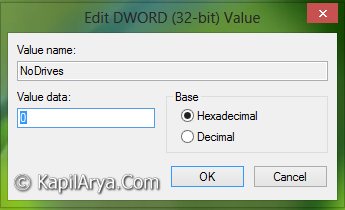
4. Use the following Hexadecimal Value data to hide corresponding drives:
To hide A – 1
To hide B – 2
To hide C – 4
To hide D – 8
To hide E – 10
To hide F – 20
To hide G – 40
To hide H – 80
To hide I – 100
To hide J – 200
To hide K – 400
To hide L – 800
To hide M – 1000
To hide N – 2000
To hide O – 4000
To hide P – 8000
To hide Q – 10000
To hide R – 20000
To hide S – 40000
To hide T – 80000
To hide U – 100000
To hide V – 200000
To hide W – 400000
To hide X – 800000
To hide Y – 1000000
To hide Z – 2000000
To hide A & B only – 3
To hide A, B & C only – 7
To hide A, B, C & D only – f
To hide all drives – 3ffffff
Click OK, after inputting your desired Value data. You may close the Registry Editor now and reboot to get results.
That’s it!







thnnks for info.I want to know can this also done using gpo ?? I didn’t find the explorer policy in Windows 8.Are they removed?
In vista I have done this using that policy in..
^^ AFAIK, Not possible.
There is no Explorer under Policies. Policies is empty.
^^ Right click Policies and select New -> Key. Name the new subkey as Explorer. Now proceed as directed.
it isn’t work.
^^ It worked fine here, suggest you to give a try once again :)