Chrome Remote Desktop setup functions as a critical digital tool that enables professionals and IT support teams and employees to access their Windows 11/10 computers from different locations. This user-friendly tool stands as the best tool for this purpose. Google provides this free platform that enables users to access their personal computers remotely or provide remote support to others.

If you also want to know how to use Chrome Remote Desktop and work remotely, this step-by-step guide provides an easy method.
Page Contents
What is Chrome Remote Desktop?
This tool functions as a free Google-developed tool that permits users to manage their work through browser sessions. The application finds common use in remote work environments as well as IT support activities and personal computer control.
Why its a Useful Tool?
- Secure and encrypted remote connections
- The system enables users to access their computers through any device including smartphones and tablets.
- Cross-platform compatibility (Windows, macOS, Linux, and ChromeOS)
- Easy setup with a Google account
Set Up Chrome Remote Desktop
You need to properly set up and install it before beginning remote access operations.
Step 1: Install Chrome Remote Desktop
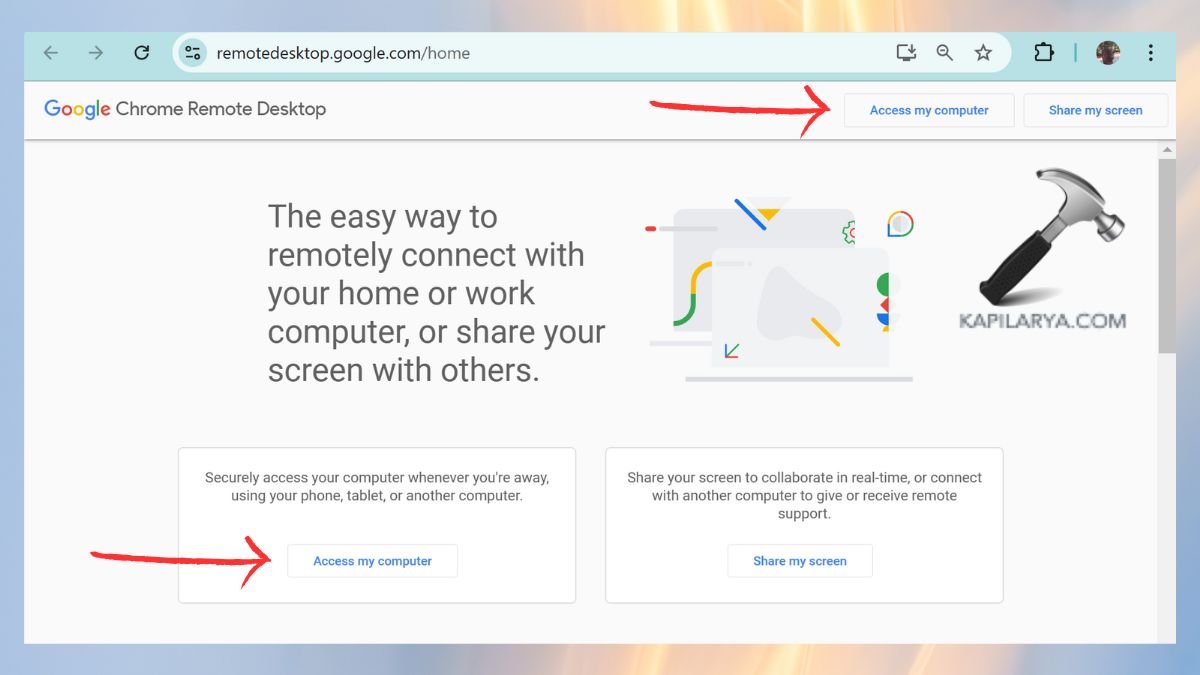
1. Open Google Chrome on your computer. You must visit the official Chrome Remote Desktop website (https://remotedesktop.google.com/home) through your web browser.
2. Select the “Access my computer” option from the available choices.
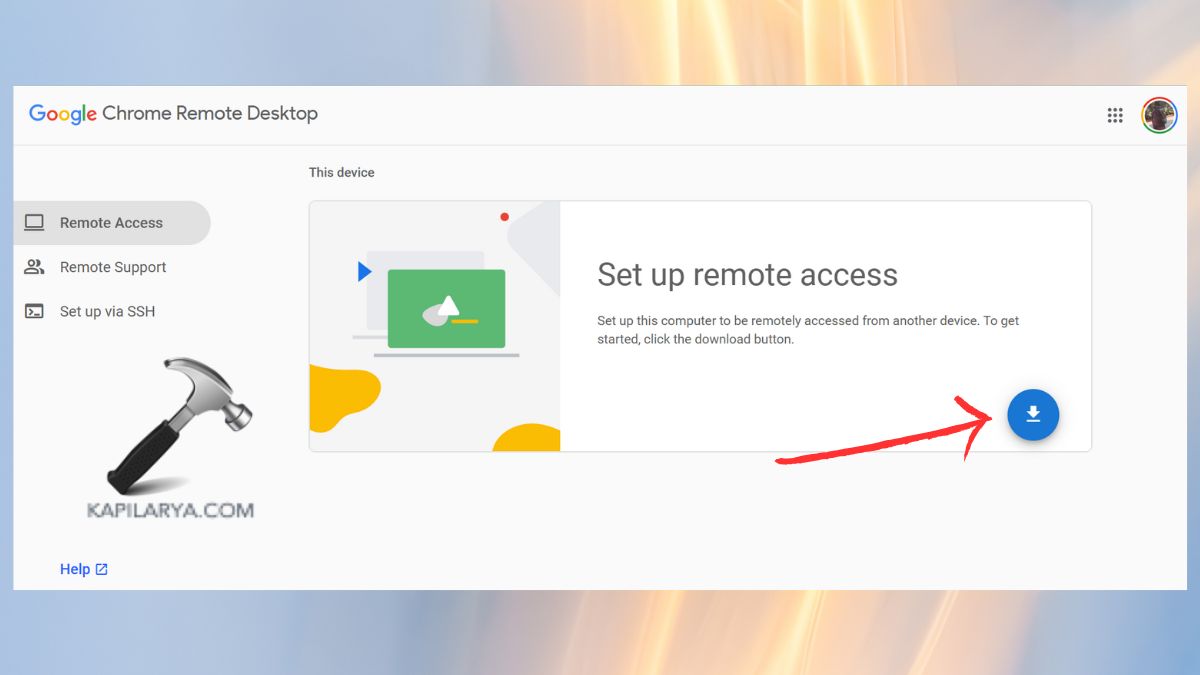
3. Tap on Download icon on Set up remote access.
4. Also, tap on download icon for “Share this screen” on the support link “https://remotedesktop.google.com/support/”.

5. Now click on the downloaded file and follow the on-screen instructions. Now tap on “Generate Code”.

6. Now, copy the code.
Step 2: Activate the Remote Access Feature on your Computer
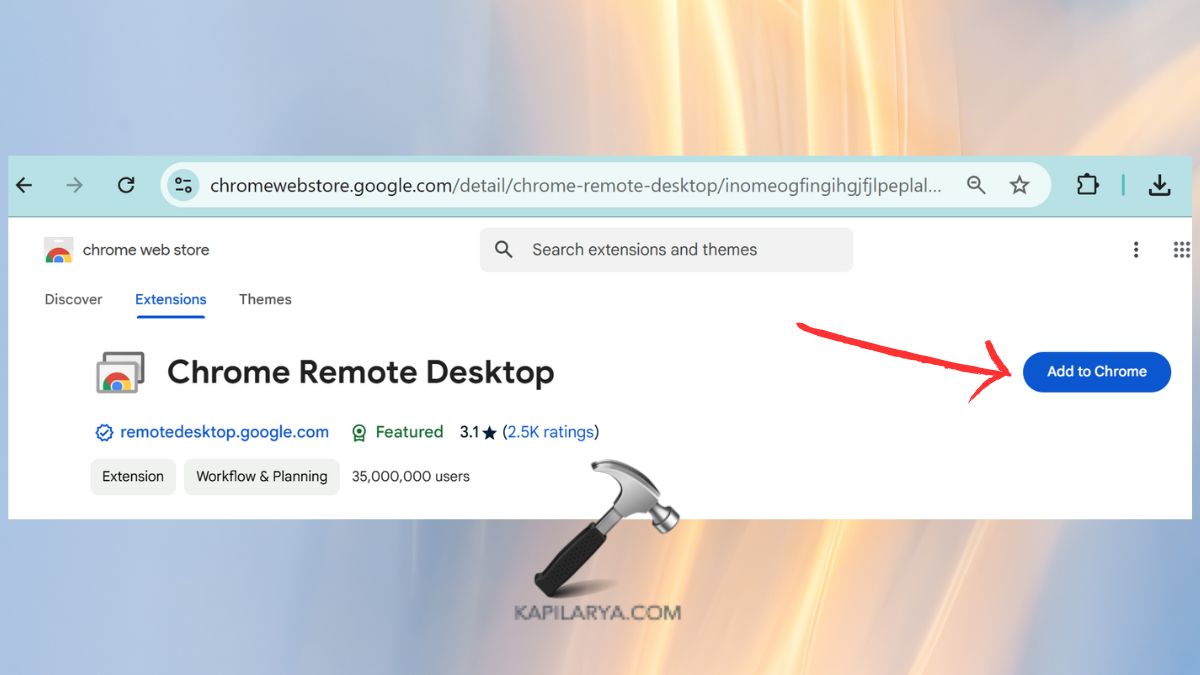
1. Click on “Add to Chrome” to start the Chrome Remote Desktop tool.
2. Now go to the Remote Access page and in Remote devices, enter the Access Code to remotely connect with another computer. Use the access code that the other person shared to proceed with the connection. Then, tap “Connect”.

Allow the session to run until the other person approves your connection request.
Through the connection process, you can gain complete control of their computer system to fix problems and execute all other tasks.
After completing the setup your PC becomes available remotely through this extension on all devices using the same Google account login.
How to use Chrome Remote Desktop
After allowing remote access your system remains connectable through any location.
Step 1: Begin by launching Tool from another device
On another computer, open Google Chrome and visit “remotedesktop.google.com”. Sign into the service using the Google account you previously used to set it up.
Step 2: Connect to Your Computer
1. You can find the list of linked computers under the “Remote Devices” section of your account. Select the computer which you want to access.
2. Type the security number that you established at the beginning.
Your remote control access grants you complete management of your computer system so you can work with files and applications and resolve technical issues from any location.
FAQs
#1 Is Chrome Remote Desktop free to use?
The tool is available completely free for personal and professional purposes.
#2 Can I use Chrome Remote Desktop on my phone?
Through this tool users can install the application on their Android and iOS devices to remotely access their computer.
#3 Is Chrome Remote Desktop tool extension Secure?
Remote access connections under this tool use encryption alongside a PIN system for complete security.
#4 Does Chrome Remote Desktop tool work without the internet?
The use of Chrome Remote Desktop requires an active internet connection on both the accessing and accessed devices.
That’s it!