

There is no need to tell a computer user, what a caps lock button does. Especially, where the typo’s are to be of important concern, the action of caps lock button seems mandatory. There exists many scenarios when due to the caps lock button, you may have typo issues. In such cases, disabling the action of same key works as medicine.
But as far as we know, Windows never gives you the options by default to disable the action of caps lock button. So how to kill the functionality? Don’t worry! In this article, we’ll tell you the way to cut caps lock button using Registry Editor. We have illustrated the screenshot procedure, so that you can easily disable caps lock button in your Windows 8.
So, without wasting any more time, lets share the trick:
Disable Caps Lock Button In Windows 8
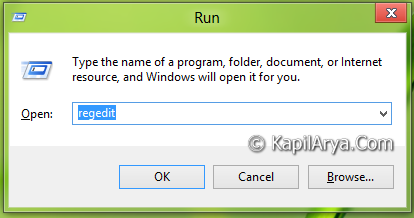
1. Press  + R and put regedit in Run dialog box to open Registry Editor (if you’re not familiar with Registry Editor, then click here). Click OK.
2. Navigate here:
HKEY_LOCAL_MACHINE\SYSTEM\CurrentControlSet\Control\Keyboard Layout
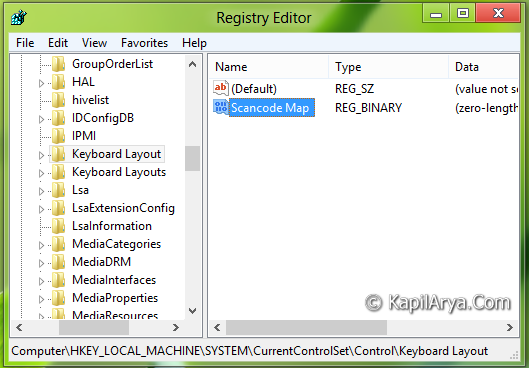
3. In the right pane of this location, create a binary value using Right click -> New -> Binary Value. Name the binary value as Scancode Map.
Double click on it, and modify it with writing following data value:
00000000 00000000 02000000 00003A00 00000000
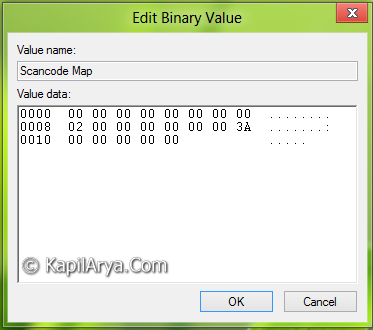
Make sure you have correctly inputted the binary string. Click OK. Now make a reboot once, and you’ll be able to cut the caps lock button from your Windows 8.
That’s it!



this was good trick for such case. I’m kinda frustrated with pressing the same key again and again.
hmm.. sounds gud. How to reenable the defaults???