

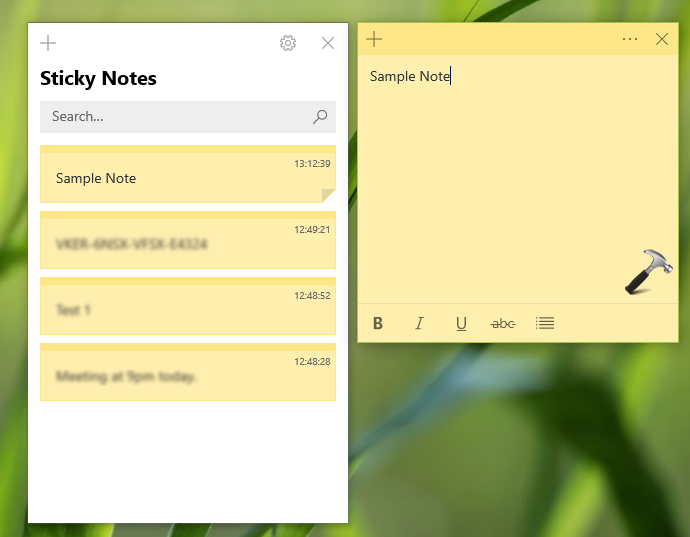
Sticky Notes app comes as built-in app in Windows 10. You can use it to create notes instantly. The app allows you to add text, link, pictures, etc. to your notes so that you don’t need to remember things. You can also make your important notes sticky to Desktop.
There is a common issue that user may face with Sticky Notes. After performing Windows edition upgrade, or after installing some updates, you may find that your notes are missing. If you rely majorly on Sticky Notes app for remembering things, this issue could create trouble situation for you. But no need to worry, because if your notes are lost after upgrade, in this article, we’ll show you how to get them back.
Page Contents
FIX: Sticky Notes Lost After Windows Upgrade
To recover lost notes after Windows upgrade, please try these steps:
Make sure you’ve enabled Hidden items in File Explorer before proceeding with below steps. Also ensure that Sticky Notes app is closed and not running even in background.
1. Go to C:\Windows.old to open Windows.old folder and navigate to Users > {USER ACCOUNT-NAME} > AppData > Local > Packages > Microsoft.MicrosoftStickyNotes_8wekyb3d8bbwe > LocalState.
2. Under LocalState folder, you’ll see xxxxx.storage.session and plum.sqlite files. Here xxxxx may be some arbitrary value. Copy and cut these files.
3. Now press  + R, type
 %localappdata%\Packages\Microsoft.MicrosoftStickyNotes_8wekyb3d8bbwe\LocalState and press Enter key.
4. In the LocalState folder, paste the copied xxxxx.storage.session and plum.sqlite files from step 2.
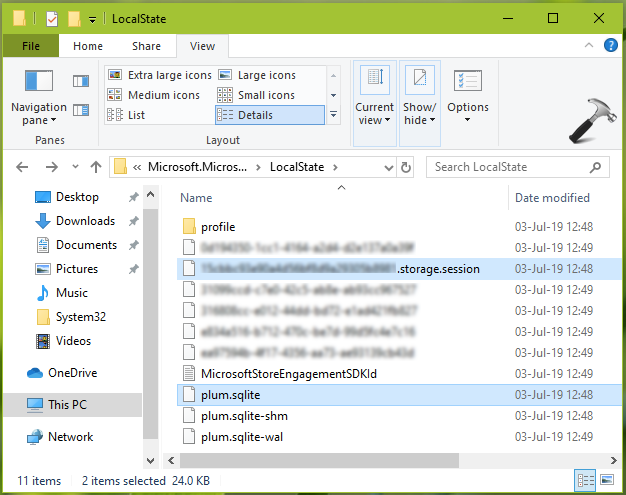
5. Finally, open Sticky Notes app and your missing or lost notes should be back now.
Re-register Sticky Notes App in Windows 10
If issue still persists, open administrative Windows PowerShell and paste/type following and press Enter key:
Get-AppXPackage -AllUsers -Name Microsoft.MicrosoftStickyNotes | Foreach {Add-AppxPackage -DisableDevelopmentMode -Register “$($_.InstallLocation)\AppXManifest.xml” -Verbose}
We hope after trying above mentioned solutions, you should be able to get back your notes.
Drop us a comment, if you still can’t recover your notes!






Although the folder listed in step 1 exists, it is empty – no files after big forced update at the end of August 2019 :-(
^^ Windows.old folder usually have files when you perform upgrade to newer version. It may not capture files with security updates.
Did it all, but no joy .
Damn windows forcing me to update
Sometimes the localstate folder appears as empty… sometimes not!
Localstae folder was folder . I’ve lost 2 years worth of notes .
Hi there Kapil, my directory:
P:\Windows.old\Users\USER\AppData\Local\Packages\Microsoft.MicrosoftStickyNotes_8wekyb3d8bbwe\LocalState
is empty, what do I do now?
Oh dear, all of my essential information has disappeared.
This is very disappointing, that a such simple program can have this error and
if Microsoft has known about this update error for so long why has it been fixed?
Regards
Michael
^^ Michael, which update you installed recently? If it was version upgrade, I am afraid if there is any other solution besides the one I’ve mentioned here.
Hi Kapil,
I have same issue after update win 10, v 1903. My windows.old for LocalState is empty, how I should to recovery my notes?
one by one my notes are gone after I shout down or restart my laptop.
Please tell us the solution.
I have same issue after update win 10, v 1903. My windows.old for LocalState is empty, how I should to recovery my notes?
^^ If Windows.old or LocalState folder is completely empty, I am not aware of any alternative solution atm. Perhaps, I’ll do some research and post back here, if I got any solution.
having just upgraded windows 7 to Windows 10 for a number of legacy machines the entire package folder is not there.
For the past year we’ve previously been fine with just the plum.sqlite an settings.dat files being backed up s part of the logoff scripts, wiping the local folders and restoring these files on login.
Now users are finding the notes are gone after the last Windows Update.
Is there a way to recover the notes using only these two files.?
Admittedly, I did not know about the xxx.storage.session files until i read this article
^^ Enders, I’ll investigate further on this and update you.
I tried these.. it didn’t work for me.
I have the complete c:\windows.old\xxxxx folder and folder data (27GB).
I’ve uninstalled, reset, reinstalled, copied the xxx.storage.session and plum.sqllite, but still no luck.
StickNotes App opens for a second or so and then closes down. There is no error, nothing.
BUT… I WAS ABLE TO GET ALL MY NOTES BACK.
Surprisingly, they all got copied/transferred over to the NOTES section in my Outlook.
So my months of client tickets and other notes DID get saved and I was able to recover them.
I STILL CAN”T GET the StickyNOTES to work though. (crying emoji)
^^ Shawn, glad to see you got your notes back. To fix the app, run following command in Windows PowerShell (Admin):
Get-AppXPackage -AllUsers -Name Microsoft.MicrosoftStickyNotes | Foreach {Add-AppxPackage -DisableDevelopmentMode -Register “$($_.InstallLocation)\AppXManifest.xml” -Verbose}Hi, I have downloaded windows 11 from HP Support site and installed in my HP Pavillion laptop. Found that all the earlier sticky notes are blank even after logging into my account. Could anyone please help to retrieve all my notes. Thank you.
^^ If you made the clean install of Windows 11, this is expected. If you made an upgrade from Windows 10 to Windows 11, this article applies to this situation.