In Windows 11, there are different types of accounts used. One type of these are the work or school account. These accounts are of some different type other than the local account. You can use work account to connect with the your current employer resources. While on other hand, you can use the school account to connect to your school resources. We have already covered how to connect to your work or school account in Windows 11. Now in case if your organization has a requirement to disable access to work or school account in Windows 11, this guide is for you.

Recently, someone in the Microsoft Forums asked me about this question. In this case, the customer was using Windows 11 Enterprise. He reported that his clients were getting notifications about connecting to the work or school account. Because of anonymous reason, he do not want to let his clients access to work or school account. If you’re also in the same situation, here’s what you can do.
Page Contents
Enable/disable access to work or school account in Windows 11
Access to work or school account is enabled by default, let’s see the ways to disable it.
Method 1: Using Registry
1. Right click on Start button, select Run.
2. In Run window, type regedit and click OK. Click Yes in UAC prompt.
3. Go to the following registry key:
HKEY_LOCAL_MACHINE\SOFTWARE\Microsoft\Windows\CurrentVersion\Policies\Explorer
4. In the corresponding right pane, create a new registry string named SettingsPageVisibility.

5. Double click on SettingsPageVisibility and set it’s Value data to hide:ms-settings:workplace.
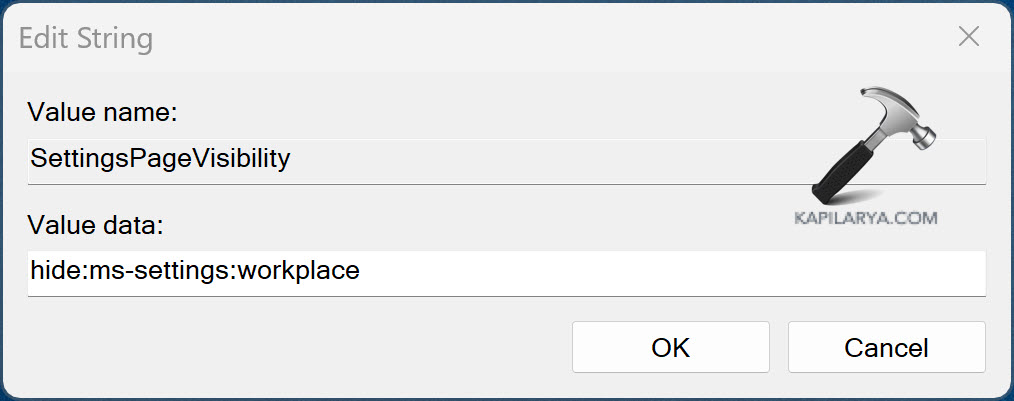
6. Close Registry Editor and restart system to make changes effective.
To re-enable work or school account access, simply delete SettingsPageVisibility string.
Method 2: Using Group Policy
1. Press Windows + R, type gpedit.msc and click OK.
2. In the Group Policy window, go to following location:
Computer Configuration → Administrative Templates → Control Panel
3. In the corresponding right pane, locate policy setting named Settings Page Visibility.
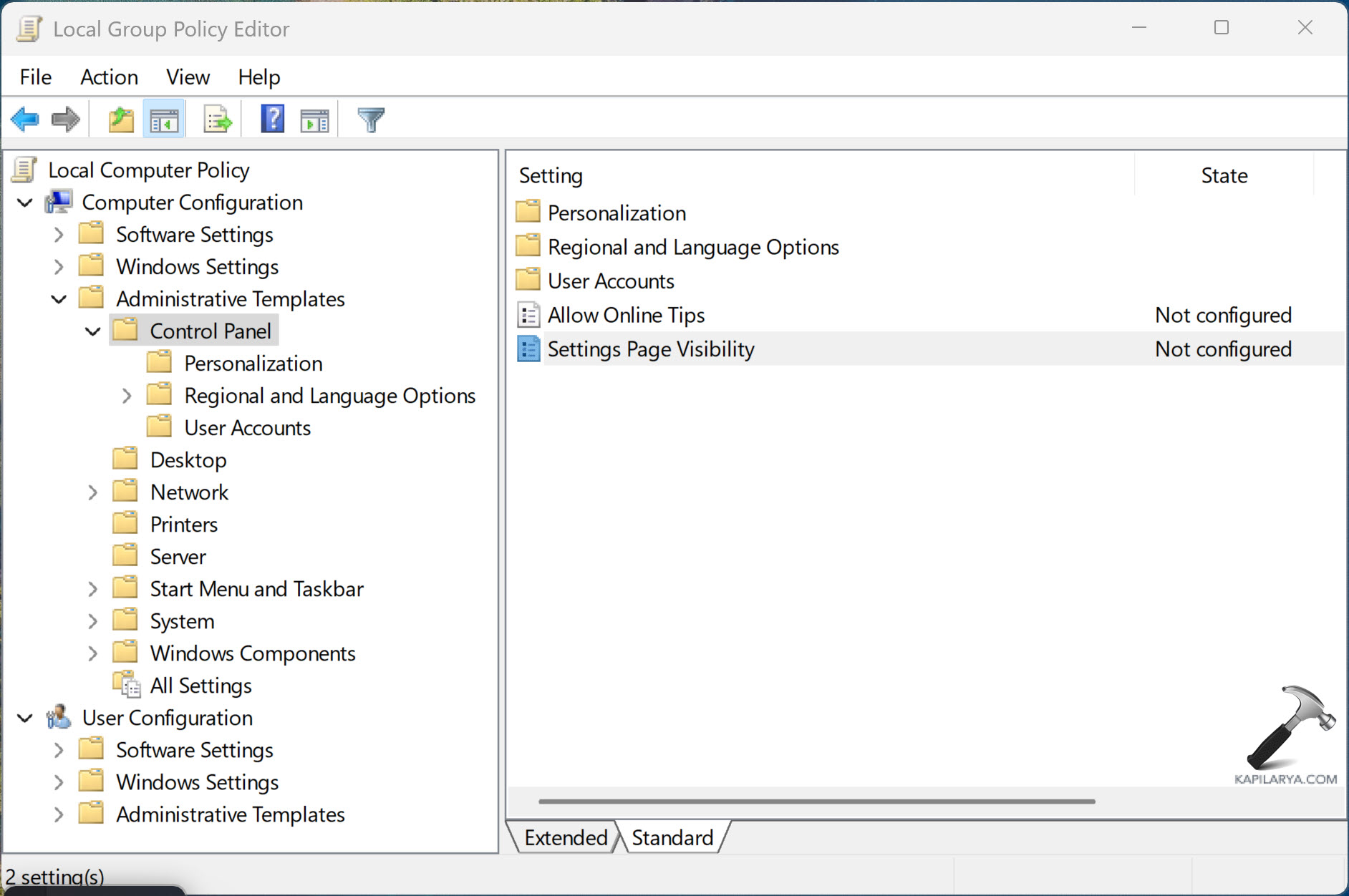
4. Double click on Settings Page Visibility and select Enabled. Under Options → Settings Page Visibility, type hide:ms-settings:workplace and click Apply, OK.
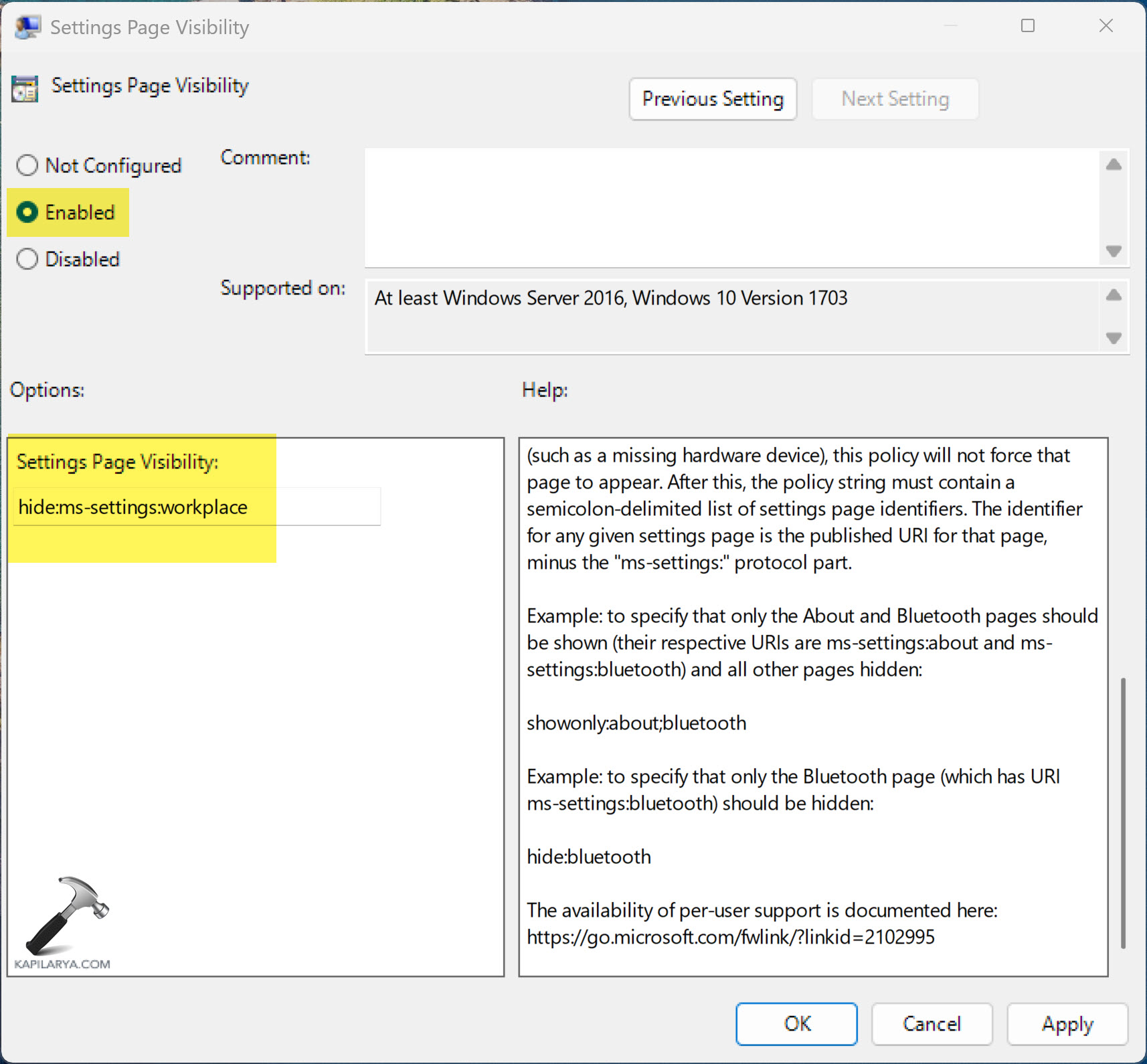
5. You can now close Group Policy Editor and run gpupdate /force command to make changes effective.
To re-enable work or school account access, simply set Settings Page Visibility policy to Not configured.
That’s it!