

Since the launch of Windows 8, we’ve come around the issues of automatically sign in on most of the popular discussion threads. This issue is discussed a number of times, however no strict solution is available yet.
After following many discussions, an apparent way that could easily resolve above issue is to make input of user name at the signing screen. But this seems not so easy. Since, either you have an option to input password for your local account or you can input password for Microsoft account.
If you are still confused with what I’m trying to do, here is the illustration. Look at the below screenshot, it shows you the usual sign in screen where the user name is already mentioned by Windows and you have to input the password only.
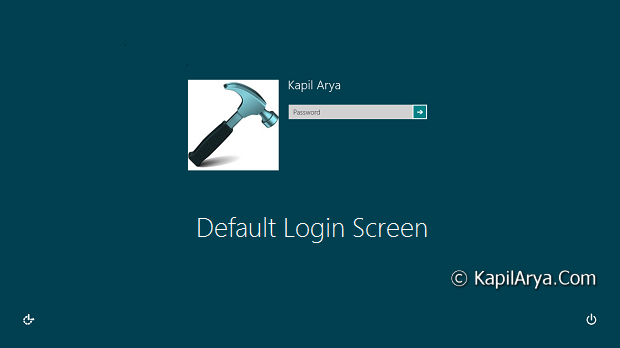
Now, lets clear the issue. Its the automatic sign in of the user and the reason is that the last user do not need to enter the user name on the course. So, if by any how we changed the above default screen to that shown in below screenshot, we have to enter the username too. The screenshot also unveils the switch to select which domain you want to use for sign-in. As already aware, this domain could be a Microsoft account or local account.
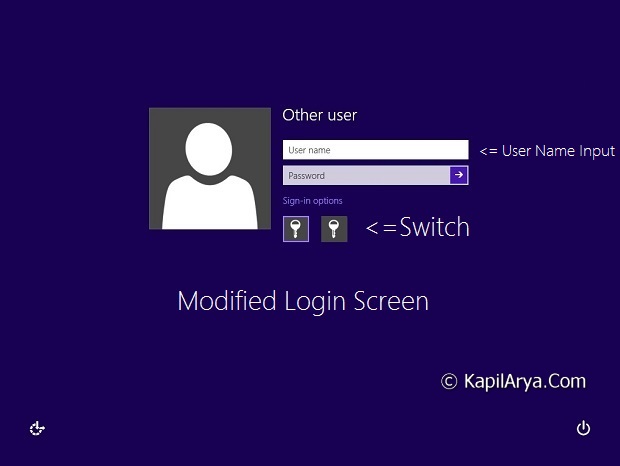
So without wasting your time anymore, finally let us share the way, to make this possible. This could be easily done with Registry Editor and Local Security Policy. So here are the ways:
Page Contents
FIX : Windows 8 Lets Last User Automatically Sign In Using REGEDIT
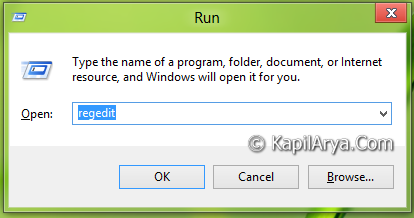
1. Press  + R and put regedit in Run dialog box to open Registry Editor (if you’re not familiar with Registry Editor, then click here). Click OK.
2. Navigate to this location:
HKEY_LOCAL_MACHINE\SOFTWARE\Microsoft\Windows\CurrentVersion\Policies\System
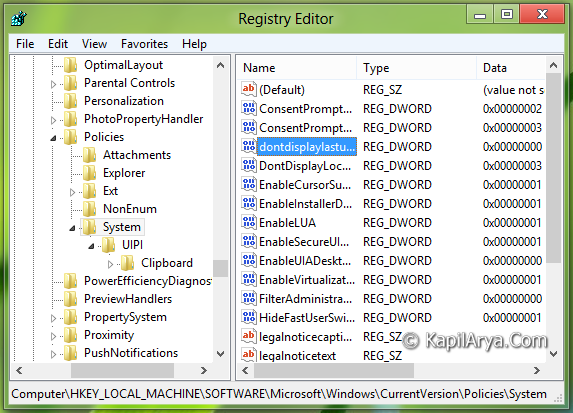
3. In the right pane of this location, look for the DWORD named dontdisplaylastusername.Double click on this DWORD to modify its value, you’ll got this:
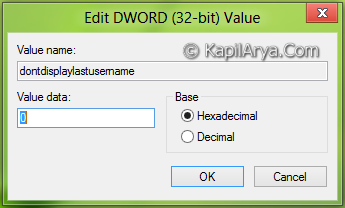
4. Set following values for the Value data section:
To Display Default Sign In – Input 0 (Default Setting)
To Display Modified Sign In Screen – Input 1
5. That’s it! Close the Registry Editor and reboot to get results.
FIX : Windows 8 Lets Last User Automatically Sign In Using Local Security Policy
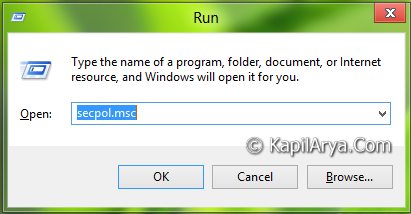
1. Press + R and put secpol.msc in Run dialog box. Click OK.
2. In the left pane, expand Local Policies and then click Security Options. Get into the right pane of the window, as shown below:
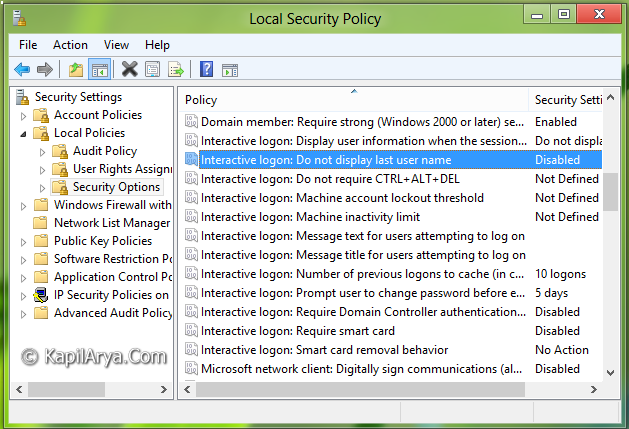
3. In the right pane of window, look for the policy named Interactive logon: Do not display last user name. Double click on it to modify. You’ll get this:
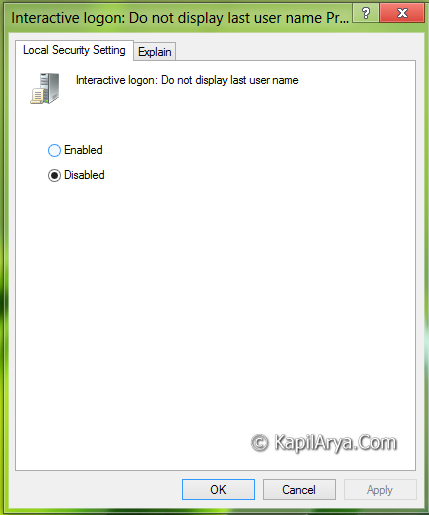
4. As it is already evident from the above images, that this policy is disabled by default, so in order to resolve the issue of automatically sign in, click Enabled in the above window. Click Apply followed by OK.
That’s it, reboot the Windows finally and you’ll be able to sign in with input of user name and password!



Awesome job.. Brilliant :))))
the is really helpful Kapil Arya. THnk you. Hope it works for Lock Screen to???
^^ Nope.
@hopachi, Definetly it won’t work on lock screen because the registry location not coincides with lock screen keys :P
Nice article Kapil +1 :)
Hello,i can’t find that thing in HKEY_LOCAL_MACHINESOFTWAREMicrosoftWindowsCurrentVersionPoliciesSystem. Can u plz help me?
Rgds. LemonPie
^^ You can create the DWORD manually using Right click -> New -> DWORD value. Name it dontdisplaylastusername. Then follow step 4.
Hope this helps :)
Sir, how can I sign in automatically sign in on modified login screen?? Thank you for your tips.
^^ Checkout this :
http://www.kapilarya.com/how-to-enable-or-disable-secure-sign-in-ctrlaltdel-in-windows-8
Really nice one ;)
This hides all users totally. What we need is where in Windows 8 on a restart or power on it would show the user accounts on the Welcome Screen. Performing this registry edit hides all the users. For kids that can’t type yet but only use a mouse this is no good
Did I read somewhere that win 8.1 automatically logs in the last user AFTER windows updates are done?