

The Windows key on keyboard simply launches Start Menu or Start Screen in different Windows editions. This key is pioneer while you’re using Windows. But at some day, you might discover that the key is no longer working. What to do now? Although, you can use the cursor to highlight Start Button and launch Start Menu/Screen. But you may still want to fix the non-working Windows key. This article is dedicated for this issue.
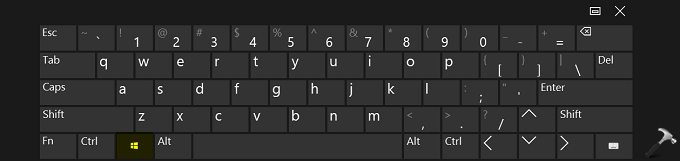
Recently, while using Windows 10 Pro, we suddenly discovered that after doing some Windows Update, Windows key lost its functionality. Restarting the machine, and subsequently running the System File Checker scan didn’t helped in this case. So in case if you’re also facing this issue, here’s how to fix it.
FIX: Windows Key On Keyboard Not Working In Windows 10
Registry Disclaimer: The further steps will involve registry manipulation. Making mistakes while manipulating registry could affect your system adversely. So be careful while editing registry entries and create a System Restore point first.
1. Press  + R and put regedit in Run dialog box to open Registry Editor (if you’re not familiar with Registry Editor, then click here). Click OK.
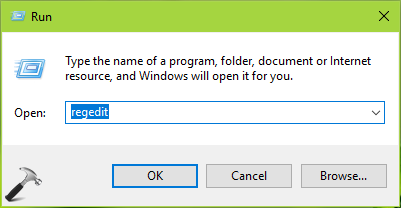
2. In left pane of Registry Editor window, navigate to following registry key:
HKEY_LOCAL_MACHINE\SYSTEM\CurrentControlSet\Control\Keyboard Layout
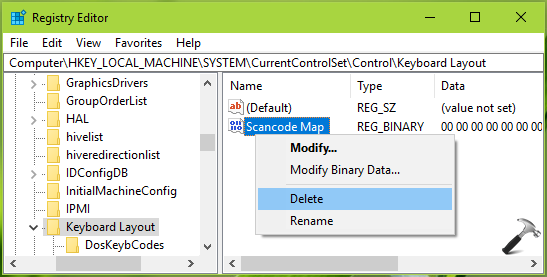
3. In the right pane of Keyboard Layout, look for the Scancode Map named binary registry DWORD (REG_DWORD) and right click on it, select Delete. Close the Registry Editor and reboot the machine.
After restarting your system, the Windows key should start functioning as expected.
Hope this helps!



Hi. Thank you for your help. In my folder, there is only the “default” file. Not the “Scancode Map”. Any idea?
^^ Ok then try reinstalling keyboard driver.
scancode map was not in that right pane??
^^ Restart your system and check.
>windows key not working
>instructions say to hit windows key + r