

If you’re the only user who uses your system and you don’t want to enter password at logon, this article is for you. Sole users may opt for skipping password at each login. But there is no direct setting to allow you to bypass the login screen.
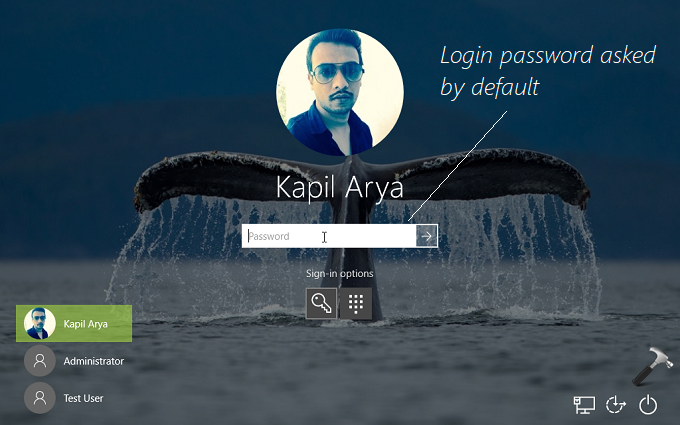
If you want to login automatically to your Windows 10, you can try either of the methods mentioned below. Note that, automatic login may reduce security of your system. When other wants to use your system, make sure you turn off automatic login.
Page Contents
How To Automatically Login Without Using Password In Windows 10
Skip Login Password/Bypass Login Screen/Make Windows 10 Auto Logon
WAY 1 – Using Registry
Registry Disclaimer: The further steps will involve registry manipulation. Making mistakes while manipulating registry could affect your system adversely. So be careful while editing registry entries and create a System Restore point first.
1. Press  + R and put regedit in Run dialog box to open Registry Editor (if you’re not familiar with Registry Editor, then click here). Click OK.
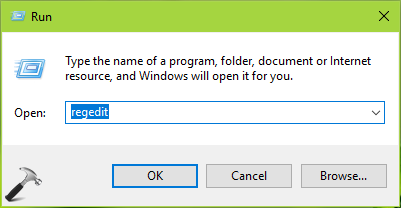
2. In left pane of Registry Editor window, navigate to following registry key:
HKEY_LOCAL_MACHINE\SOFTWARE\Microsoft\Windows NT\CurrentVersion\Winlogon
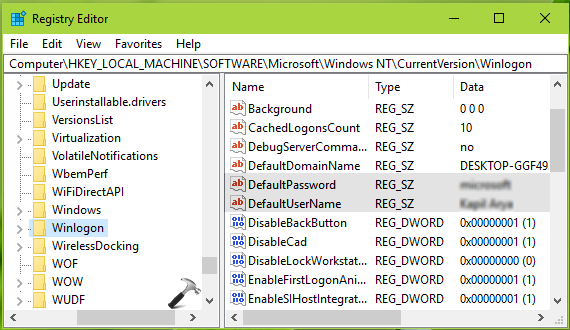
3. In the right pane of Winlogon registry key, look for registry strings (REG_SZ) named DefaultUserName and DefaultPassword. Double click on these strings and set their Value data with your user account name and password, respectively. If you’re on Microsoft account, use the user account name Value data as Microsoft account/<your email ID>. Then in same registry location, double click on AutoAdminLogon registry string.
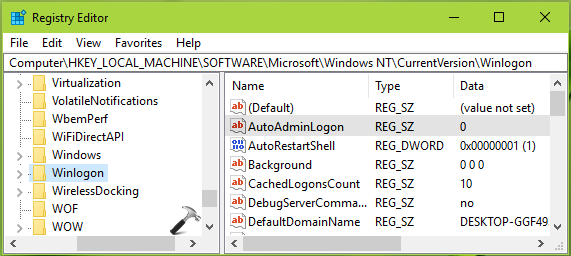
4. Finally, set the Value data for AutoAdminLogon string to 1. Click OK.
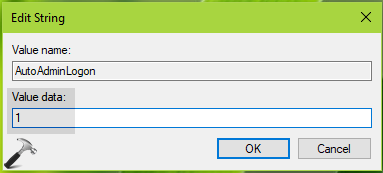
Close the Registry Editor and reboot the machine to login without password.
WAY 2 – Using NETPLWIZ
1. Press + R and put netplwiz in Run dialog box. Click OK or hit Enter key.
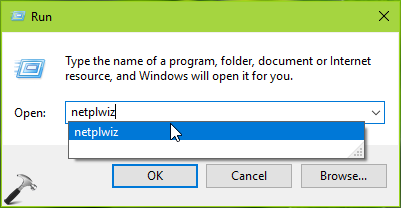
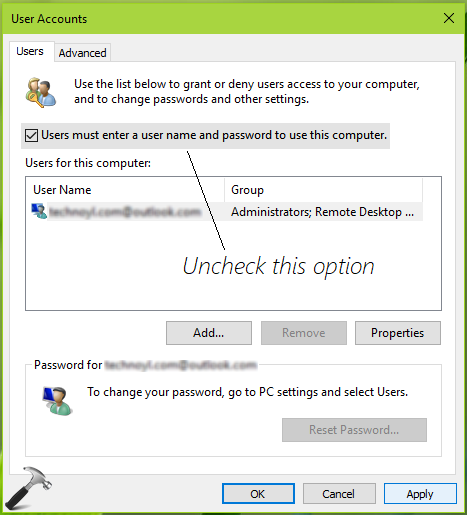
2. In the User Accounts window, on the Users tab, uncheck Users must enter a user name and password to use this computer option. If you find the option missing in Windows 10 Version 2004 or later, check this fix.
3. Next, in Automatically sign in dialog shown below, type your credentials and click OK. Then click Apply, OK in above shown window.
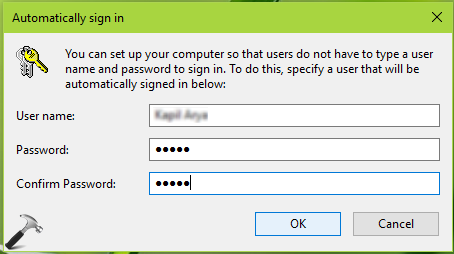
You can now restart your Windows 10 and login automatically.
Check out this video to illustrate this way:
That’s it!







I’m an old guy, and I really appreciate your clear and precise instructions as I struggle to keep up with day-to-day computer use
^^ Glad it helped, Ron 😊
All this “how to’s” that I find tell you how to reset a pin etc from INSIDE the computer. I am locked OUT of my pc so I can not access the inside workings (control panel, run, registry editor, etc).
I downloaded an FTP program suggested by a hosting company, and next thing I know “chromium” was installed in my pc (although during installation I had declined all other options), long story short, the more I did to try to delete Chromium the more it fought me back, to the point that after a reboot my pin for windows 10 sayd “wrong password”.
I have taken out the hard drive, put it into an external case and I am able to get to my files plugging it as a USB drive into another older computer. Any suggestions on how I can get to the registry using it as an external drive (Drive F), all the things I find online are for the drive being the main one (Drive C).
Any help will be greatly appreciated.
I’d like to use my Windows 10 computer without a password login. The ‘netplwiz’ crap doesn’t work because my ‘User Accounts’ dialog box doesn’t have the ‘ Users must enter a user name and password to use this computer’ checkbox. Additionally, editing the registry sounds too risky. Any other way?
^^ Larry, unfortunately, these are the only two ways to achieve auto-logon which I’m aware of.
Thank you so much for the article. Please mention that if it is a network (company) computer, they may need to add the “DefaultPassword” if there is no one and, they need to add another string “DefaultDomainName” and type their domain’s name in the Value.
^^ Thanks a lot Sam for this tip 😊 Will add it to the article now.
Will this method work while signed in to a Microsoft account as well, or does it only work for local accounts?
^^ Works with Microsoft accounts as well.
I followed your instructions with Windows R and typed in netplwiz and User Account came up and there is NO checkmark in “Users must enter…” but I still have to enter my password when booting up…
^^ Follow the fix: https://www.kapilarya.com/users-must-enter-a-username-and-password-to-use-this-computer-missing-in-windows-10.
hie
after leting to you video
step one shit and restart don that the open try to open CMD with no success
step two they ask me for a passwor that I don’t have
if you got a other way I will appraciate your help
I when open micrsoft and try changiing password no success they send a email to the account I can t sign in
try with a USB change setting in the Bios to start from the usb that did work back pin page
try the disk cd with windows tool that did the dame thing back to pin page
how can we see the Registry