User account pictures can be associated with both local and Microsoft account in Windows 10. If you’re using Windows 10 for a long time and if you love to regularly change user account pictures, you might have noticed older account pictures being displayed on Settings app > Accounts > Your accounts. You can observe this in below shown screenshot.
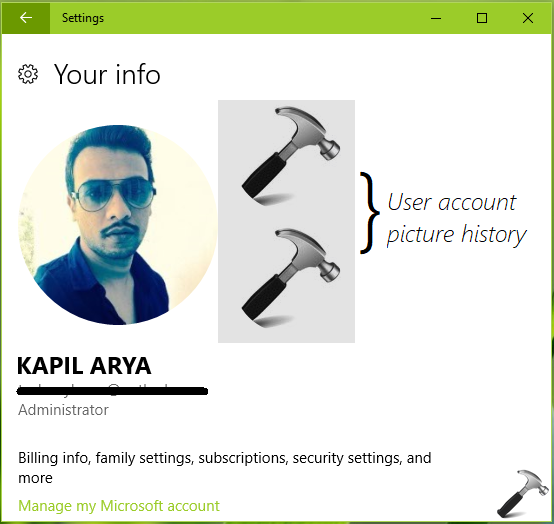
These older account pictures constitute account picture history in Windows 10. Note that local account picture is only displayed on your system. However, when you use Microsoft account, your account picture will be used across various Microsoft services, as it is synced. So in case if you’ve synced once, and later you change your account picture but if some services are not synced, the older picture will continue to display. To avoid this, you should erase account picture history on your system.
Here is how you can remove account picture history in Windows 10.
How To Delete Account Picture History In Windows 10
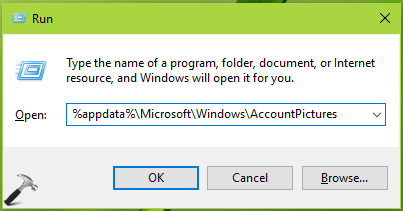
1. Press  + R and type
 %appdata%\Microsoft\Windows\AccountPictures in Run dialog box. Click OK.
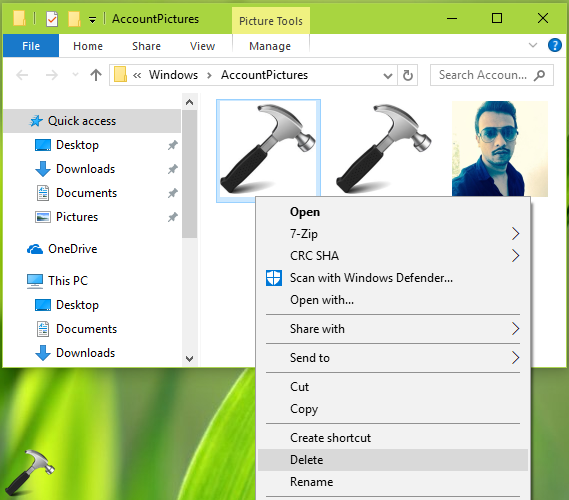
2. In the AccountPictures folder, you should be able to locate older user account pictures. So simply right click those older account pictures and select Delete. Be careful and do not delete the current account picture, otherwise default account picture will be displayed.
Once you delete both the older user account pictures, you can recheck Settings app > Accounts > Your accounts. Now your recently used account pictures should be removed.
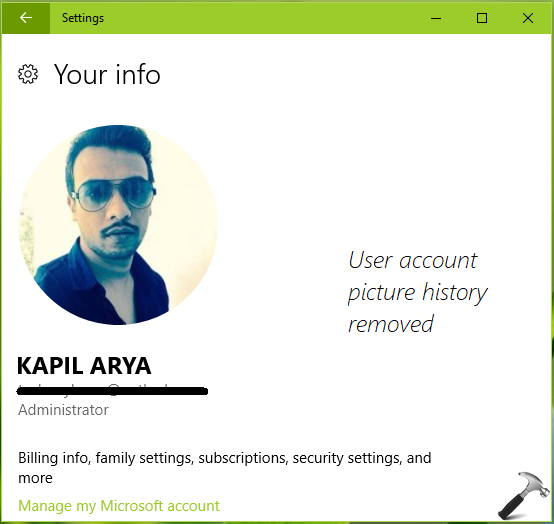
So this is how you can delete user account picture history in Windows 10.
C:\ProgramData\Microsoft\User Account Pictures (assuming Windows is installed on C:). You can change the corresponding images in this folder, with your image of exact size and format to replace default user account picture on Windows 10.Hope you find the trick useful!
Also check: How to delete wallpaper history in Windows 10.