

We all know that in Windows 8, you can use two type of accounts; Microsoft account and local account. In case of both the accounts, you can use a maximum of 16 digit password to safeguard your account. If you’re having an administrator account and if you want to restrict your users to use an specified number of digit password, then this post is gonna help you in doing so.
At many public places like offices; education institutes, you can use this way to shorten user passwords in a standard way. The method to restrict users and force them to use the password with number of digits to be used accordingly you; is mentioned below. This is yet helpful in another way, for example, suppose you have the users of older age limit say 60; then you can set password length to be about 5-6 characters because the group representing this age limit can’t remember their passwords easily if it is too long. Thus here is the way; how to restrict users to use limited digit password:
How To Restrict Password Length For User Accounts In Windows 10/8.1/8 Using Security Policy
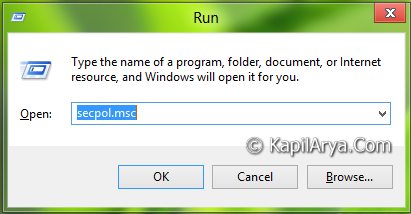
1. Press  + R and put secpol.msc in Run dialog box. Click OK to open Local Security Policy console.
2. In the left pane; navigate:
Security Settings -> Account Policies -> Password Policy
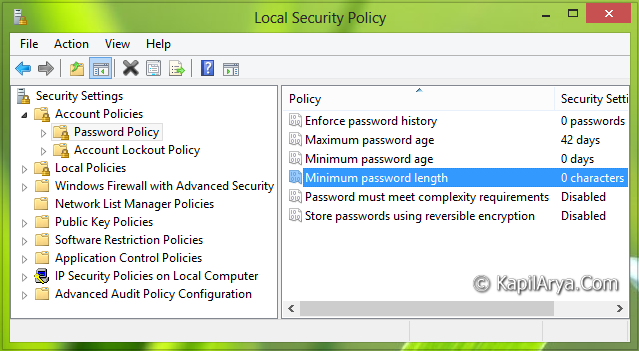
3. In the above shown window, pick the policy named Minimum password length. This security setting determines the least number of characters that a password for a user account may contain. Double click on the same policy to modify it:
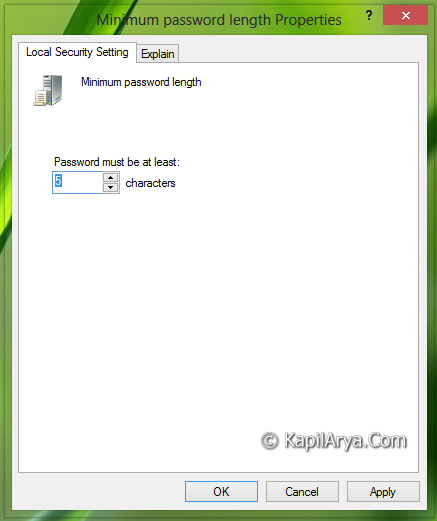
4. In the above shown window, select the number of characters you want to restrict users for creating their passwords. You can set a value of between 1 and 14 characters, or you can establish that no password is required by setting the number of characters to 0. Click Apply followed by OK when you’re done.
Hope you find the article useful!







nice read. learning something new here daily :) ;)