

Earlier, we’ve shared you following article which tells you about using Microsoft Edge as different user:
How to run Microsoft Edge as different user
Now, today in this article, we’ll be applying the concept of running apps as different user to other apps present in Windows 10 operating system. Basically, if the type of content is command line based, or is an executable file etc. you can use the Run as different user function.
Note that Run as different user function is hidden by default. You can enable it using the registry manipulation below. When you enable it, apps supporting this functionality will allow to run them with different user privileges. You’ve to just right click on the app and select Run as different user in context menu.
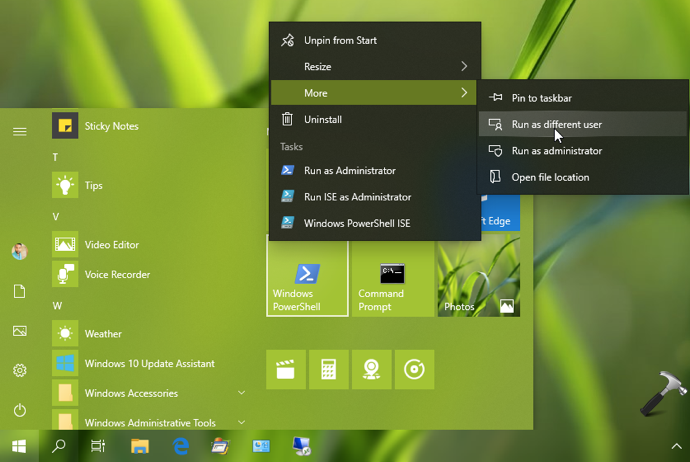
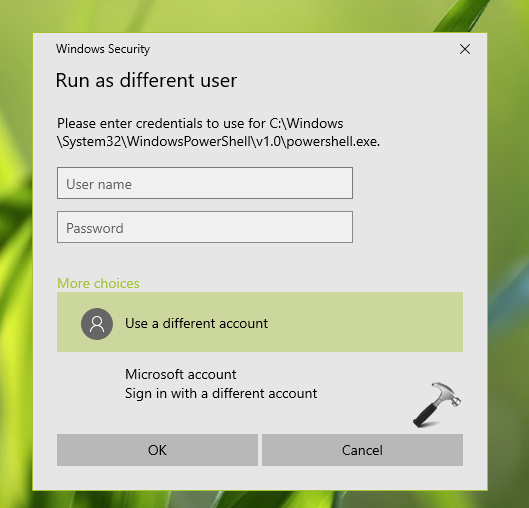
After selecting Run as different user option, you’ll be presented with below shown Windows Security screen. Here you’ve to type that different user credentials and click OK. You can click on More choices to select different Microsoft account as well.
Here’s how you can enable Run as different user option:
How To Run Apps As Different User In Windows 10
Registry Disclaimer: The further steps will involve registry manipulation. Making mistakes while manipulating registry could affect your system adversely. So be careful while editing registry entries and create a System Restore point first.
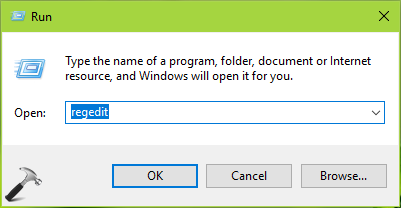
1. Press  + R and put
 regedit in Run dialog box to open Registry Editor (if you’re not familiar with Registry Editor, then click here). Click OK.
2. In left pane of Registry Editor window, navigate to following registry key:
HKEY_LOCAL_MACHINE\SOFTWARE\Policies\Microsoft\Windows\Explorer
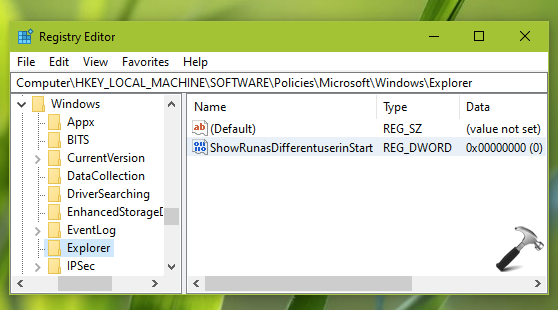
3. Now in the right pane of Explorer registry key, create a registry DWORD (REG_DWORD) named as ShowRunasDifferentuserinStart. Double click on this registry DWORD to modify its Value data:
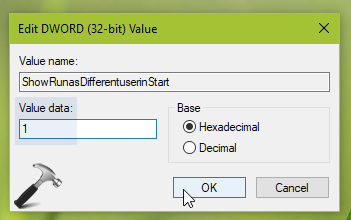
4. Set the Value data to 1 and click OK. Close Registry Editor and reboot to make changes effective.
After restarting your system, you’ll find Run as different user option present in context menu for apps.
That’s it!






Shift + right click will give this option as well