

We all know that built-in administrator has all the rights to manipulate his system, in the way he wants. But recently we came around a strange and weird problem where even built-in administrator can’t open apps. This sounds completely meaningless but that’s true and happens if you’re working in a domain environment. Actually when you log-in as domain administrator and try to open apps such as Microsoft Edge, you may be greeted with following message:
Page Contents
This app can’t open
Microsoft Edge can’t be opened using the built-in administrator account. Sign in with a different account and try again.
![[FIX] Microsoft Edge Can Not Be Opened Using Built-in Administrator Account. Sign In With A Different Account And Try Again.](https://htse.kapilarya.com/FIX-Microsoft-Edge-Can-Not-Be-Opened-Using-Built-In-Administrator-Account-Sign-In-With-A-Different-Account-And-Try-Again.png)
The root cause behind this problem is Administrator approval mode, which is a security dedicated feature. When Administrator approval mode is Not configured or is Disabled, this problem doesn’t occurs. While if this mode is set to Enabled, the issue comes into play. This case is not limited to Microsoft Edge only and you can face it with other apps as well. Thus, correctly configuring the corresponding policy for Administrator approval mode should solve this problem. Here is how:
FIX : Microsoft Edge Can’t Be Opened Using The Built-in Administrator Account. Sign In With A Different Account And Try Again.
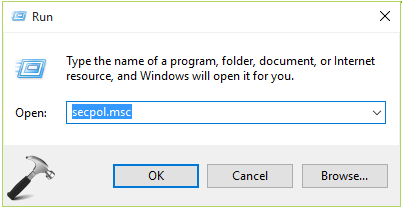
1. Press  + R and put secpol.msc in Run dialog box. Click OK to open Security Policy snap-in.
2. Next, in the below shown window, click Security Settings > Local Policies > Security Options. Then in corresponding right pane, locate the Policy named User Account Control: Use Admin Approval Mode for the built-in Administrator account.
![[FIX] Microsoft Edge Can Not Be Opened Using Built-in Administrator Account. Sign In With A Different Account And Try Again.](https://htse.kapilarya.com/FIX-Microsoft-Edge-Can-Not-Be-Opened-Using-Built-In-Administrator-Account-Sign-In-With-A-Different-Account-And-Try-Again-1.png)
Double click on this setting to modify.
3. Finally, in the policy configuration window shown below, change the status to Disabled. Click Apply followed by OK.
![[FIX] Microsoft Edge Can Not Be Opened Using Built-in Administrator Account. Sign In With A Different Account And Try Again.](https://htse.kapilarya.com/FIX-Microsoft-Edge-Can-Not-Be-Opened-Using-Built-In-Administrator-Account-Sign-In-With-A-Different-Account-And-Try-Again-2.png)
You can now force Group Policies to refresh themselves by running gpupdate /force command or you may restart your machine to make the changes effective and resolve the issue.
Check following video to illustrate this fix:
Hope this helps! Still if the app can’t be opened, try to re-register it.





Dear Kapil thanx a lot for your response but when I run secpol.msc on the command prompt it says file not found
^^ That means you’re on basic version of Windows. Hence if your system is part of domain, you need to ask your domain controller to follow these steps :)
Not hardly. I have a standalone Windows 10 64 bit installation. NOT part of a domain. Nice guess though. I’m at a standstill right now. I can’t get into anything. Things were great until a couple weeks ago. I’m sure it was another update fail. I’d dump windows in a heartbeat if my work would allow it.
^^ You can go ahead with the steps, they should work for standalone machine :)
Kapil,
Thanks for the advice. However, same as Phila, mine is a stand alone device a Lenovo Miix 1030 running on win 8.1 then I upgraded a few months ago to win 10. The sad part is that I used a ffrent account as suggested by the system already and tried everything I know to get to the above local security policy using your suggested way and search function, still nothing came up. secpol.msc doesn’t run because the file couldn’t be found. search function couldn’t find the local security policy. I would appreciate it if you have other advise to give us to rectify this? Thanks!
^^ Seems like you’re on basic version of Windows and secpol.msc won’t run on that. Open Registry Editor and go to this key:
In the right pane, set FilterAdministratorToken to 0.
Kapil,
Followed your advise. unfortunately I cannot find the FilterAdministrator token.
The only items in the system folder under policies are:
ConsentPromptBehavioradmin
ConsentPromtBehavioruser
DisbleRegistryTools
DisableTaskMgr
dontdisplaylastusername
DSCAutomationHostEnabled
EnableCursurSuppression
EnableInstallerDetection
EnableLUA
EnableSecuredUIAPaths
EnableVirtualization
legalnoticecaption
legalnoticetext
PromptOnSecureDesktop
scforceoption
shutdownwithoutlogon
undockwithoutlogon
ValidateAdminCodeSignatures
Thanks!
^^ Create it as a new DWORD value and see if it works :)
Kapil,
It works!
It works!
Thank you!
Thank you very much!!!
:)
^^ Perfect! Glad I could help :D
Kapil I have created the new reg entery but it has not made a diff?
should I restart my pc?
^^ Yep!
I really loved all of your troubleshooting steps, it helped me a lot
^^ Thanks for your feedback!
This did not help. Any other suggestions?
^^ It worked for others here, let me know what you’ve done so far!
mmkay, I’m stuck. so I cannot make another account, every time I try it won’t open the window. I also can’t get into secpol.msc because the file can’t be found. so I went thru the registry and the Filter administration token was already set to 0 so….any ideas?
This is one of THE MOST ridiculous features ever! Who in the heck approved this at Msoft??? Seriously frustrating.
Bizar how this article is over 3 years old, and still applicable to many Windows 10 pc’s. Guess it turns up reguarly :-( Kapri’s is right, this is the fix, only problem is you need to click it in the right order. If UAC isn’t set it won’t work, you really need to change the value. I found that if Kapril’s solution doesn’t work you can give regedit a try.
HKEY_LOCAL_MACHINE\Software\Microsoft\Windows\CurrentVersion\Policies\System\EnableLUA set it to 1
HKEY_LOCAL_MACHINE\Software\Microsoft\Windows\CurrentVersion\Policies\System\ConsentPromptBehaviorAdmin Set it to 0 (zero)
HKEY_LOCAL_MACHINE\Software\Microsoft\Windows\CurrentVersion\Policies\System\PromptOnSecureDesktop Set it to 0 (zero)
–> Reboot Computer !!! <—
You can also put it in a reg file :
***************************************
Windows Registry Editor Version 5.00
[HKEY_LOCAL_MACHINE\Software\Microsoft\Windows\CurrentVersion\Policies\System]
"EnableLUA"=dword:00000001
"ConsentPromptBehaviorAdmin"=dword:00000000
"PromptOnSecureDesktop"=dword:00000000
***************************************
Reboot the computer and you should be ok. Works perfect for me in our domain environment. I've automated the process via Ivanti Automation Manager. Offcourse you can use SCCM for it as well.
Without the reboot it doesn't work !!!
Kind Regards,
Ricardo
^^ Thanks Ricardo for your inputs, much appreciated 😊