In Internet Explorer, whatever you download, after certain interval, Internet Explorer automatically remove those download history from your system. Now consider a situation when you need to check what you have downloaded a month ago. Now to trace where the download content could be, you won’t be able to find anything since Internet Explorer has erased that entry already. So as a precaution, if you don’t like this default analogy of Internet Explorer to erase download history, you should make it to remember.
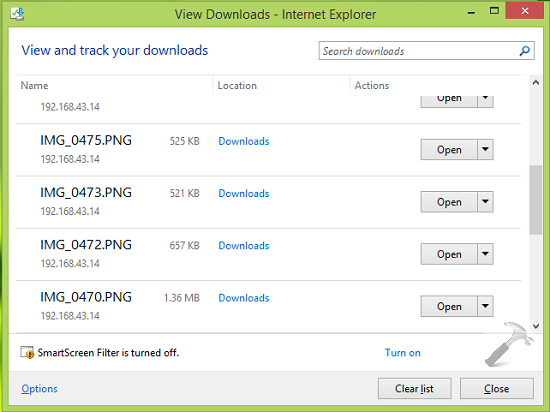
There are two ways using which you can avoid erasing of download history from Internet Explorer, they’re discussed here:
Page Contents
How To Prevent Deleting Of Download History In Internet Explorer
WAY 1 – Using Group Policy
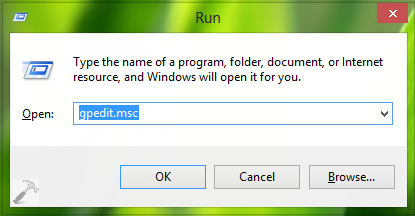
1. Press  + R and put gpedit.msc in Run dialog box to open Local Group Policy Editor. Click OK.
2. Navigate here:
Computer Configuration -> Administrative Templates -> Windows Components -> Internet Explorer -> Delete Browsing History
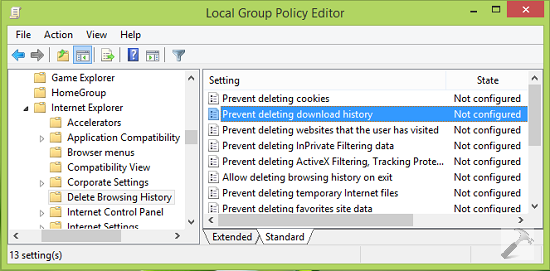
3. In the right pane of above shown window, look for the Setting named Prevent deleting download history which is Not Configured by default. Double click on this policy to get this:
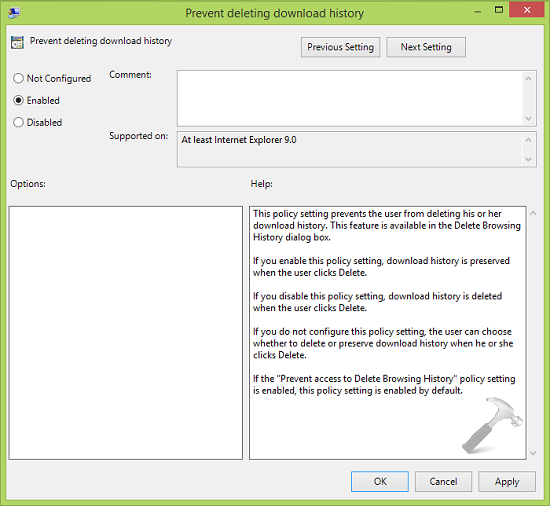
4. In the above shown window, select Enabled, click Apply followed by OK. Close the Group Policy Editor and reboot the machine to activate this setting.
WAY 2 – Using Registry
Registry Disclaimer: The further steps will involve registry manipulation. Making mistakes while manipulating registry could affect your system adversely. So be careful while editing registry entries and create a System Restore point first.
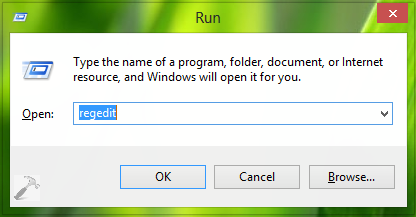
1. Press + R and put regedit in Run dialog box to open Registry Editor (if you’re not familiar with Registry Editor, then click here). Click OK.
2. Navigate here:
HKEY_LOCAL_MACHINE\SOFTWARE\Policies\Microsoft\Internet Explorer
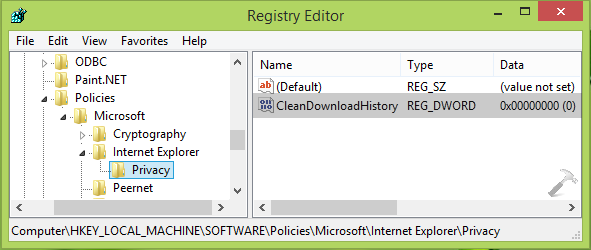
3. At this registry location, right click over Internet Explorer key and select New -> Key. Name this subkey as Privacy. Now come to right pane of Privacy such that registry location becomes HKEY_LOCAL_MACHINE\SOFTWARE\Policies\Microsoft\Internet Explorer\Privacy. In the right pane, right click and select New -> DWORD Value. Name the newly created DWORD as CleanDownloadHistory. Obviously, when you create this DWORD, it must have 0 as Value data. So we’re done now.
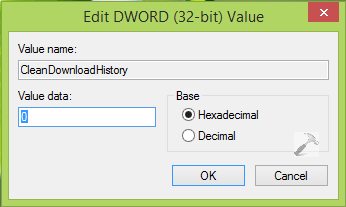
Now close the Registry Editor and reboot to prevent deleting of download history from Internet Explorer.
That’s it!