Task Scheduler aka Scheduled Tasks is one of the important component in Windows as far as processing is concerned. It basically manages Windows complete operations according to priority. Every Windows copy have a Task Manager inside it, and you can access it anytime. In the Scheduled Tasks window, I noticed that there are Start and End options, embedded by default, for right click context on every task.

Let us consider a scenario, we picked up a random task in the Scheduled Tasks window, which is still running, but if we use End option using right click context of corresponding task, Windows will do a force to stop the task. This may be injurious to your computer, or if the task is of top priority, you’ll lose the important data concerning it. In this article, I’ll tell you the way, how you can prevent users from ending a task forcefully. The method is described as follows:
Page Contents
Prevent Users From Forcefully Ending Scheduled Tasks
1. Press Windows Key + R combination, type put gpedit.msc in Run dialog box and hit Enter to open the Local Group Policy Editor.
2. Navigate here:
Computer Configuration -> Administrative Templates -> Windows Components -> Task Scheduler
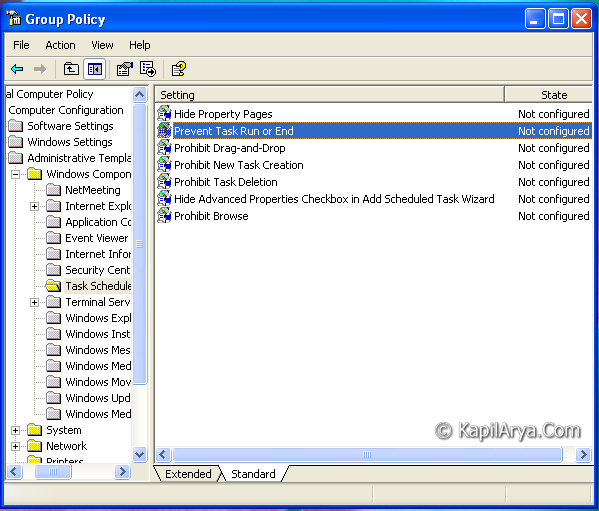
3. In the right pane of this location, look for the setting Prevent Task Run or End. Double click on same setting to modify it, you’ll got this:
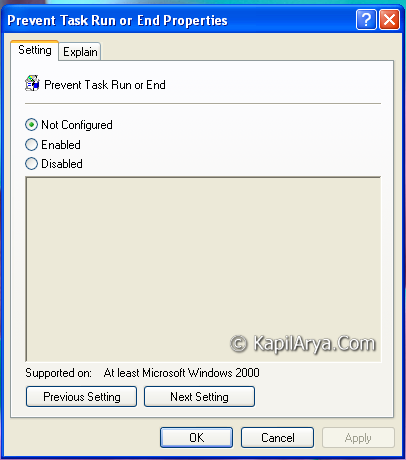
4. In the above window, click on Enabled to prevent users from ending task while they are in running phase. Click Apply followed by OK. Now Group Policy immediately disables the End Task option, so the users can’t use it and thus can’t force Windows to end the task. That’s it!
Prevent Task End Using Registry Editor
1. Press Windows Key + R combination, type put Regedt32.exe in Run dialog box and hit Enter to open the Registry Editor.
2. Navigate to the following location:
HKEY_LOCAL_MACHINE\Software\Policies\Microsoft\Windows\Task Scheduler5.0

3. In the right pane of this location, create a DWORD named Execution using Right click -> New -> DWORD. Double click on it to modify:

4. In the above box, input the Value data as 1 to prevent users to forcefully end the tasks. Click OK. Reboot to see results.
Hope you like the tip and find it useful!