We’ll know that we can remove all power options at once in Windows using Group Policy. For this, we need to enable ‘Remove and prevent access to the Shut Down, Restart, Sleep, and Hibernate commands‘ policy setting. This setting can be located at User Configuration > Administrative Templates > Start Menu and Taskbar.
But if you want to remove Shut down option specifically for a standard user present on your system, this article is for you. Recently a Windows user asked me about removing Shut down option for a particular user, while keeping other power options intact.
In case if you also have the same requirement, you can easily achieve it via Shut down the system security policy. This setting checks if the user logged in currently can shut down the machine. You can read about this policy in detail in this Microsoft documentation.
How To Remove Shut Down Option For Standard Users In Windows 10
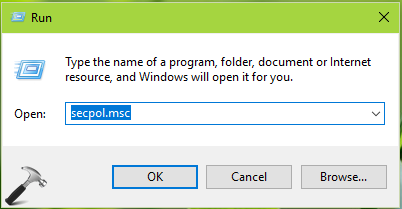
1. Press  + R and put
 secpol.msc in Run dialog box. Click OK to open Security Policy snap-in.
2. Then in Security Policy snap-in window, navigate here:
Security Settings > Local Policies > User Rights Assignment
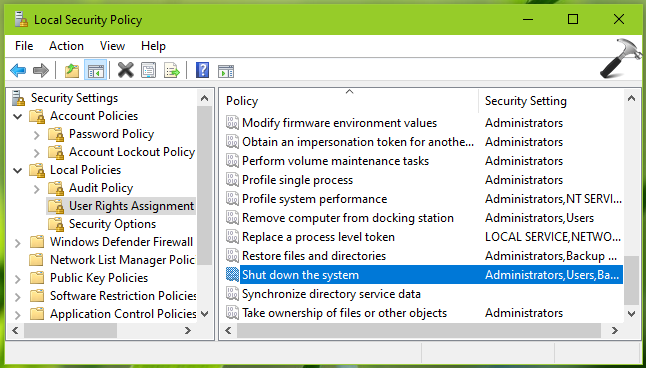
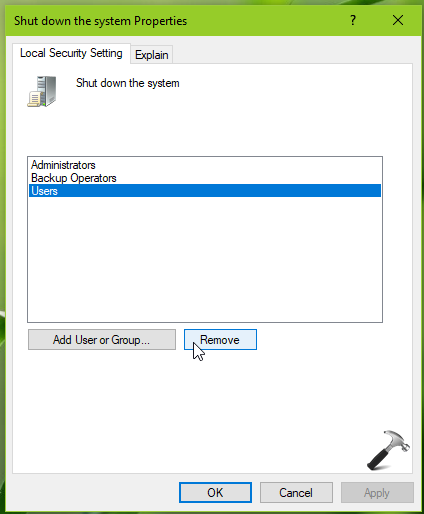
3. In the right pane of User Rights Assignment, scroll down and look for policy setting named Shut down the system. Double click on the policy to modify it. By default, you’ll see Administrators, Backup Operators and Users listed there (assuming you’re on client based non-domain machine). This means only those listed groups have ability to shut down the system atm. So to prevent standard users from shutting down the system, select Users and click Remove. Click Apply, OK.
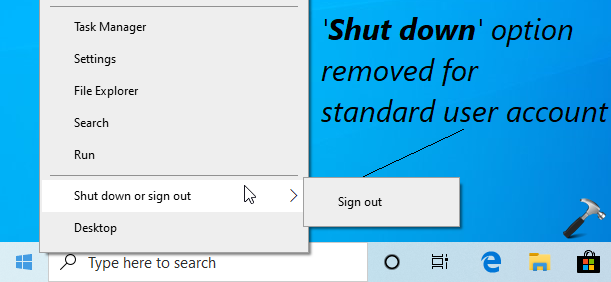
4. Close Security Policy snap-in and login to standard user profile and check. You’ll find that Shut down option is removed now and user can no longer turn off the machine which implies only administrators can shut down system.
That’s it!