

The Hyper-V technology provides an environment that you can use to create and manage virtual machines and their resources. Each virtual machine is an isolated, virtualized computer system that is capable of running its own operating system. This allows you to run multiple operating systems at the same time on the same physical computer.
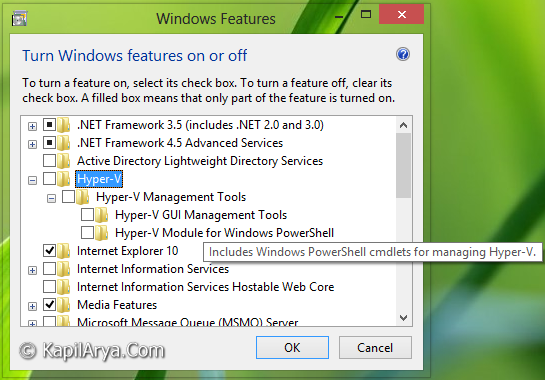
The type of virtualization offered by Hyper-V is known as hardware virtualization. Hyper-V is a hypervisor-based hardware virtualization. Hyper-V Manager provides management access to your virtualization platform.
Hyper-V includes many new features that make it easier to virtualize your workloads. For more information about these new features, see:
How To Bring Hyper-V Manager Inside Control Panel In Windows 8
So as you can see in the above image, the settings to manage Hyper-V are inside Windows Features. Here is how to add it to Control Panel so that you can mange it easily form there.
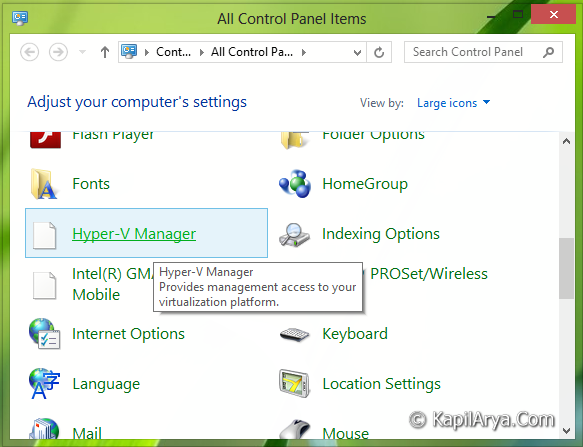
In order to add the Hyper-V management entries to Control Panel, simply download the registry file from below link. After downloading them, right click on it and select Merge.
Add Hyper-V Manager To Control Panel
Remove Hyper-V Manager From Control Panel
NOTE : To create a Hyper-V client, you must have a 64-bit version of Windows 8 Pro or Windows 8 Enterprise with a 64-bit CPU that supports SLAT (Second Level Address Translation). You’ll also need at least 4 GB of RAM. Hyper-V does support creation of both 32-bit and 64-bit operating systems in the virtual machines.
That’s it!




it is not working sir
^^ Make sure you fulfill the requirements as stated in the Note of the article.
Is there any possibility of adding Hyper-V in Windows 8 (normal Windows 8 not pro or enterprise)
^^ I think no, because Hyper-V uses Second Level Address Translation (SLAT) and that is not supported with Windows 8. Windows 8 Pro or Enterprise are equipped for supporting Hyper-V requirements.