For today’s generation, WhatsApp needs no introduction and we all are very much familiar with it. Since it is very common platform for instant messaging, it is most vulnerable too. So if your WhatsApp chats are very personal and you want no one else should ever go through it, this article is for you. Recently, WhatsApp introduced a nice security feature to their app and that is called two-step verification aka multi-factor authentication (MFA).

By enabling two-step verification, you’ll have to confirm your identity when you register for WhatsApp for your number on a different device. This extra-security layer will help you to safeguard your content from others. To use two-step verification, first of all, you need to upgrade your WhatsApp installation to latest version and you can follow these steps:
How To Enable Two-Step Verification For WhatsApp On Windows 10 Mobile
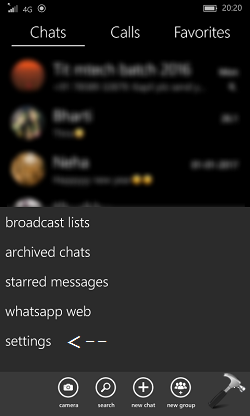
1. Open WhatsApp and hit three dots in bottom right corner of screen. Then tap on settings.
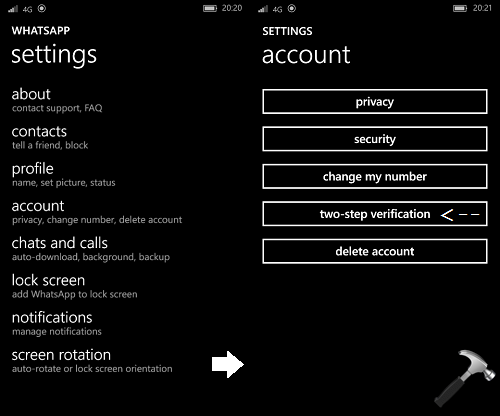
2. Under settings screen, tap on account. On next screen, hit the two-step verification button.
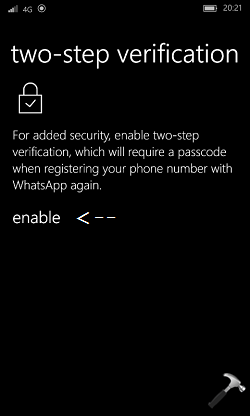
3. Then in two-step verification screen, tap on enable.
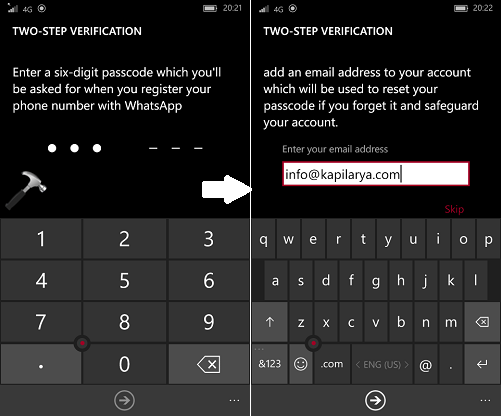
4. Moving on, add your desired six-digit passcode for two step-verification. You’ve to remember this passcode and use it when you register for WhatsApp on your number in the future. You can next add your email as a recovery option, in case if your forgot the passcode by mistake. However, adding a recovery email is optional but we recommended that you should add it. After confirming your email, you’re all set for MFA.
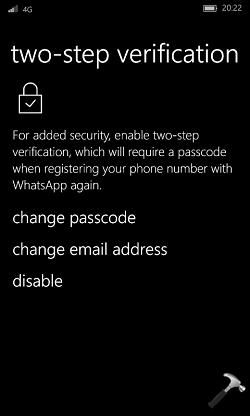
5. You’ll be then taken to two-step verification dashboard where you can manage this feature. You can here change the passcode, recovery email or disable this function, any time as per your convenience.
You can use similar approach to add two-step verification on Android and iOS platform. Hope you find this security feature helpful!