

There might be different reasons why you can’t start a particular service in Windows. This article talks about one of those common issue which occurs when the service is failed to start because of incorrect account.
Actually, recently we faced this problem on our Windows 11 Enterprise running system. We tried to start to Diagnostics Policy Service and it failed to start with following message:
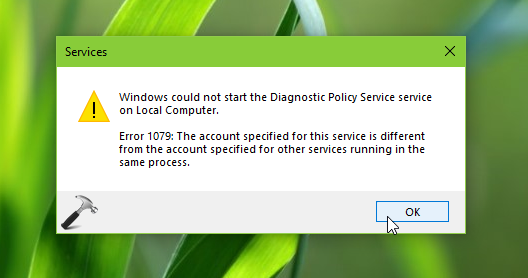
Microsoft says, this issue is expected to occur when the service is started with local system account instead of Local Service account. Because the local system account do not carry the required permissions to run such services. Due to lack of permissions, Windows can’t start the service and throws the error message 1079 immediately.
So in case if you’re also facing this issue, here’s how you can fix it.
Page Contents
FIX: Error 1079 The Account Specified For This Service Is Different From The Account Specified For Other Services Running In The Same Process
Manual fix
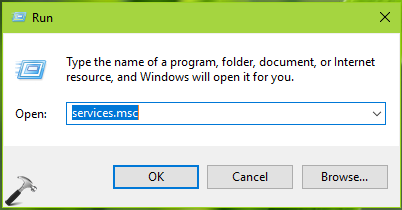
1. Press  + R and type
 services.msc in the Run dialog box, hit Enter key to open Services snap-in.
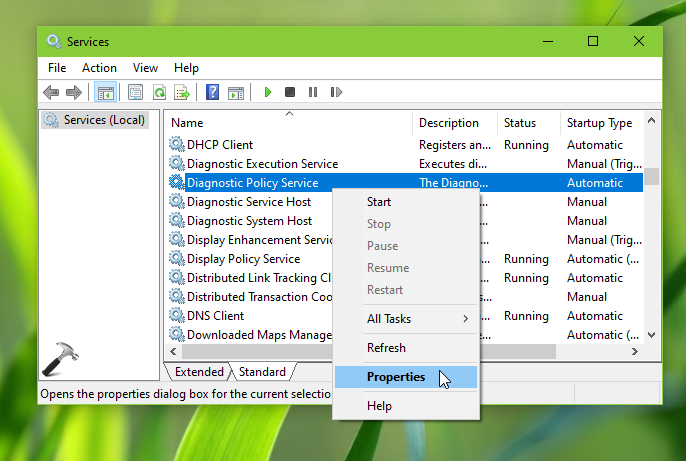
2. In Services snap-in window, right click on the service with which you’re facing this issue, select Properties.
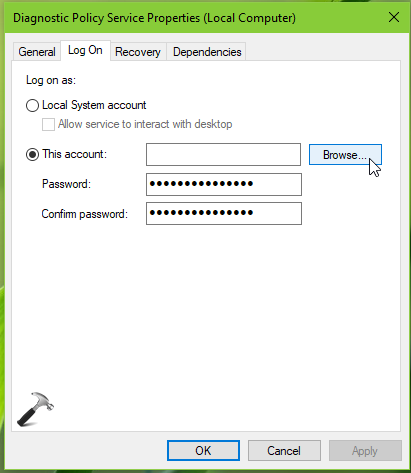
3. On the property sheet, switch to Log On tab. Select This account and then click Browse.
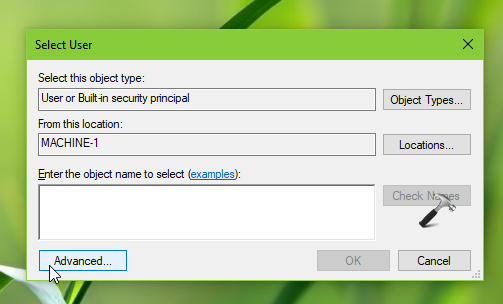
4. Moving on, in Select User window, click Advanced.
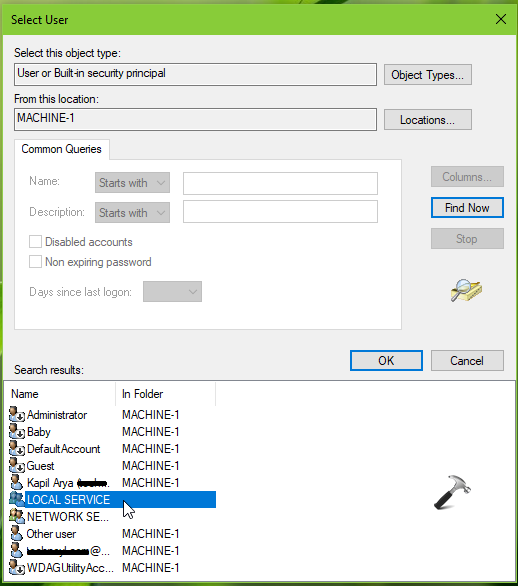
5. In next window, click on Find Now. From Search results, select LOCAL SERVICE and click OK.
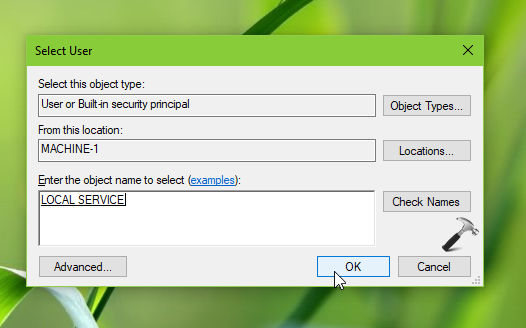
6. Then again in Select User window, click OK.
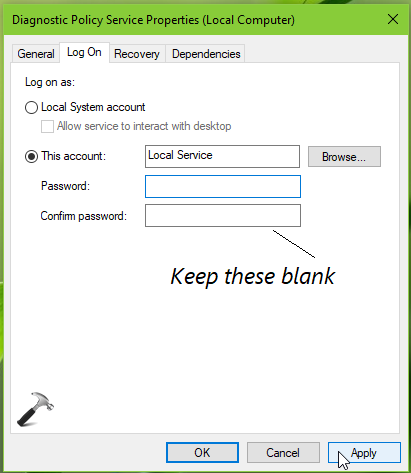
7. Back to service property sheet, as Local Service is added now, make sure you keep Password and Confirm password fields blank. Click Apply, OK.
Now try to start the service and it should be started without any issue.
Video fix
Checkout following video to illustrate this fix:
Hope this helps!






I have windows 8.1 pro I try all for make the laptop receive updates, is not working If you please can help contact me at *Email removed for privacy*
Thank you in advance
^^ Refer: https://www.kapilarya.com/windows-could-not-search-for-new-updates.
Hello Kapil Arya. I just tried the steps you outlined in “https://www.kapilarya.com/fix-error-1079-the-account-specified-for-this-service-is-different” but my audio is still not working. My laptop is running Windows 8.1. Please what else can I do? I’ve tried so many tips got from the Microsoft support community and even hp support (I’m using HP 15 Pavilion) but nothing has worked for me. About a week before this sound problem started, a friend of mine, who is into computer repairs, had reformatted the system drive and reinstalled the original operating system (Windows 8.1 Enterprise) along with the original hardware drivers and software, so I’m not even sure doing another System Recovery would work. I’m so fed up with this problem, I don’t know what next to do. Please help!
^^ Try creating new admin account and check if issue still persists.
Hello Kapil Arya!
Thank You!!! I have been pulling out what’s left of my hair trying to undo the sudden death of sound on my HP 6600Z Windows 7 Pc. Website after website just dealt with drivers which was not the problem. My drivers for Realtek Audio were up to date but the audio device just could not be found no matter what I did. You instructions solved the problem and my blood pressure is coming back down.
Please don’t mind my e-mail address. I am old school security conscious and it helps with annonymity.