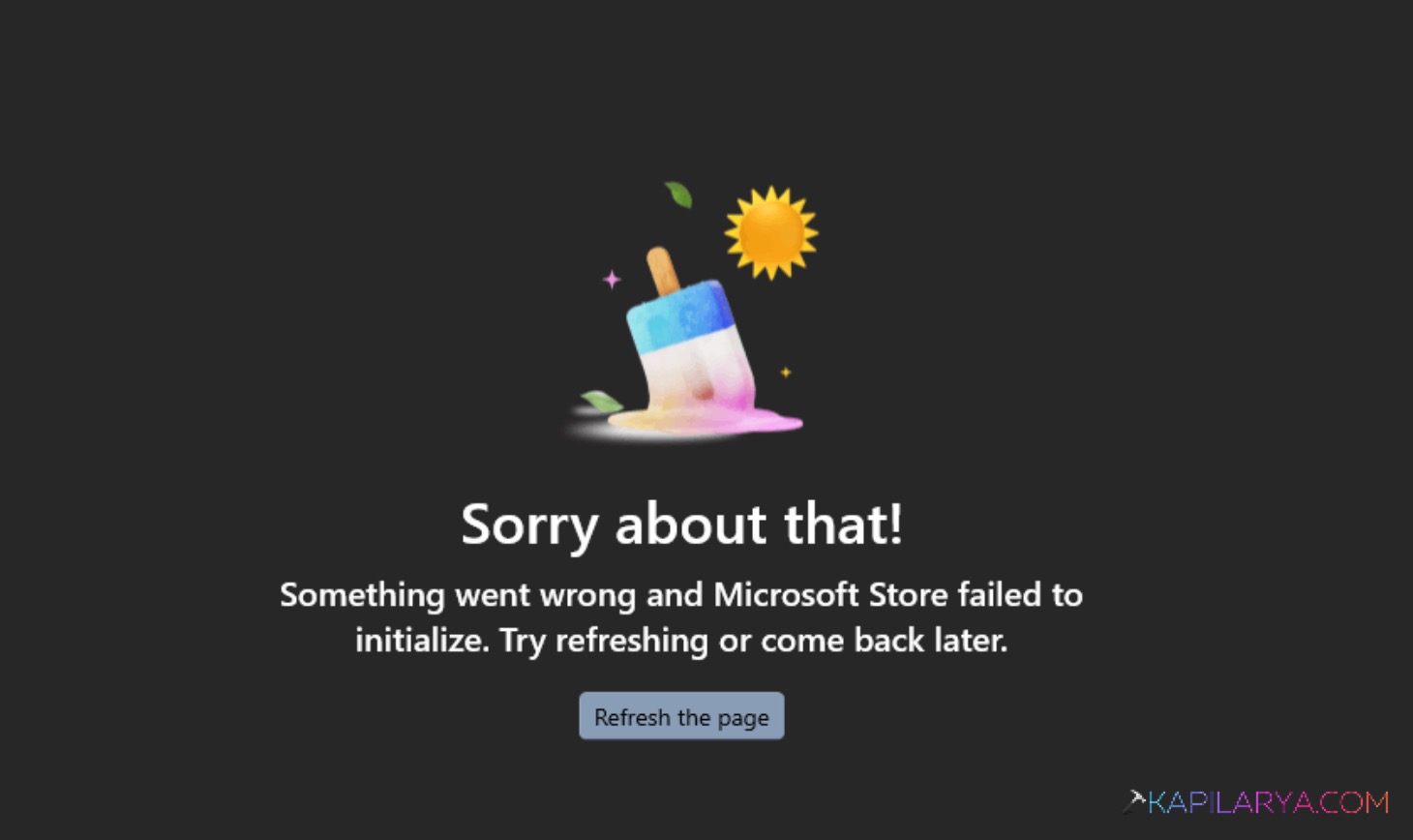
When you open the Microsoft Store on Windows 11 and encounter – Something went wrong and Microsoft Store failed to initialize, it usually means the app can’t complete its startup process.
Page Contents
Fix Microsoft Store Failed to Initialize in Windows 11
It could be due to corrupted cache or app files, out-of-sync system settings, misconfigured network/proxy conditions, disabled services, or profile corruption. Below are eight effective solutions to fix the problem.
Fix 1: Restart Your PC and Store
A fresh start often restores essential services and clears minor glitches.
1. Close the Microsoft Store completely.
2. Restart Windows, then open the Store again.
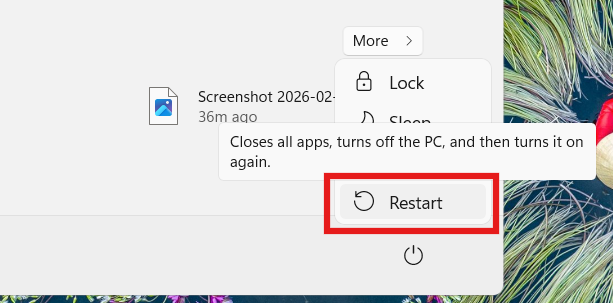
This resets many temporary issues that prevent initialization.
Fix 2: Verify Date, Time, Internet & Proxy Settings
An incorrect system time or network configuration can block Store communication with Microsoft servers.
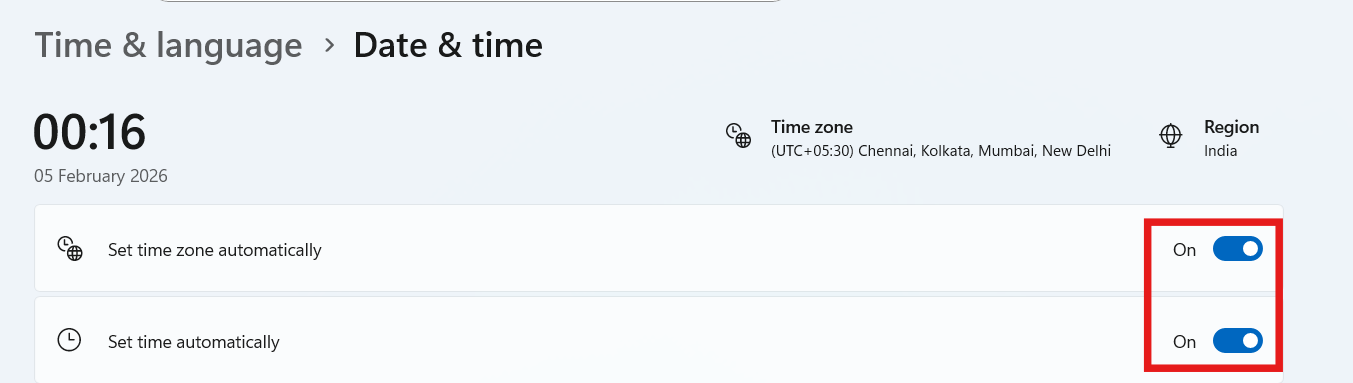
1. Open Settings and click on Time & language, and go to Date & time.
2. Turn on Set time automatically and Set time zone automatically.
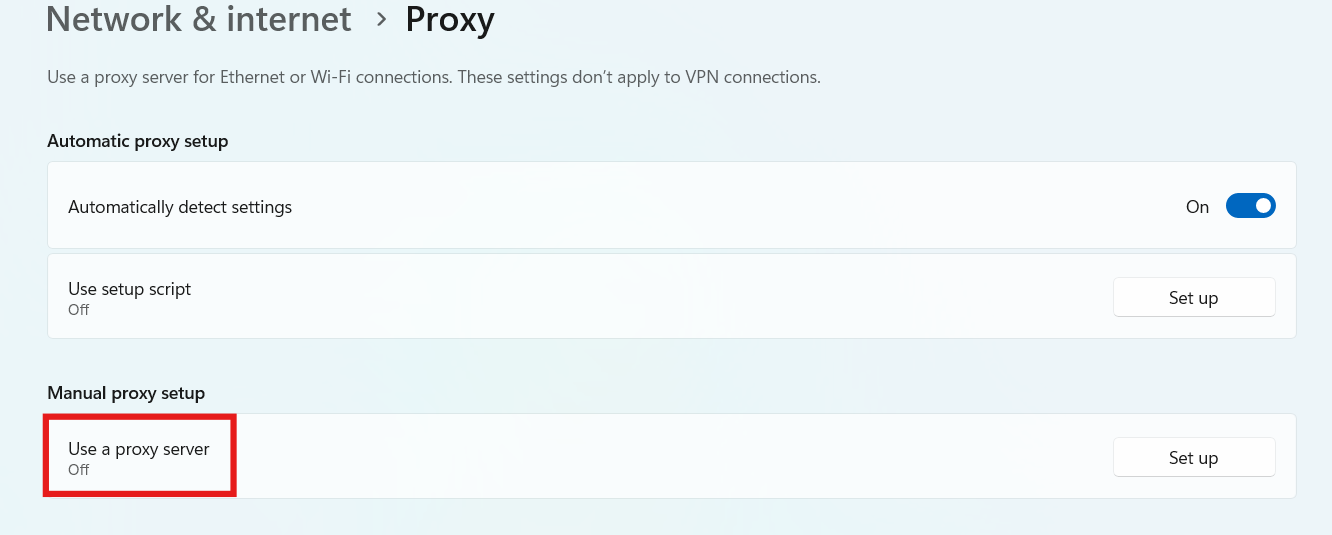
3. In Settings, go to Network & Internet and then Proxy.
4. Make sure Use a proxy server is OFF. School or work proxies can remain active and block the Store.
5. Confirm your internet connection is stable.
Fix 3: Reset the Microsoft Store Cache
Corrupted cache files often trigger initialization errors:
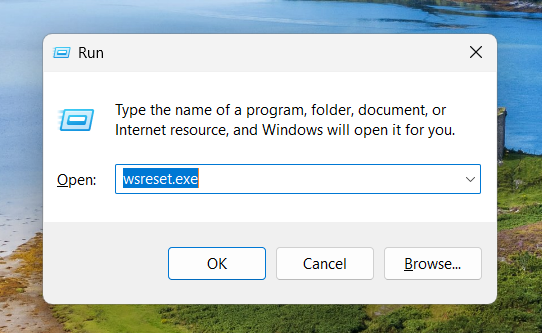
1. Press Win + R.
2. Type wsreset.exe and press Enter.
3. Wait as the cache resets and the Store reopens.
Fix 4: Update Windows 11
Missing or outdated system components can break Store functionality:
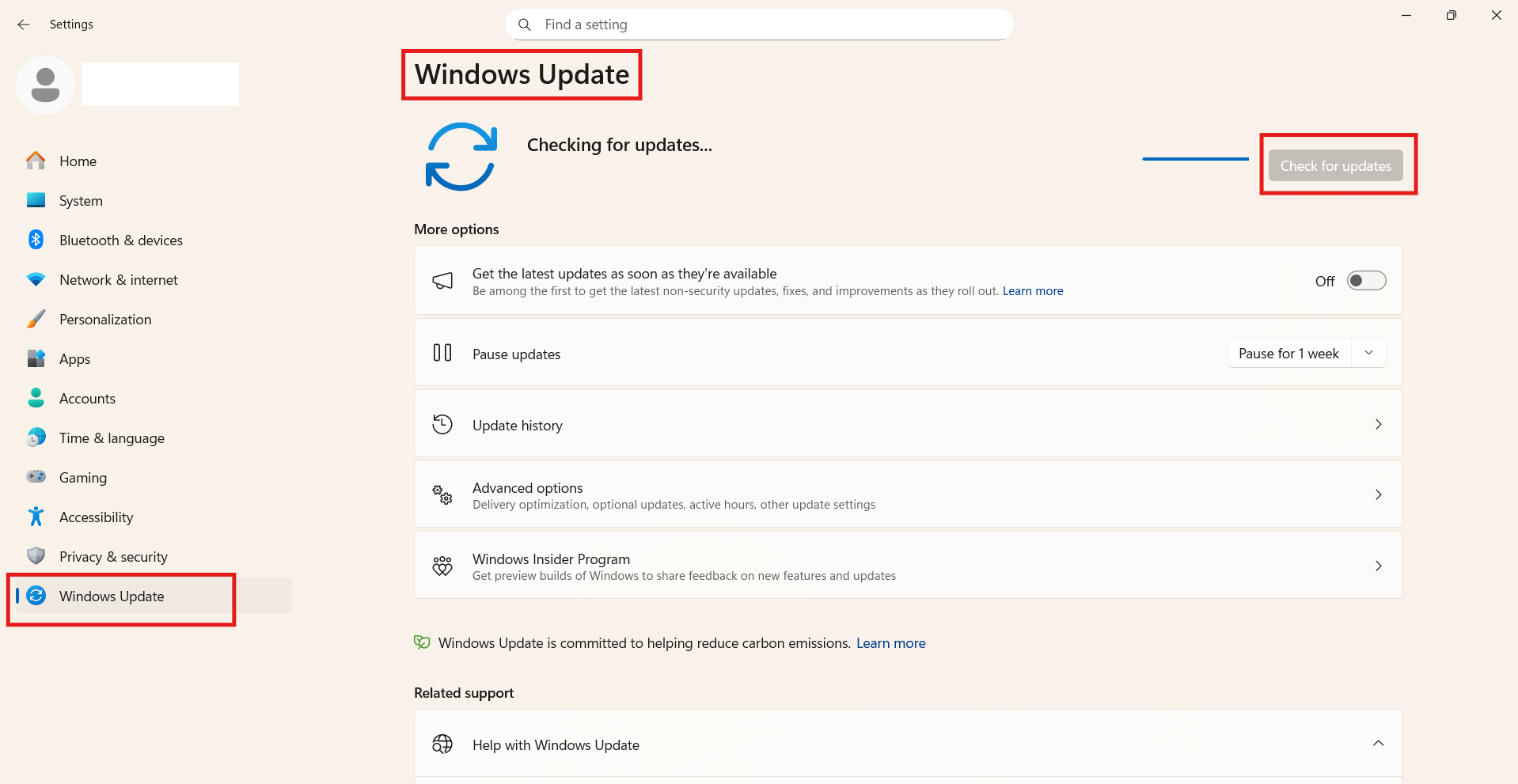
1. Go to Settings and click on Windows Update.
2. Click Check for updates and install all available patches.
3. Restart your PC and try the Store again.
Fix 5: Repair or Reset the Microsoft Store App
Corrupted Microsoft Store files can be repaired with below mentioned steps:
1. Open Settings and go to Apps. Click on Installed apps.
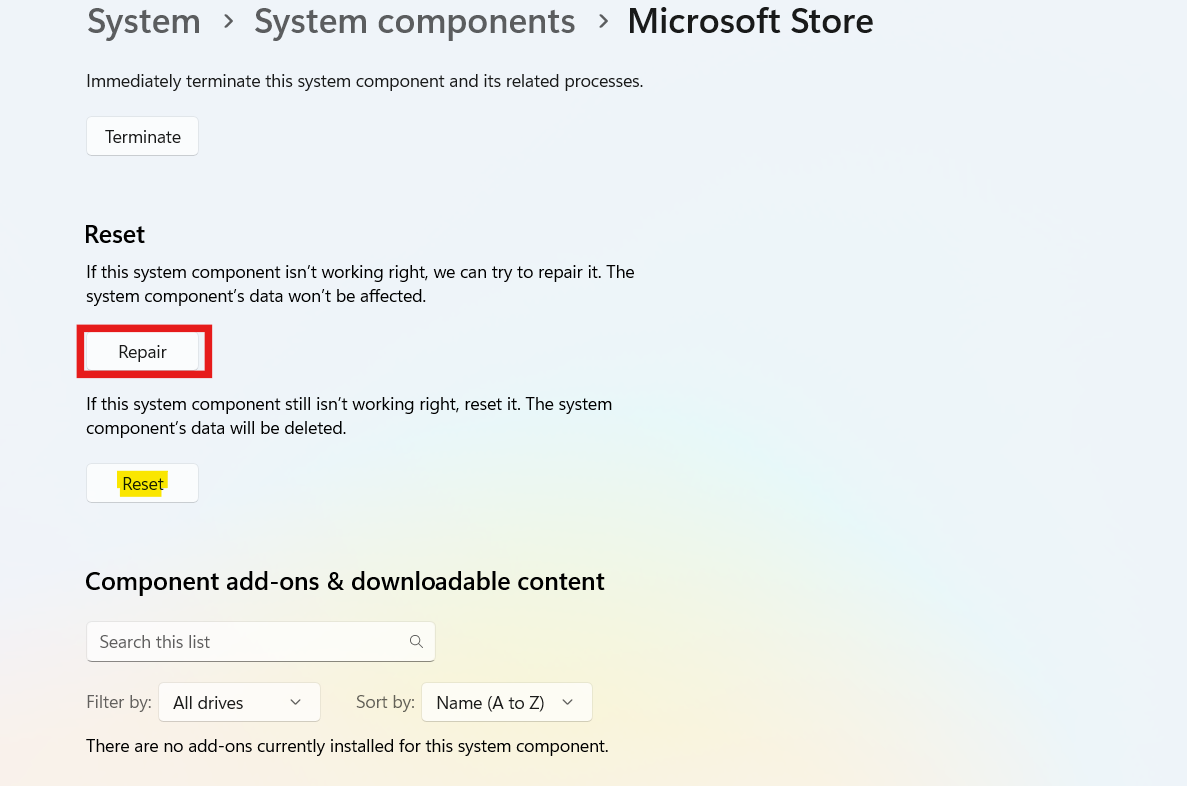
2. Find Microsoft Store and click the three dots (…). Then click on Advanced options.
3. First try Repair; if that doesn’t work, choose Reset.
Fix 6: Check Required Services (Including Windows License Manager)
Ensure the Store’s background services are running:
1. Press Win + R, type services.msc, and press Enter.
2. Set these options to Automatic Startup type and click Start if stopped:
- Windows Update
- Microsoft Store Install Service
- Background Intelligent Transfer Service (BITS)
- Windows License Manager Service
3. Make sure the Status is Running even if you are unable to start any of these.
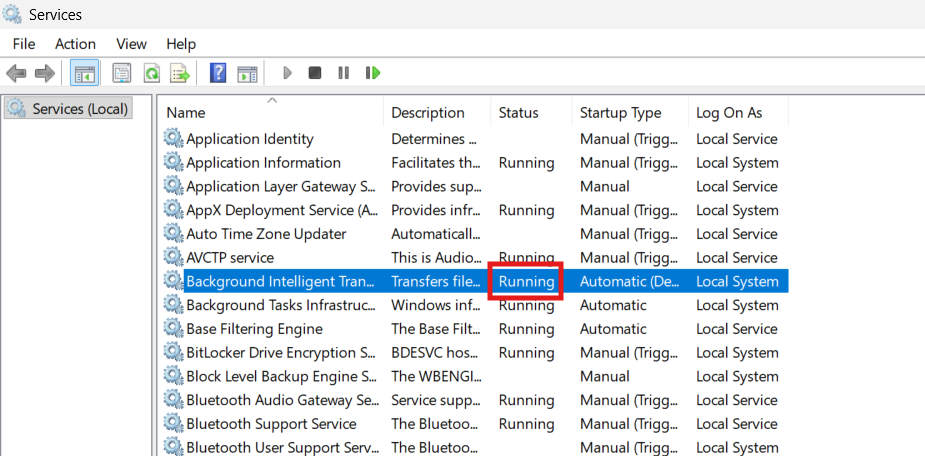
Having these services active lets the Store validate installs and initialize correctly.
Fix 7: Re-register Microsoft Store
If Store registration is corrupted:
1. Open Windows Terminal (Admin).
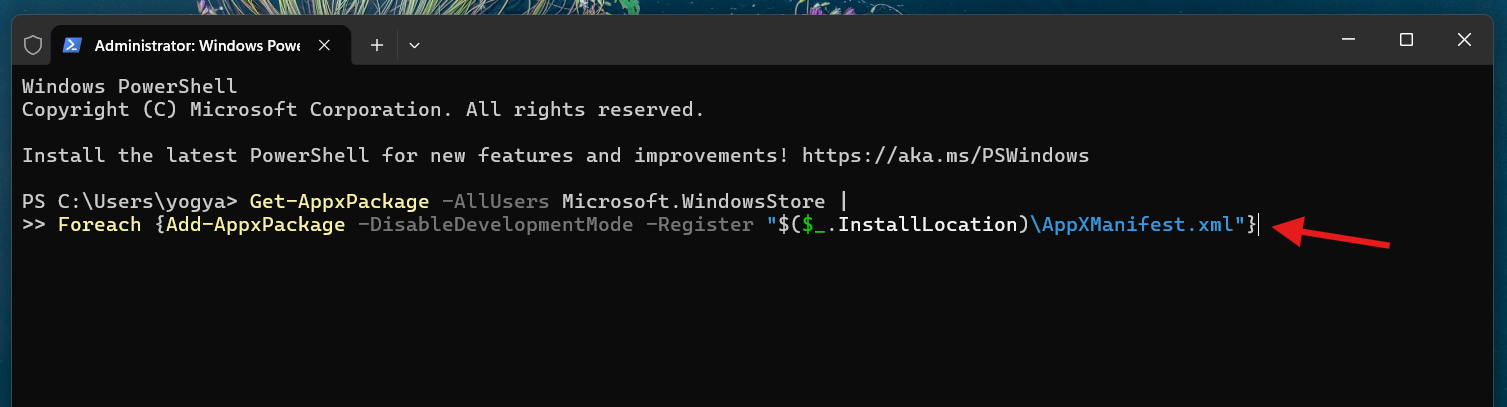
2. Execute following command in Windows PowerShell tab:
Get-AppxPackage -AllUsers Microsoft.WindowsStore |
Foreach {Add-AppxPackage -DisableDevelopmentMode -Register "$($_.InstallLocation)\AppXManifest.xml"}
3. After it completes, restart your device.
Fix 8: Create a New User or Test a Profile
Sometimes the error is tied to a corrupted user profile:
1. Go to Settings and click on Accounts. Then go to Family & other users.
2. Click Add account, then Add a local user.
3. Sign in with the new account and open the Microsoft Store.
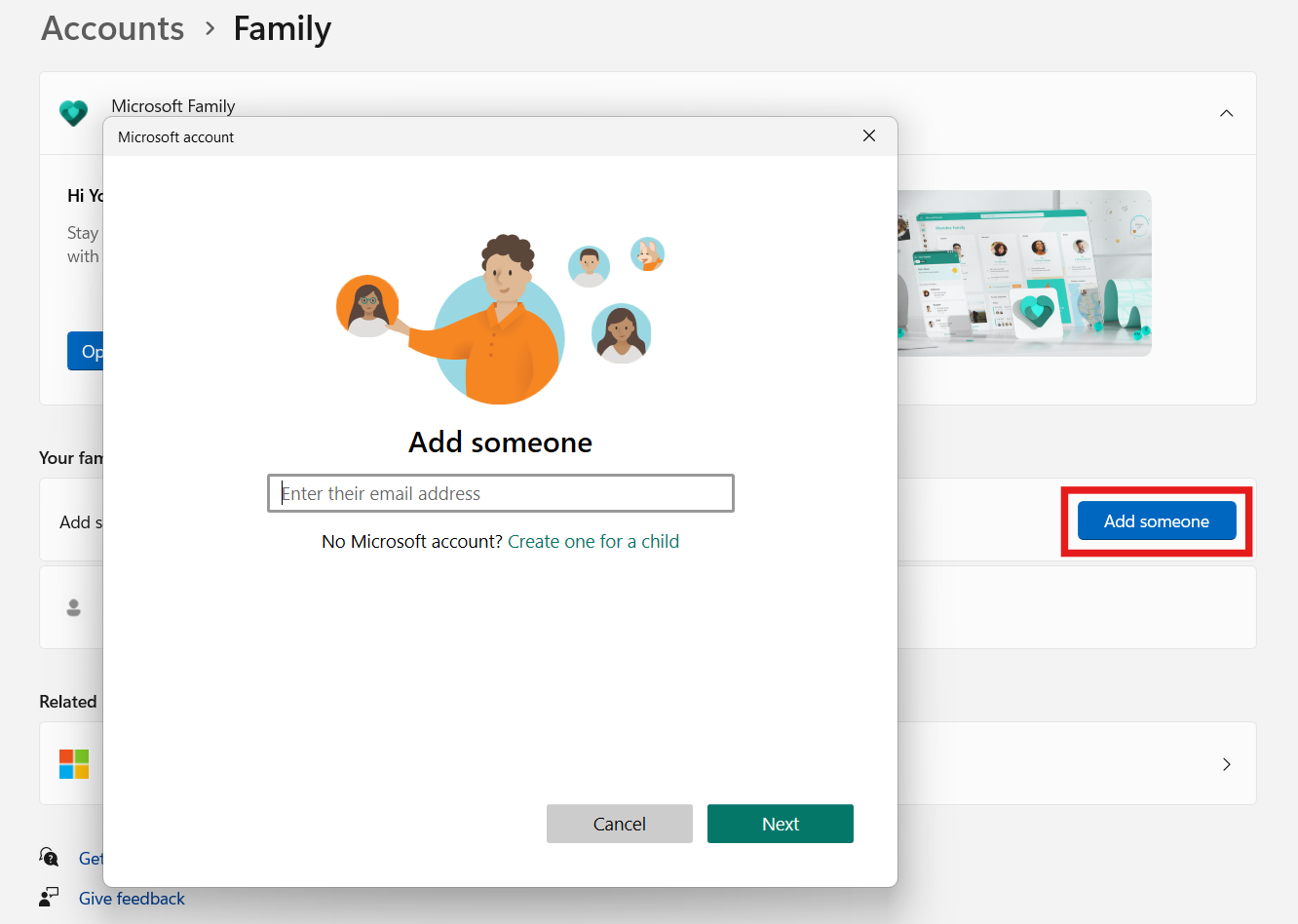
If it works, your old profile has an issue. Consider migrating settings after backing up data.
Summary
The Microsoft Store Failed to Initialize message can stem from misconfigured network settings (especially proxy), outdated system files, corrupted app cache, stopped services (including Windows License Manager Service), or even user profile corruption. Start with basic restarts and cache resets, then move on to updates, service checks, registration fixes, and user profile testing. With this structured approach, you’ll usually restore Microsoft Store functionality in Windows 11.