What is new in Windows 11 Version 25H2 update—that’s just released? Nowadays that is a big question on the minds of every Windows customer. Windows 11 25H2 is officially released, and it is full of AI-powered productivity features, better security capabilities, enhancements to the user experience, and enterprise features.
It is not a superficial change. It is created to transform your Windows 11 experience to be smarter, faster, and more reliable. Now it is time to dive into the new features of Windows 11 25H2 and see why this update is a game-changer.
Page Contents
Windows 11 Version 25H2 is now available
Windows 11 officially released Version 25H2 on Sept 30, 2025. If you didn’t get the update on the device you’re using, there are various methods to get Version 25H2, such as using Windows Update, downloading ISO file etc.

What’s New in Windows 11 Version 25H2: Features, Rollout & Improvements
Highlights of Windows 11 25H2
The Windows 11 Version 25H2 update is full of AI-powered features, personalization features, better performance, and IT-admin helpful tools. Also, it is an update that puts the emphasis on productivity, user experience, and current-day management without having to implement a huge redesign.
Gradual Rollout of Windows 11 25H2
Similar to the past updates, Microsoft is adopting a gradual rollout method. That is why not all devices receive an update on the release date. Updates are provided in waves to make them stable. Not all PCs will necessarily be able to use 25H2 right now, as the hardware may not be compatible or may not be fixed.
Faster Workflows with Click to Do (Copilot+)
Among the impressive new features is Click to Do, an AI-based context menu to perform quicker actions-
- Action tags: View the most popular AI-driven actions immediately, depending on what you are working on.
- Summarize smarter: Summarize option is a new feature that provides shorter, clearer and more accurate summaries of text or files.
- Contextual assistance: Click to Do is getting more effective, and as you work, AI will give you options that will be more useful.
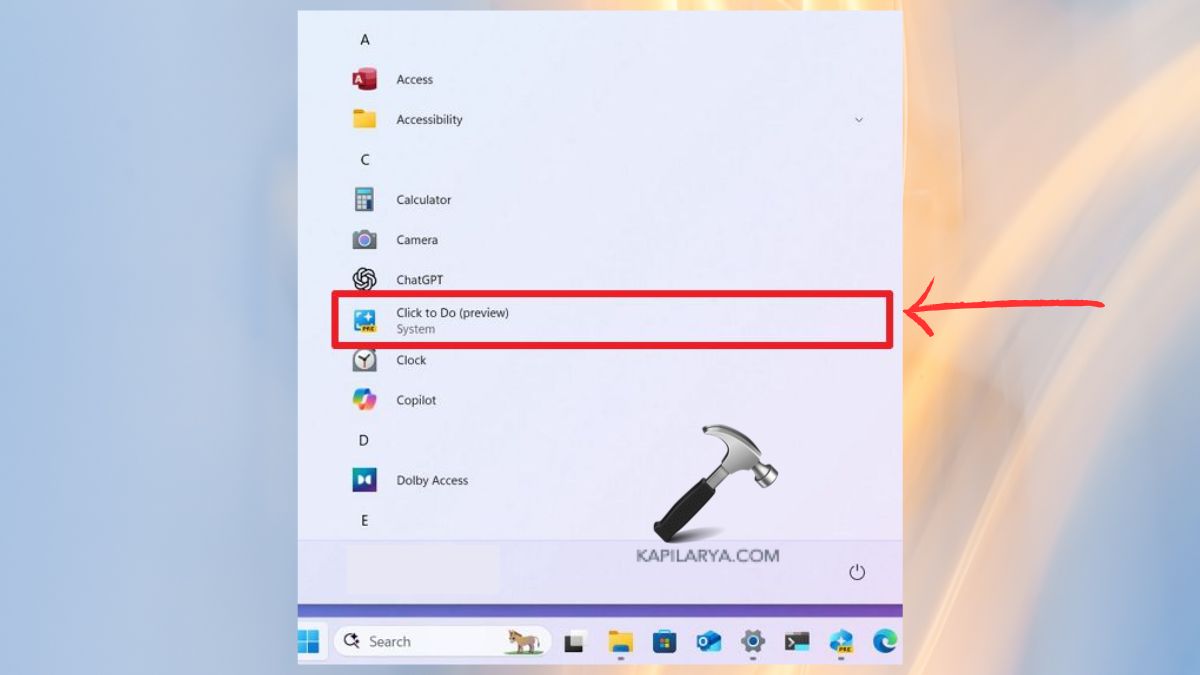
This causes Copilot to become an extension of your everyday routine and save time on repetitive tasks.
Agents in Navigation to Faster Agent
Direct navigation links are now displayed on the search within Settings on Copilot+ PCs. As an example, when you type in Bluetooth or Updates, you will get a result in the form of a clickable link that will auto-open the appropriate settings page. This minor addition is time-saving and makes Windows seem to be smarter.
Greater Control of Desktop Indicators
Windows 11 25H2 allows you to move hardware indicators (brightness, volume, airplane mode, virtual desktops) wherever you want to see them.
1. First, click on Settings > System > Notifications.

2. Modify the “Position of onscreen pop-up” with the given options – Bottom center, Top-Left, or Top center.
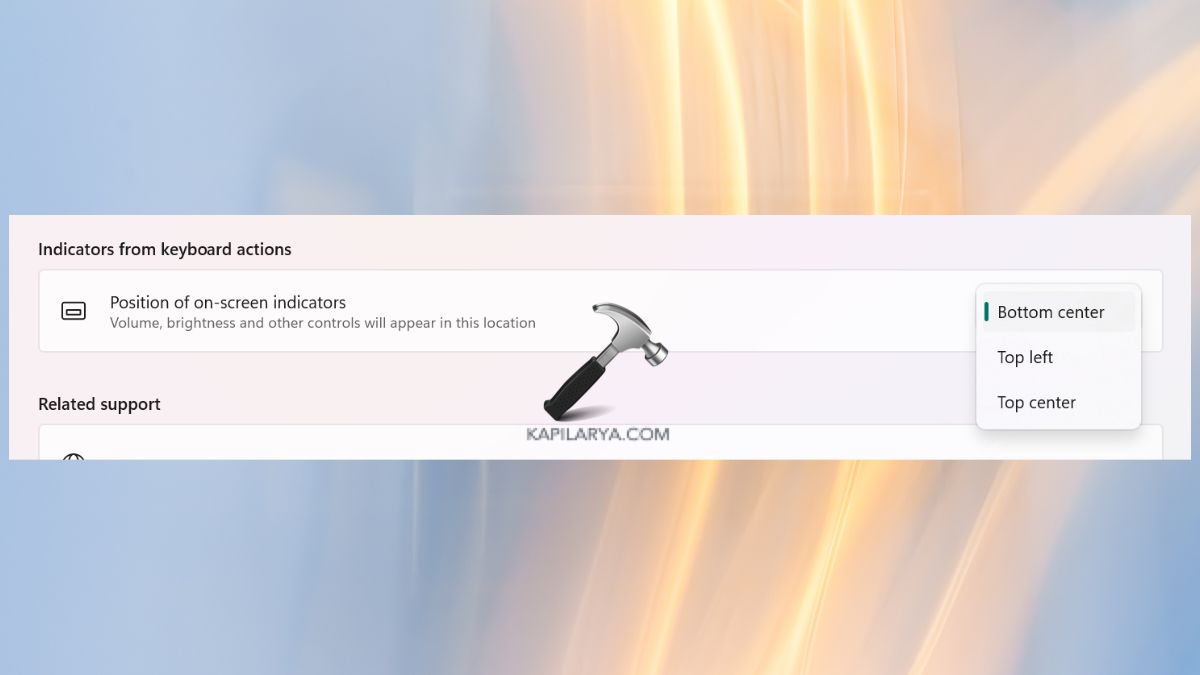
This will simplify the process of removing clutter and personalizing the appearance of quick status posts.
IT Administrator Taskbar Policy improvements
Enterprise win: taskbar pinning policies can now be done without the need to restart Explorer. Once an IT admin issues a new pinning policy, it may be reflected within approximately 8 hours (depending on refresh cycles). This simplifies the management of remote machines and saves downtime among the employees.
File Explorer Acquires AI Superpower
Windows 11 25H2 – File Explorer has had one of the largest updates.
To check AI Actions for Files, right-click on files which are supported (.jpg, .png, .jpeg, text documents) and select AI actions like:
- Visual Search: Search similar content on the internet with an image.
- Blur Background: Open the Photos app and automatically highlight the subject.
- Erase Objects: delete some objects in photos.
- Erase Backdrop: Ease of use: Use Paint to cut out a subject.
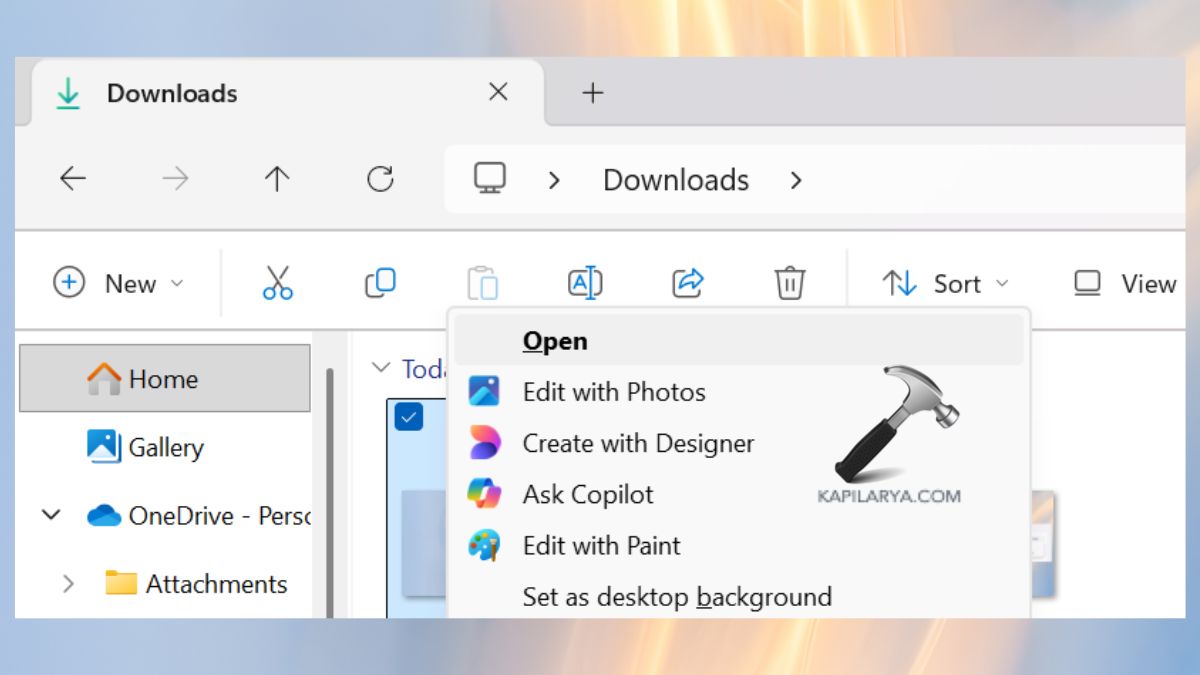
Note: These functions are not yet available in the European Economic Area (EEA).
AI in Microsoft 365 Files
When you have a Microsoft 365 subscription and Copilot access, you can now summarize files in OneDrive or SharePoint without leaving File Explorer. No need to open, the summaries of every document are visible at a swab.
Visual Improvement and Performance
The context menu is not as messy (there are no colored backgrounds behind application icons). Noticeably better performance with opening cloud files or loading the context menus. Reason is a fix to scaling problems, right-to-left (Arabic, Hebrew) display language.
Windows Share To Pin Apps
The sharing of content is quicker in 25H2. You can now pin your favorite apps in the Windows Share window to access them at any time. Regardless of whether you share to Teams, Outlook, or any other app most of the time, those shortcuts are always there.
Re-designed the Advanced Settings Page
The previous For Developers page is no longer there. Windows 11 replaces it with an updated Advanced Settings page, which can be found in the settings menu in the System > Advanced section.
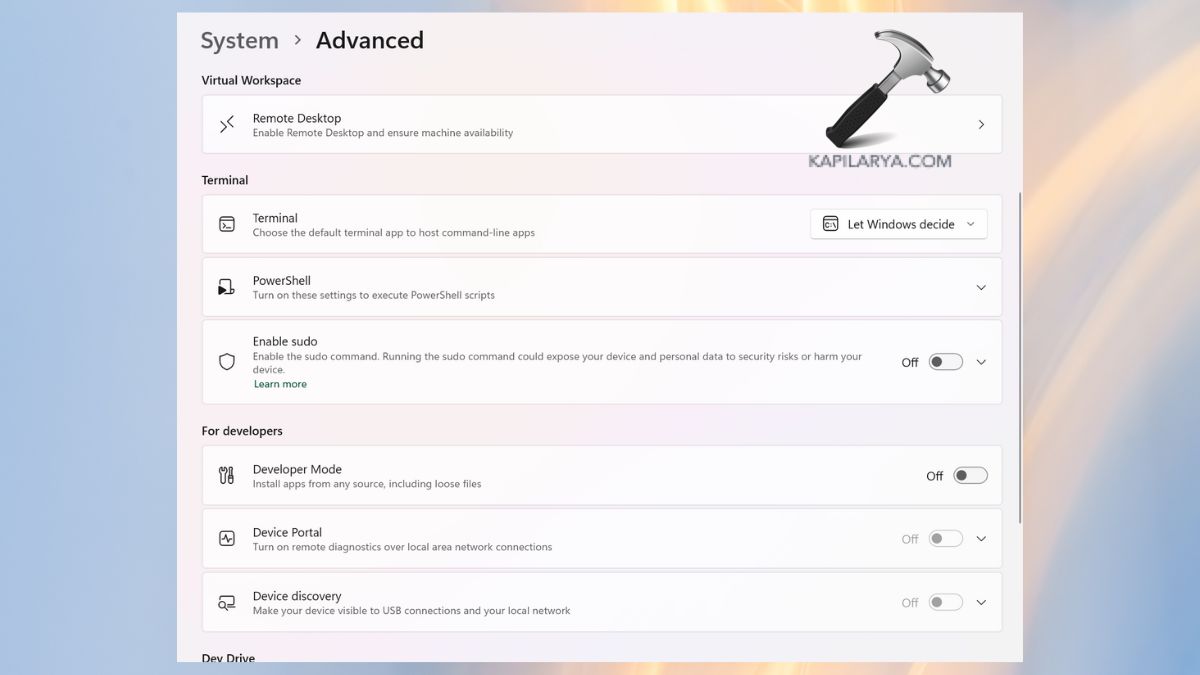
New Highlights
This update gives a better structure to the developer options. Integration of Git into File Explorer so that you can access branch information, number of differences, and commit messages when visiting repo folders. This provides simpler access to higher-level controls to power users and developers.
Narrator (Accessibility)
Narrator also now supports Braille Viewer. It displays characters on the screen and Braille simultaneously on a refreshable Braille screen.
To start, follow these steps:
1. Press Windows logo key + Ctrl + Enter (start Narrator).
2. Press Narrator key + Alternate + B (open Braille Viewer).
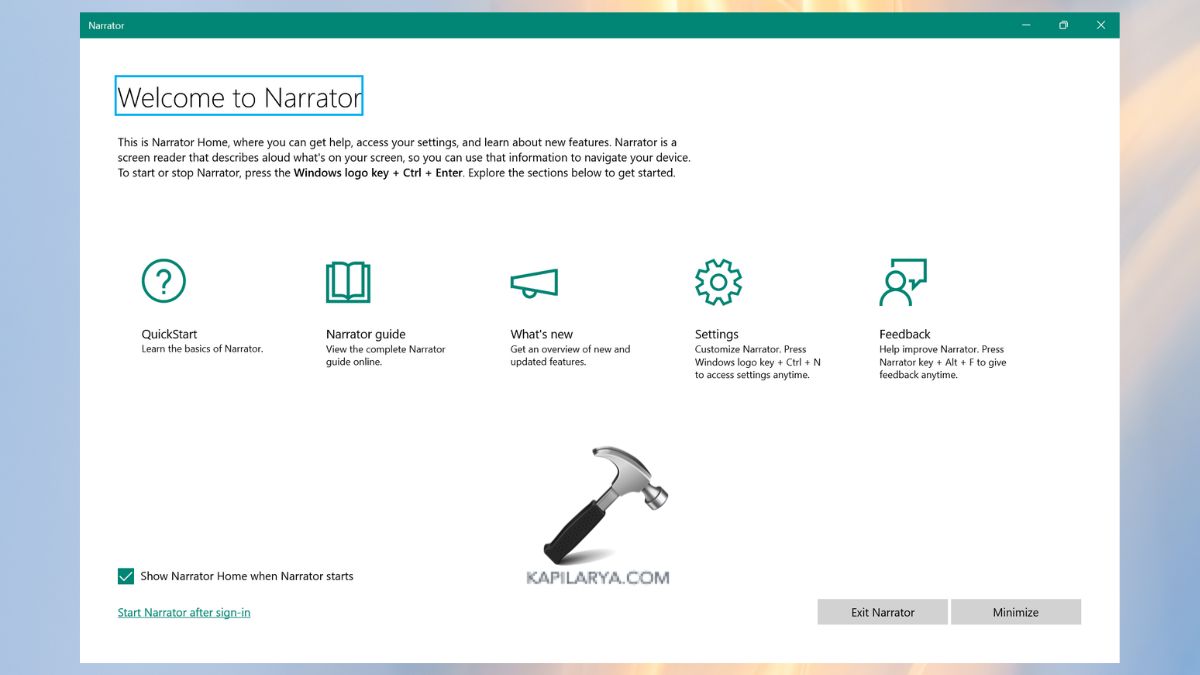
Note: This feature requires a Braille configuration in the Accessibility settings under Narrator.
Enhanced reading in Word
The More natural voice feedback now. That you may confidently proceed. More effective navigation of footnotes, comments, lists and tables. Enhancements made are better table boundaries, consistent announcements in lists, and smooth selection feedback.
Passkeys
Windows 11’s new seamless integration of the passkey manager:
1. Firstly, install a credential manager application that is integrated.
2. Click on the Settings > Accounts > Passkeys > Advanced options.
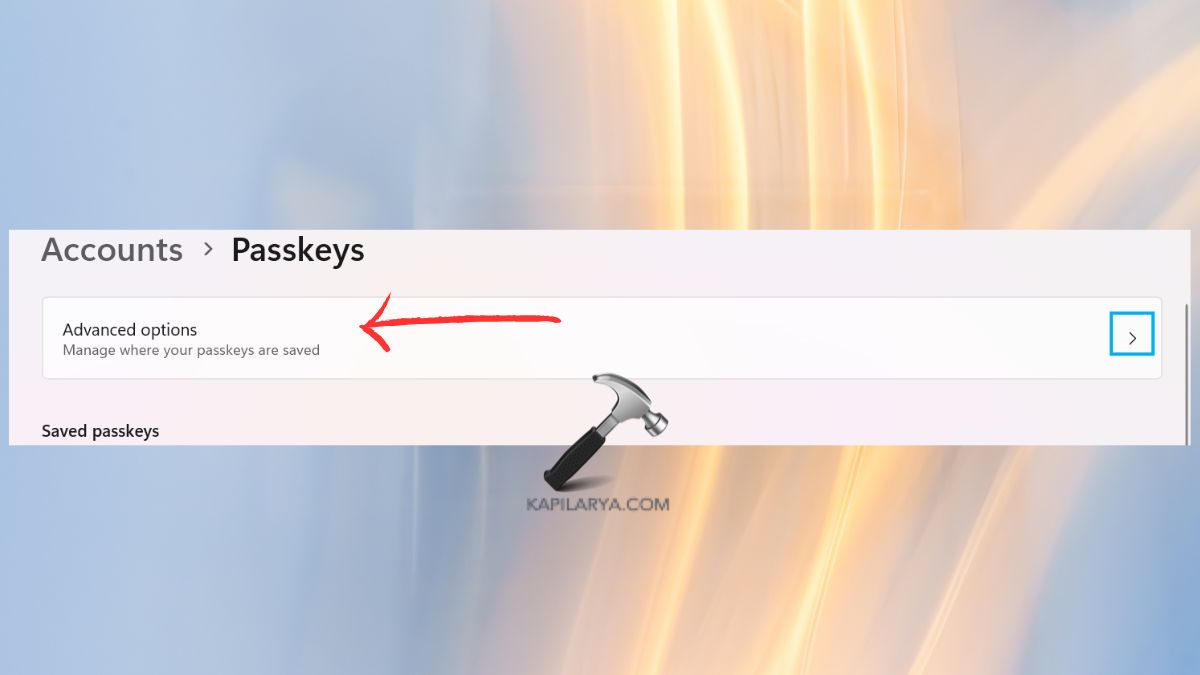
3. Then, turn on support and use Windows Hello (face, fingerprint or PIN) to verify the user. The passkeys can now be used or stored using the credential manager of the plug.
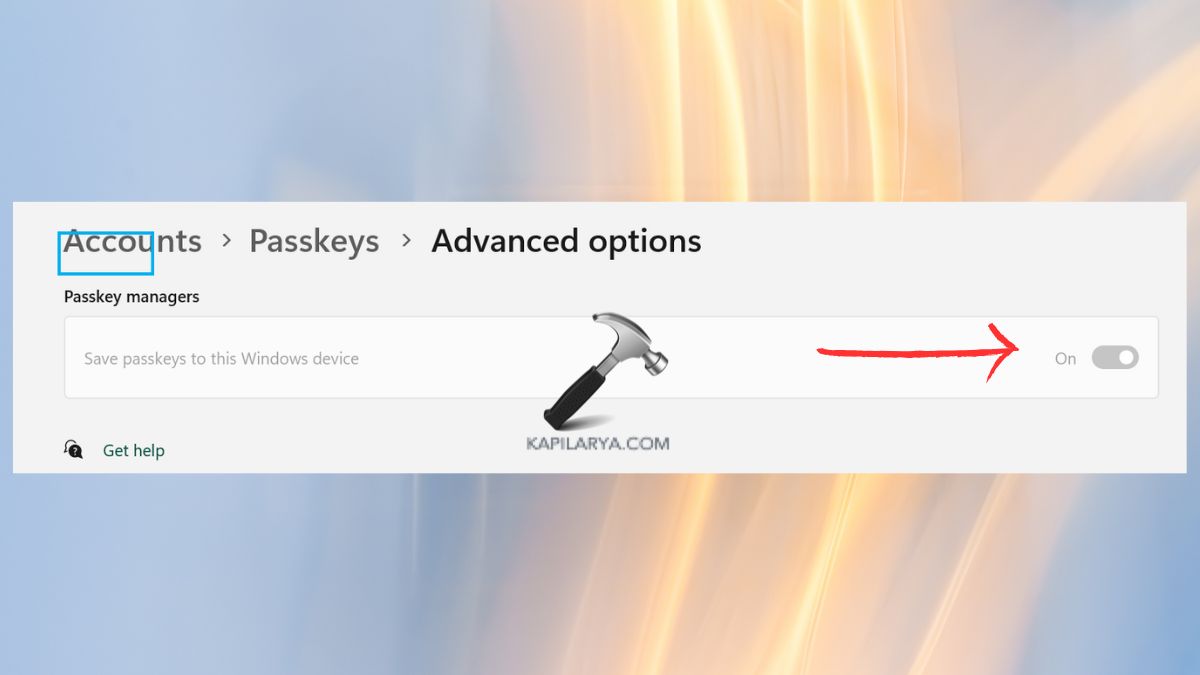
Settings
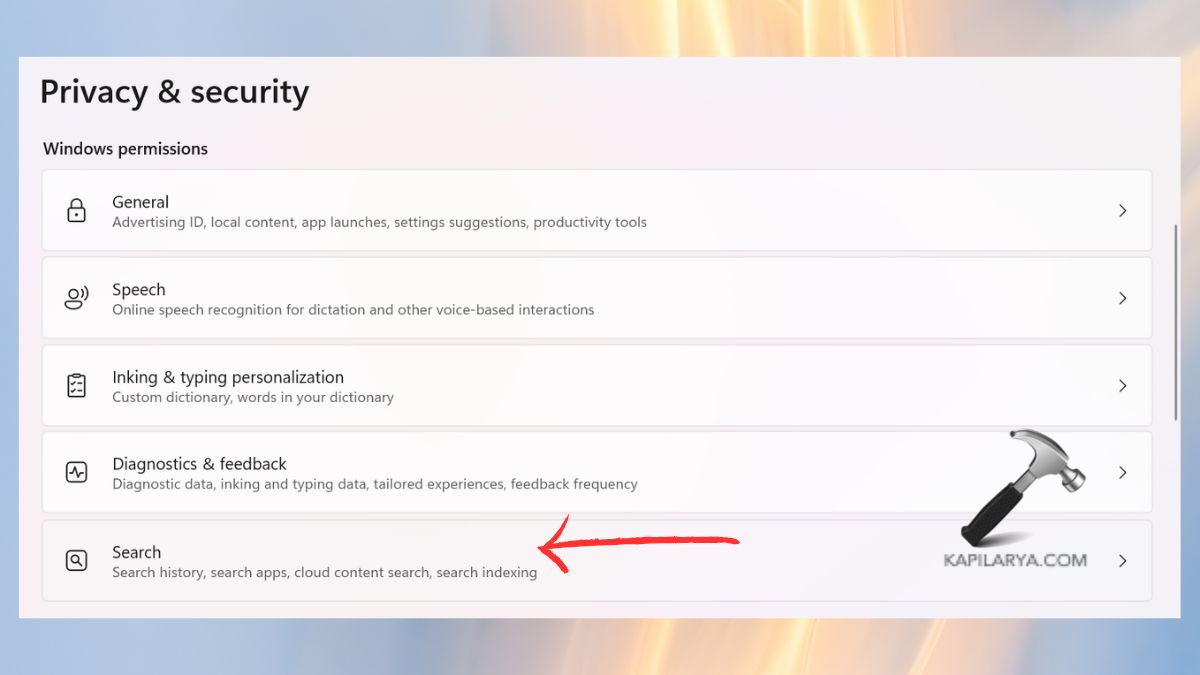
The Bing search history has been moved. Open Settings > Privacy and security > Search > Search history. This is now accessible through the Privacy dashboard (Privacy resources link under Related settings).
Gaming
The improvement of the new Xbox controller:
- Shortly press the Xbox button to open Game bar.
- Long press and hold the Xbox button to open Task View.
- Press & hold still turns off the controller.
The Game Bar and overlay performance are improved, particularly when using multiple monitors with varying refresh rates.
Other Improvements
New Intuitive interface throughout Windows 11 dialogues, such as error dialogs when an application is not launched.
1. Voice Access – Natural language commanding in voice access (Intel and AMD-powered copilot+ computers):
- More natural commands are made by using filler words and synonyms.
- Voice Access fixed that may enter a listening state that cannot be exited.
2. Background Controller Dynamic Lighting could perhaps take over too much CPU time when unlocking your PC.
3. High Dynamic Range (HDR) is permanently set, and may suddenly switch off after it has been turned on in Settings.
4. In Media, fixed Playback, Blu-ray, and DVD applications, and digital TV applications that use Enhanced Video Renderer and HDCP enforcement (since KB5064081).
5. Windows Hello also resolved the “Unknown message something went wrong and your PIN is not available” when entering Safe Mode.
6. Another problem that was solved in Windows Sandbox was the VmmemCMFirstBoot process, which could use a lot of CPU upon sign-in, making the Sandbox unresponsive when turned on.
Windows 11 v25H2: New Quality Improvements and Changes
Microsoft has released a non-security update to Windows 11, with a number of performance enhancements, bug fixes, and feature changes. This update aims to improve the reliability of the system and eliminate the known issues, which impacted both everyday users and the IT administrators. The major changes are here as below.
Hyper-V Enhancements
Virtual Machine Startup Fix: Since an earlier update, some ARM64 devices have been found to have problems starting Hyper-V VMs with Trusted Platform Module (TPM) enabled. That issue is addressed with this release, guaranteeing a smoother launch of VM.
GPU Paravirtualization Stability: It was once possible to freeze a virtual machine when assigning it a GPU paravirtualization device. This is enhanced in the update, which makes it more stable when heavily loaded.
Input System Fixes
For the Chinese IME Display errors, characters typed with the Chinese Input Method Editor did not necessarily display correctly. This has been rectified.
In software such as Connection Manager Administration Kit, there were field boundaries that were represented by boxes where some Chinese characters were. This update fixes the appropriate display.
As for the File Explorer Unicode problems, the tooltips in the Recent Items section of File Explorer displayed some long Unicode characters (including Chinese Extension B-F) as illegible characters. The fix is to make all of these characters compatible.
Networking (Known Problem Solved)
This is because users who had been using the Server Message Block (SMB) v1 protocol with NetBIOS over TCP/IP would not be able to connect to a shared file or a shared folder with a recent patch. This update fixes the connectivity problem.
Maintenance and Service Administration
WSUS Reliability Fix: Windows Server Update Services (WSUS) customers noticed failures when it came to Windows update delivery. This has been resolved, and the distribution of updates has returned to normal.
Windows Hello Improvements
After some updates, the setting of a Windows Hello pin can encounter errors (0x80090010) with devices joined to Microsoft Entra ID domains. Also, this release removes bugs in the setup process, and PIN enrollment is correct.
Important Note – When you have already installed previous updates, the new fixes contained in this package will be automatically downloaded to your system – saving the time you need to install it and the data.
AI Components and System Enhancements in Windows 11 Version 25H2
As Windows 11 Version 25H2 was released, Microsoft has rolled out numerous changes to its embedded AI-related elements, as well as servicing stack enhancements. The changes are aimed at making performance better, smoother updates, and a more reliable AI-based functionality throughout the operating system.
Updated AI Components
Windows 11 also relies on AI to enhance user experiences, such as image recognition or contextual search. This release modifies various AI-based modules to 1.2509.1022.0, which guarantees increased precision and productivity.
Key AI Components Updated:
- Image Search – It allows one to find objects in images more quickly and efficiently.
- Content Extraction – Improves the option of extracting important information from documents and other files.
- Semantic Analysis – Enhances the contextual knowledge, and therefore, AI provides more topical results and summaries.
- Settings Model – This model maximizes predictive settings and personalization in Windows 11.
These improvements are supposed to make the features such as File Explorer AI actions, Copilot, and search features more dependable and intelligent.
Protected Content Playback Known Issues
Microsoft has discovered a problem with the playback of protected content in some Blu-ray, DVD, and Digital TV apps following the update of August 29, 2025 (KB5064081). Users can experience copyright issues, blank screens, or abrupt interruptions of playback. It does not apply to streaming services.
In the September 2025 preview update (KB5065789), they fixed problems with apps that use Enhanced Video Renderer. Nevertheless, DRM-based apps in the sphere of digital audio might not be free of issues. Microsoft suggests that they should install the most recent cumulative updates in order to reduce such playback errors.
Stack Update service (KB5067437 – Build 26100.6717)
The most recent Windows 11 update of the servicing stack update (SSU) enhances reliability in updating. Under these changes, updates are more easily installed, have fewer errors during installation, and are ready to patch in the future. As the servicing stack is the most fundamental part that handles Windows updates, it is vital to ensure that it is well updated; otherwise, additional updates might not install properly in the future.
Frequently Asked Questions (FAQs)
That’s it!