If you encounter Microsoft Store sign-in error 0x801901f4 on Windows 11, the issue often stems from the system being unable to validate your Microsoft account session, network issues, or corrupted Store files. Despite appearing as a missing internet error, the root cause is frequently blocked account credentials or proxy settings.

Page Contents
Fix Microsoft Store sign-in error 0x801901f4 in Windows 11
Below are four tested fixes you can apply. After each fix, restart your PC and check if sign-in is possible again.
Fix 1: Create a new user profile and sign in again
Sometimes the issue is linked to the current user’s credentials being damaged.
1. Open Command Prompt as administrator.
2. Type the command:
"NewUserName" /add, then net localgroup administrators "NewUserName" /add

3. Sign out of your current account and log in with the new profile.
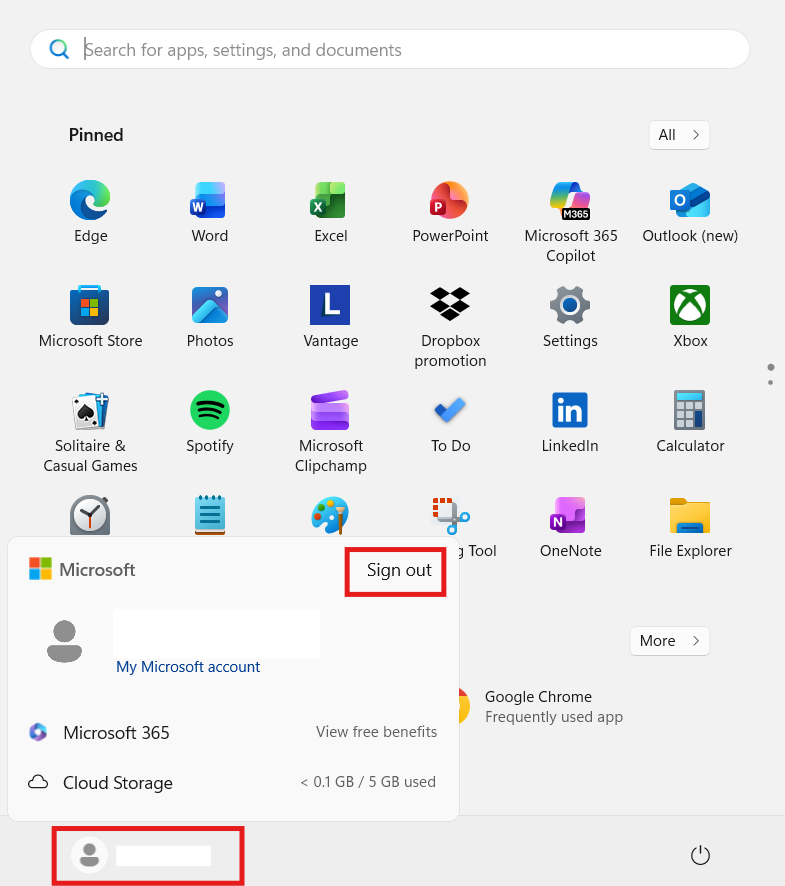
4. Open Microsoft Store and try signing into your new Microsoft account.
Fix 2: Reset Microsoft Store cache and re-register the app
Corrupt Store cache or package registration can block account sign-in.
1. Press Windows + R, type wsreset.exe and press Enter to clear the cache.
2. After the window closes, open PowerShell as administrator.
3. Run the command to re-register the Store:
Get-AppxPackage *WindowsStore* -AllUsers | Foreach {Add-AppxPackage -DisableDevelopmentMode -Register "$($_.InstallLocation)\AppXManifest.xml"}
4. Restart the PC and attempt sign-in again.

Fix 3: Check network, proxy and internet settings
Even if your connection looks fine, hidden proxy or DNS issues can trigger this error.
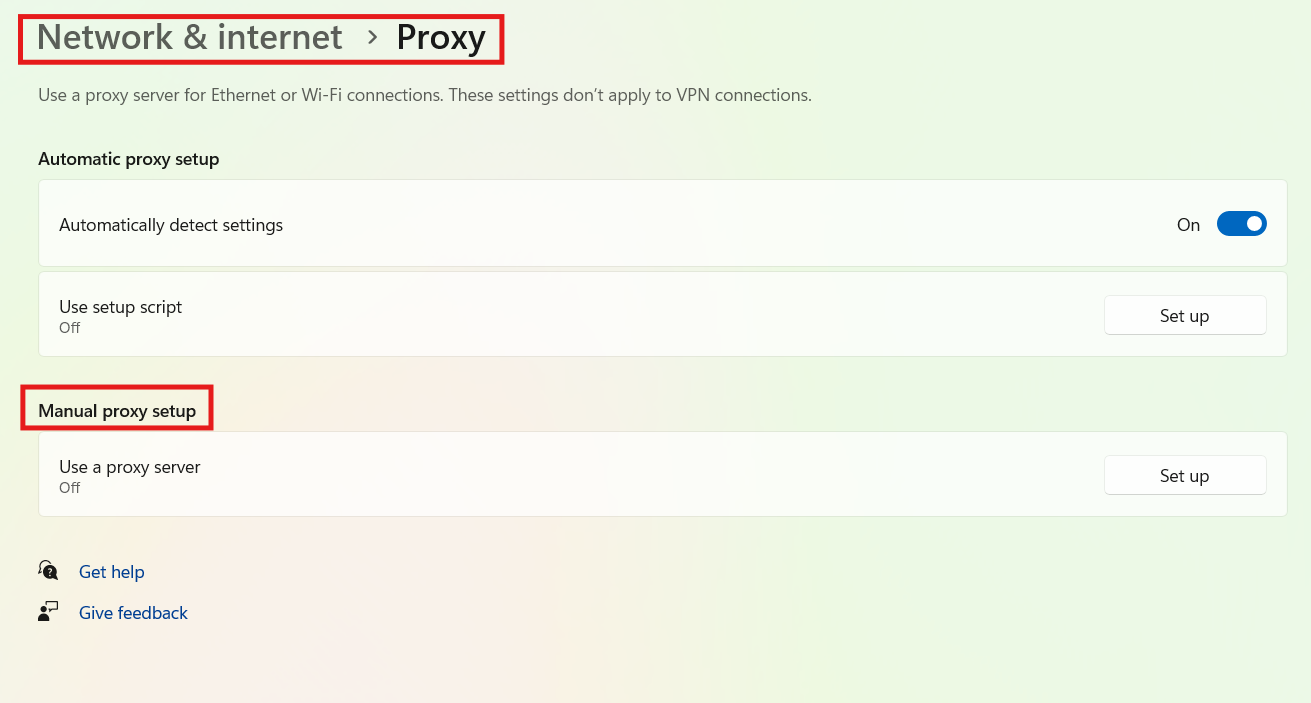
1. Open Settings and go to Network & Internet, click on Proxy, and disable any active manual proxy settings.
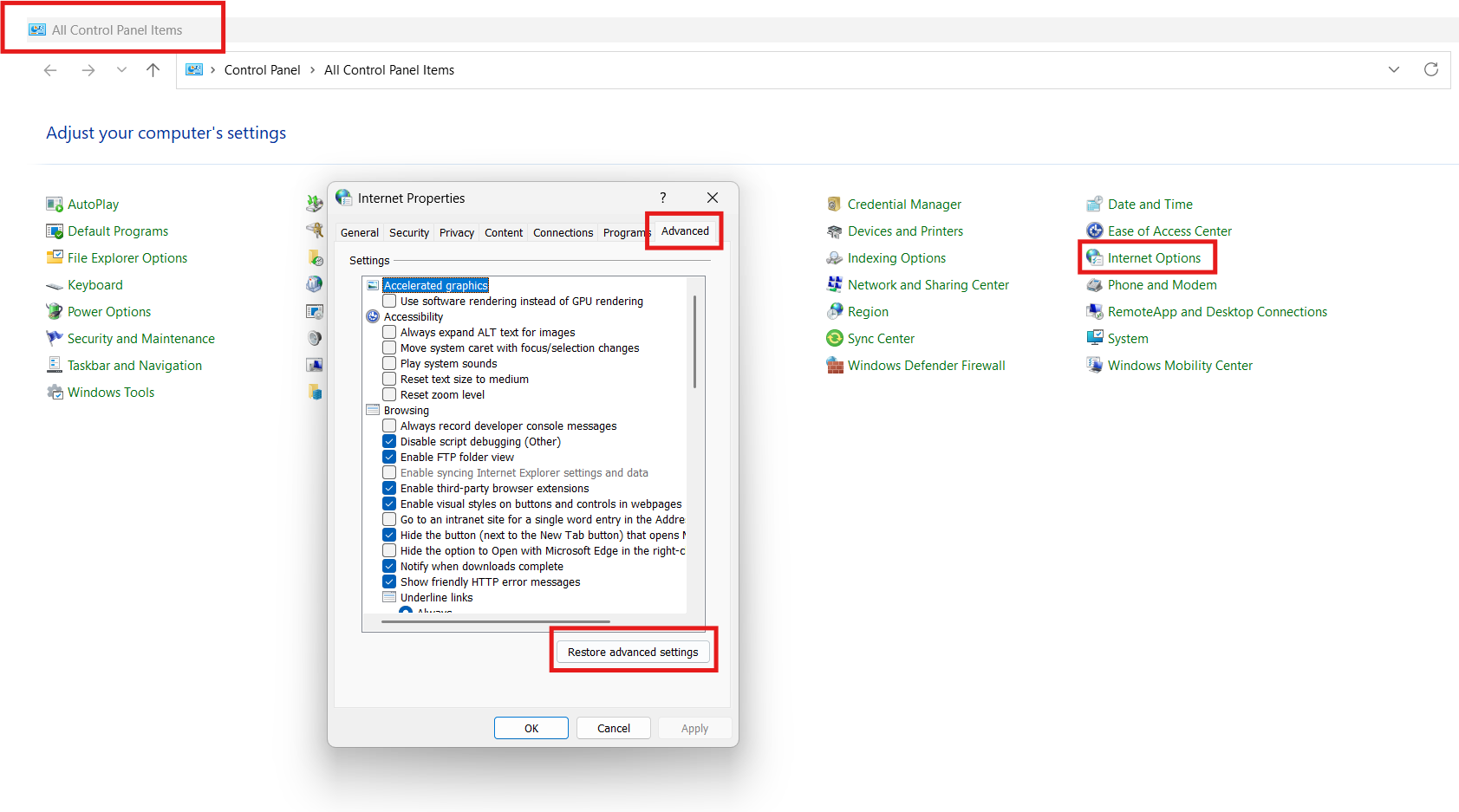
2. Open Control Panel and go to Internet Options, then click on Advanced and Reset to restore defaults.
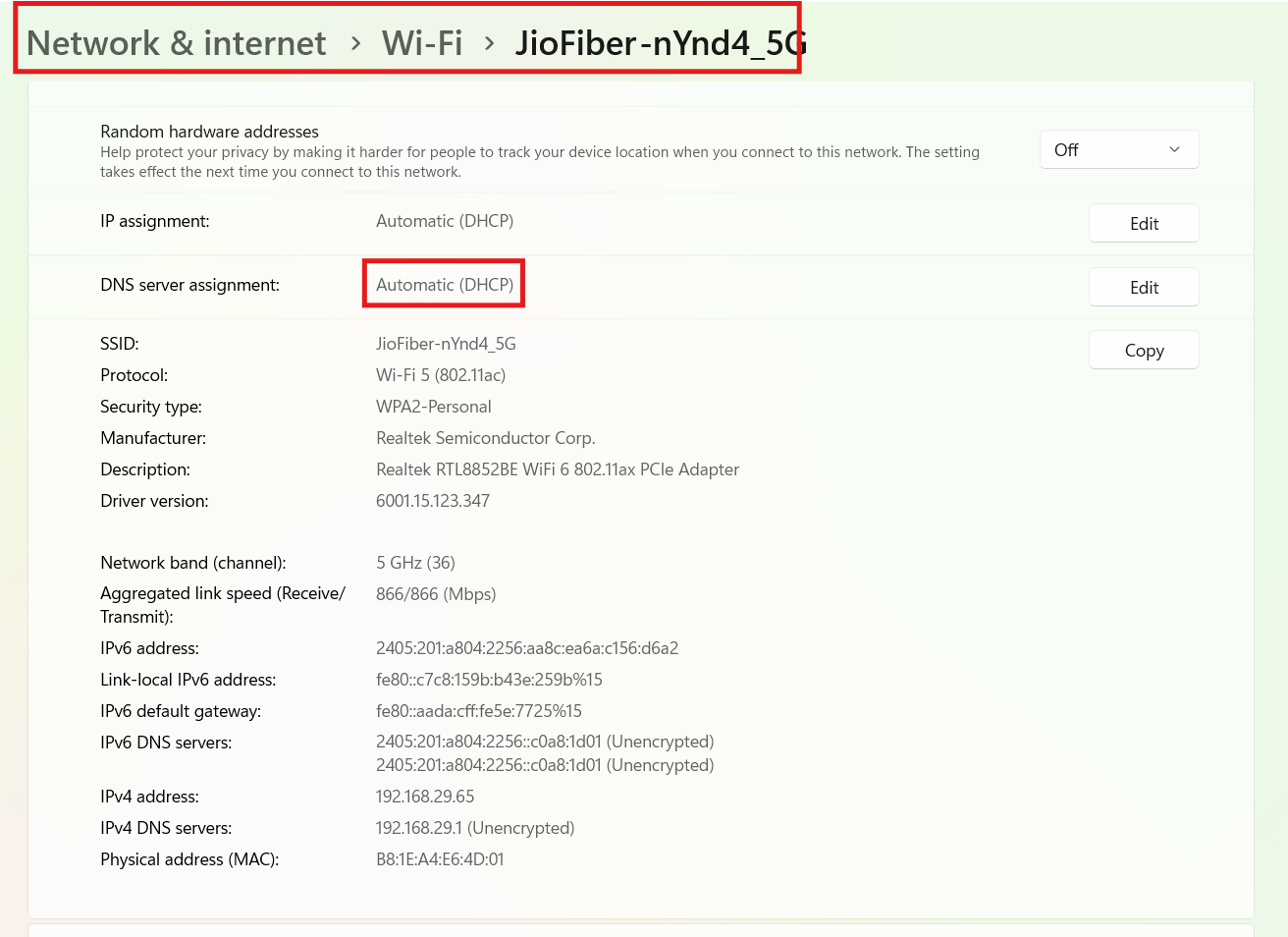
3. Check DNS settings via the network adapter’s Properties under TCP/IPv4 and use automatic or common public DNS (e.g., 8.8.8.8).
4. Restart the PC and test sign-in.
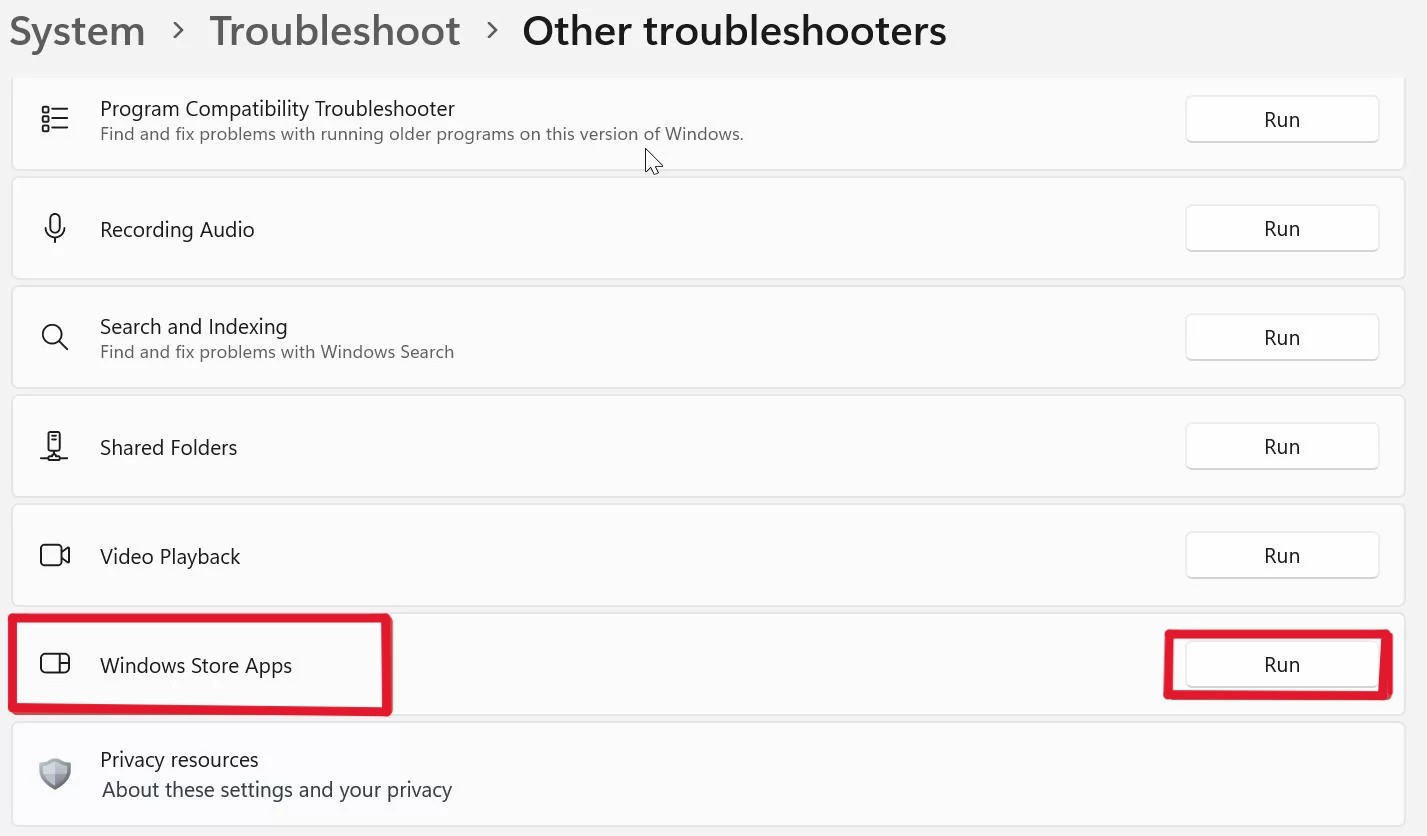
Fix 4: Use the Windows Store Apps Troubleshooter
This built-in tool detects and fixes many Store-sign-in problems.
1. Go to Settings and go to System. Click on Troubleshoot and then Other troubleshooters.
2. Locate Windows Store Apps and click Run.
3. Follow the on-screen instructions and let Windows apply any fixes automatically.
4. Once done, restart the PC and try signing into the Store again.
Quick tips
1. Always restart your PC after each fix before evaluating the result.
2. Ensure you are signed into a Microsoft account on the device and that the time and date settings are correct.
3. Temporarily disable VPN or firewall software while testing sign-in.
4. If none of the fixes work, consider updating Windows fully or performing an in-place repair via the official ISO.