In Windows, System Restore is of our first priority, if our system is not working properly. We can easily restore it back to the point when it was working as expected.
Today, while working through System Restore, I came around following error:
Page Contents
There was an unexpected error:
An attempt was made to reference a token that does not exist. (0x800703F0)
Please close System Restore and try again.
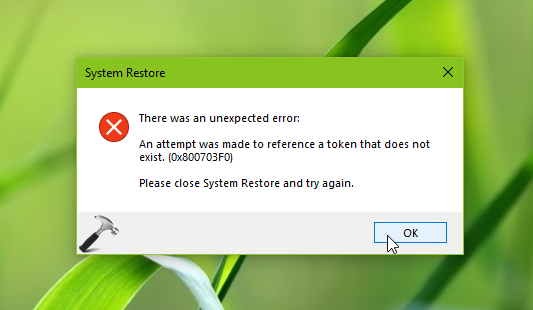
In this case, the System Restore was created fine but when I was attempting to restore the machine, above error appeared. The An attempt was made to reference a token that does not exist part in above error take me to the conclusion that it might be caused by corrupted system files. So in case if you’re also experiencing this trouble, first you must try all steps from this fix:
Fix: An attempt was made to reference a token that does not exist in Windows 10
In case if the issue still persists, try the below mentioned registry manipulation to finally get rid of this error.
FIX: System Restore Error 0x800703F0 In Windows 10/8/7
Registry Disclaimer: The further steps will involve registry manipulation. Making mistakes while manipulating registry could affect your system adversely. So be careful while editing registry entries and create a System Restore point first.
1. Press  + R and type
 regedit in Run dialog box to open Registry Editor (if you’re not familiar with Registry Editor, then click here). Click OK.
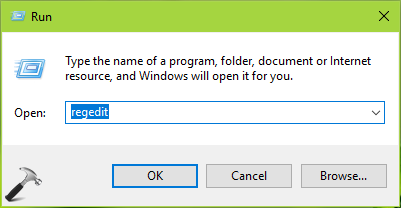
2. In left pane of Registry Editor window, navigate to following registry key:
HKEY_LOCAL_MACHINE\SOFTWARE\Microsoft\Windows NT\CurrentVersion\SystemRestore
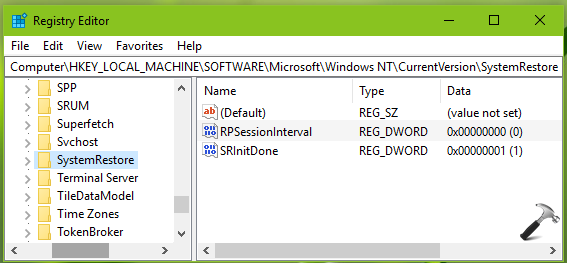
3. Now in the right pane of SystemRestore registry key, look for RPSessionInterval named registry DWORD (REG_DWORD). Double click on it to modify its Value data:
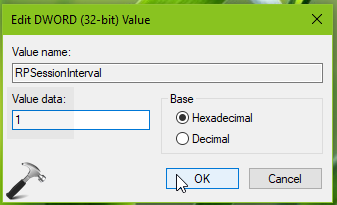
4. Finally, set the Value data to 1 and click OK. Close Registry Editor and reboot the machine.
After restarting your system, the error will no longer appear.
Hope this helps!