

Recently we came around a strange issue in Windows 10. In this scenario, whenever we tried to copy files from an external disc to Windows 10, the File Explorer keeps showing the following message:
Page Contents
The file name(s) would be too long for the destination folder. You can shorten the file name and try again, or try a location that has a shorted path.
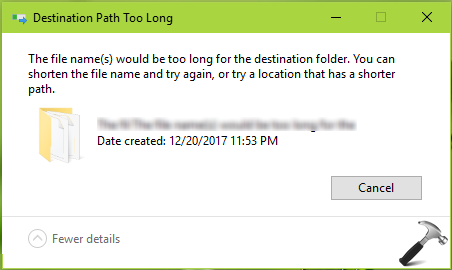
Next, we tried to shorten the file name for few files and tried moving them again, but it failed too. Actually, this is due to default behavior of Windows, which won’t allow you to have more than 260 characters in file name(s). Whenever you try to bypass this limit, above mentioned message is likely to appear.
So in case if you’re also the victim of this problem, here is a simple registry tweak that you can perform to overcome this.
FIX: ‘The File Name(s) Would Be Too Long For The Destination Folder’ Error In Windows 10
Registry Disclaimer: The further steps will involve registry manipulation. Making mistakes while manipulating registry could affect your system adversely. So be careful while editing registry entries and create a System Restore point first.
1. Press  + R and put regedit in Run dialog box to open Registry Editor (if you’re not familiar with Registry Editor, then click here). Click OK.
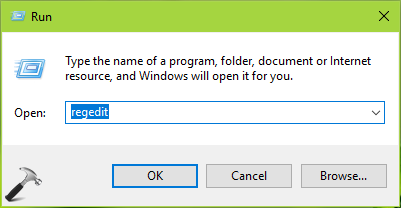
2. In left pane of Registry Editor window, navigate to following registry key:
HKEY_LOCAL_MACHINE\SYSTEM\CurrentControlSet\Control\FileSystem
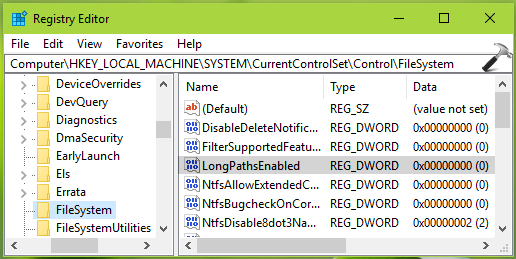
3. In the right pane of FileSystem registry key, look for the registry DWORD (REG_DWORD) named LongPathsEnabled. By default, this DWORD Data is set to 0, which is the cause for this issue. Double click on the same DWORD and modify its Value data:
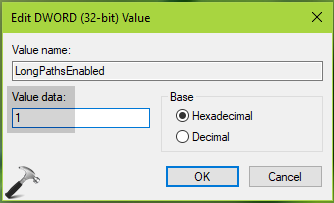
4. Finally, set the Value data to 1 and click OK. Close the Registry Editor now and reboot the machine to make changes effective.
After restarting your system, the issue would no longer persist.
Hope this helps!





Hi
I am Peter Brock
You should try out Long Path Tool program. It fixes this problem
^^ Glad to hear that!
I’m using Win 8.1. The longpathsenabled file is missing from my registry. What should I do?
^^ You can create it manually and set it to 1.
As I researched on my own, as changing the COMMAND is not the easiest option for me as we use a Cloud environment and outsource IT matters, it costs money every time we ask them something…
So, I went OLD Fashion way…
1. I copies/pasted the PATH to a note, and shortened a folder name or folder names where contains the file with too long name.
2. Then, I was able to RENAME it! So, I renamed the file with shorter name.
3. And I adjusted the folder name(s) I shortened earlier, either to back to original or shorter but recognizable one!
VOILA!
I thought AND hope if somebody is SEARCHING the EASIEST solution. They will find this thread…!
^^ Thanks for your inputs 😊
Unfortunately even editing this or the group policy workaround still to no avail. I’m currently working with a folder with node-modules. It allows me to skip I’m just trying to extract what is in a folder.
Method is NOT WORKING.
CAN NOT rename it also.
Long path tool can be a very useful tool in this regard. I have been using it for a while and very satisfying with this tool.
^^ Thanks for adding your views!
solution doesn’t work for me ….
Hii!
You can use LongPathTool. It will really help you.
It is make for this types of problems.
^^ Thanks Peter for your comment!
Long Path Tool is good choice and it works
^^ Thanks Mark!
changed LongPathsEnabled to 1 last year. I still have problem to open long path file.
if it is a torrent file and it won’t let you rename, deleate or open, you must rename it in your torrent program. rename=make the name shortet.
After changing the long…. whatever in registry and group policy, nothing changed.
Same problem with renaming those long names from saved files on my desktop.
Tried a few explorers I had saved and… voila!
MultiCommander software worked like charm, allowing me to rename them and move, or delete it.
Give it a try.
Found this thread hoping to help me solve my problem but no I still can’t rename the file. The SOLUTION I FOUND is that cut the file you want to edit and paste it on the desktop then you rename it there. Then bring it back to the folder where you want it to be filed/saved. Thank me later. 😉
^^ Thanks for sharing this!
Hello, curious about external drives – example a SSD and how this storage device gets it’s instructions on identifying a long path name, then spitting up an error. Is this the SSD – or is the long path error from the PC system’s registry? Even checked to see if the registry had gone back to default -but no.
It is set as enabled.
Never had this issue until 2021.
Sort of like a cheap way to make the operating system boast faster response times perhaps? Or some other agenda to remove the ability for Long Path Names?
WIN 7
SSD
USB ports