

We all know Windows Store is one of the most used built-in app in Windows 10. This helps you to purchase and download the apps of your interest from the marketplace. Also it lets you to update your existing apps to latest version.
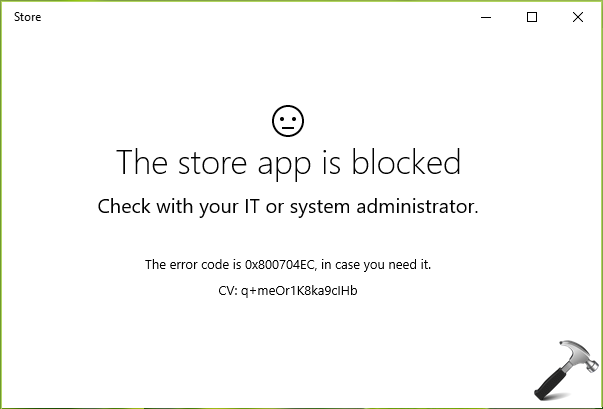
But what if you can’t open Store app at all? For those, who use Store a lot, their system became meaningless if Store is not working on it. Recently, we came around an issue, when we open Store app, the app is blocked message keep appearing. Here is the exact message received in this case:
Page Contents
The Store app is blocked
Check with your IT or system administrator.
The error code is 0x800704EC, in case you need it.
The issue might occur if your system administrator (in case of systems part of domain or multi-users machine) has blocked the app via Group Policy or registry. On local computers, the issue may occur if any program has blocked Store from working. If you’re facing this issue, no need to worry much. This simple registry tweak will help you to fix it:
FIX : The Store App Is Blocked In Windows 10
Registry Disclaimer: The further steps will involve registry manipulation. Making mistakes while manipulating registry could affect your system adversely. So be careful while editing registry entries and create a System Restore point first.
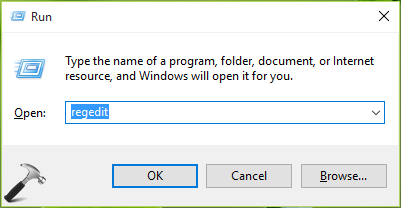
1. Press  + R and put regedit in Run dialog box to open Registry Editor (if you’re not familiar with Registry Editor, then click here). Click OK.
2. In the left pane of Registry Editor, navigate to following registry key:
HKEY_LOCAL_MACHINE\SOFTWARE\Policies\Microsoft
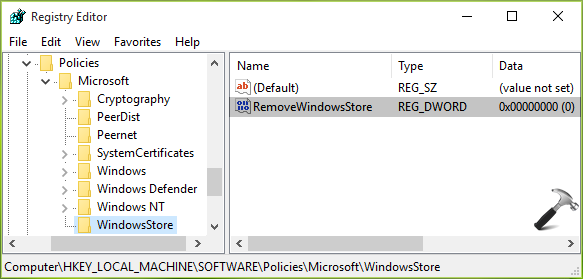
3. Right click on the Microsoft registry key and select New > Key. Name the newly created key as WindowsStore. In the right pane of WindowsStore key, right click and select New > DWORD Value. Name the newly created DWORD (REG_DWORD) as RemoveWindowsStore. Since you’ve created the DWORD, it should have its Value data set to 0, which will enable Windows Store on your machine.
Close the Registry Editor and reboot to have Windows Store working on your system.
Hope this helps! If Store is not working properly, re-register it here.






Is there a step missing? I created the new key and titled it WindowsStore per the instructions but obviously there is already a key with that name. Was I supposed to delete the first one?
^^ Nope at all 😊 Yes, delete the newly created value. If the value is there already, simply set it to 0.
it wont let me run on the first step
^^ What error you received?