

Windows Store is that component in Windows 8 or later, without which we can’t imagine corresponding operating systems. Store has helped users to let them download and use the apps of their choices. It has benefited the app developers, Microsoft, and the end users equally. Well, we have previously shared you the steps to re-register Store app in Windows 8.1; in order to fix issues with it, in following article:
Steps to re-register Store app in Windows 8 and 8.1
Now when it comes to Windows 10, there is different kind of Store app in this operating system. Thus the earlier previews of Windows 10 comes with two Store apps. One is that which was also shipped with Windows 8 and 8.1, and that you can repair using the steps of above linked article. While the another app is Store for Windows 10 users only (have a different color splash screen; shown below).
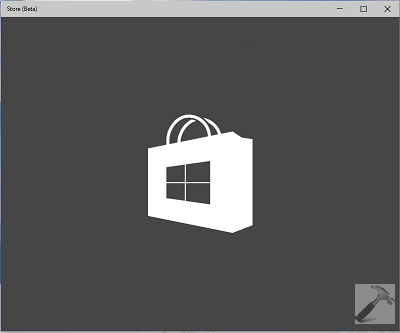
Today, in this article, I’ll show you the way to re-register Windows 10 Store app. Here is the simplest how to part:
How To Re-register Store App In Windows 10
1. Right click on Start Button and select Command Prompt (Admin). You may now be asked for User Account Control (UAC) permissions, so select Yes option. Now an elevated or administrative Command Prompt window will open.
2. Copy following command and paste it in the administrative Command Prompt window, press Enter key.
PowerShell -ExecutionPolicy Unrestricted -Command "& {$manifest = (Get-AppxPackage Microsoft.WindowsStore).InstallLocation + '\AppxManifest.xml' ; Add-AppxPackage -DisableDevelopmentMode -Register $manifest}"
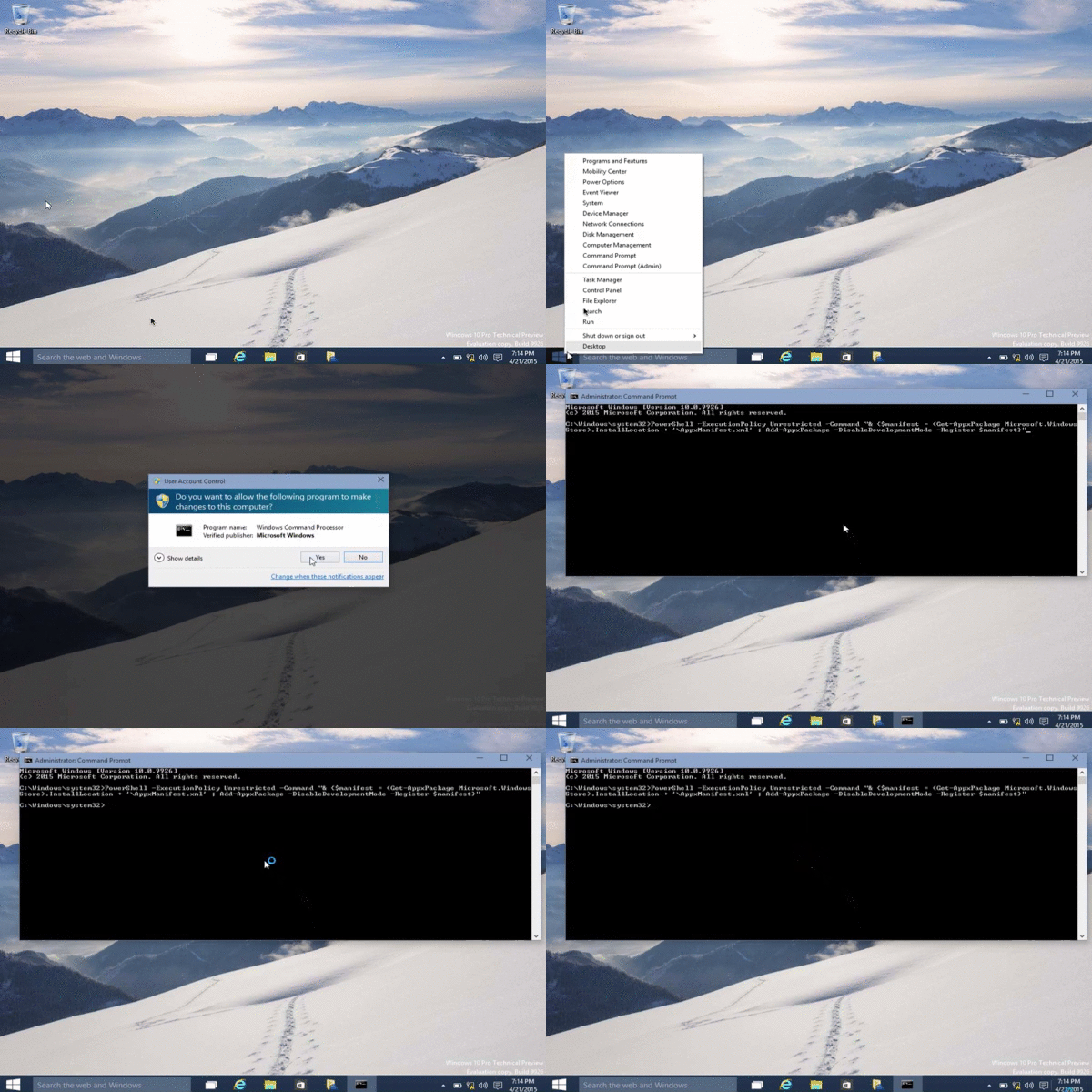
You must see a progress bar for few seconds and in this way the Store will re-registered. Once completed, finally you can restart your system take make changes effective. After rebooting the machine, the issues you were earlier facing with Windows 10 Store app, must be resolved now.
See this video for live illustration of this method:
That’s it! Go here if Windows Store is not opening on your Windows 8 or later running operating system.





Quotes in above article are incorrect ASCII characters for some reason. Copy and paste – test for yourself. After replacing the quotes it worked fine.
PowerShell -ExecutionPolicy Unrestricted -Command “”
The solution worked 100%. After running the script just restart Win 10 and you are all set.
^^ Glad we could help :)
Had this issue with windows 10 store, your tip to fix the error worked wonderfully. Thank you.
^^ Cool :)
Not working for me. Progress bar and all was seen, still “server stumbled…” error :( please help! Is the script correct?
^^ The script is correct and has worked for others. Suggest you to re-try the steps carefully.
I have a question, I can not see to get the windows store under services to stay running, so while I can re-register it, it isn’t doing anything. Nothing I have done helps and I want to access all the apps and even find new ones.
^^ Try creating a new user account then, and check if Store works on that.
I did, it still doesn’t work. It won’t open it won’t do anything.
no luck for me. i’ve retried the steps but the Store still stumbled
^^ Refer my previous comment here, and try that suggestion.
Hi. Thanks for the suggestion. Unfortunately, this kept giving me the following error, even though I plain-text pasted into a Word document first and then copied from there, to make sure that there are no auto-format characters:
PS C:\WINDOWS\system32> PowerShell -ExecutionPolicy Unrestricted -Command “”
= : The term ‘=’ is not recognized as the name of a cmdlet, function, script file, or operable program. Check the
spelling of the name, or if a path was included, verify that the path is correct and try again.
At line:1 char:5
+
^^ You can directly copy and paste the cmdlet, without using Word as intermediate. I hope that would work for you :)
I have tried the script, and now my Store app stop working at all, even the icon becomes blank, and if I click on it, it produces blue screen with some message at the top. I also have tried other various suggestions (wsreset, troubleshooting) with no avail. Finally, I give another try with the above script. Now, it gets worse, it produces the following error (below). Do you have any idea/suggestion? Thx
—
C:\WINDOWS\system32>PowerShell -ExecutionPolicy Unrestricted -Command “”
Add-AppxPackage : Deployment failed with HRESULT: 0x80073CF6, Package could
not be registered.
Merge Failure : error 0x80070003 : Cannot register the
Microsoft.WindowsStore_2015.23.23.0_x64__8wekyb3d8bbwe package because there
was a merge failure with the following file: C:\Program Files\WindowsApps\Micro
soft.WindowsStore_2015.23.23.0_neutral_split.scale-100_8wekyb3d8bbwe\resources.
pri
NOTE: For additional information, look for [ActivityId]
92d9bb63-2b4d-0001-7add-d9924d2bd101 in the Event Log or use the command line
Get-AppxLog -ActivityID 92d9bb63-2b4d-0001-7add-d9924d2bd101
At line:1 char:97
+ … fest.xml’ ; Add-AppxPackage -DisableDevelopmentMode -Register $manife …
+ ~~~~~~~~~~~~~~~~~~~~~~~~~~~~~~~~~~~~~~~~~~~~~~~~~~~~~~~~~
+ CategoryInfo : WriteError: (C:\Program File…ppxManifest.xml:S
tring) [Add-AppxPackage], IOException
+ FullyQualifiedErrorId : DeploymentError,Microsoft.Windows.Appx.PackageMa
nager.Commands.AddAppxPackageCommand
^^ You didn’t run the correct command, please retry with valid command mentioned in article :)
It dont work for me Help?
C:\WINDOWS\system32>PowerShell -ExecutionPolicy Unrestricted -Command “”
Add-AppxPackage : Deployment failed with HRESULT: 0x80073CF6, Package could
not be registered.
error 0x80070005: Failed to set access rights to LocalState.
NOTE: For additional information, look for [ActivityId]
aa46755a-318b-0007-9776-46aa8b31d101 in the Event Log or use the command line
Get-AppxLog -ActivityID aa46755a-318b-0007-9776-46aa8b31d101
At line:1 char:97
+ … fest.xml’ ; Add-AppxPackage -DisableDevelopmentMode -Register $manife …
+ ~~~~~~~~~~~~~~~~~~~~~~~~~~~~~~~~~~~~~~~~~~~~~~~~~~~~~~~~~
+ CategoryInfo : WriteError: (C:\Program File…ppxManifest.xml:S
tring) [Add-AppxPackage], IOException
+ FullyQualifiedErrorId : DeploymentError,Microsoft.Windows.Appx.PackageMa
nager.Commands.AddAppxPackageCommand
^^ Please check the permissions on following folder:
C:\Users\USERNAME\AppData\Local\Packages\Microsoft.WindowsStore_8wekyb3d8bbwe\LocalState
The folder must be accessible and you should have to give Full Control in terms of permissions so that read/write operations can be performed.
i followed the steps but unfortunately my windows store icon is not visible now.Every time when i click, it just opens and shuts down immediately.
i followed the above steps but unfortunately my windows store icon is not visible now.
how to solve it?
^^ See if creating a new user account helps you :)
Hi, be careful running this script as it messed up my windows store on windows 10. I started having an issue yesterday with the same error when trying to deploy my universal app on my phone for testing purpose and got overly excited when I saw a potential fix after spending a day trying to resolve it and I did not create a restore point. My universal app still can’t deploy but now my actual Windows Store displays a message for a second and then crashes or closes itself. Either way, now instead of having 1 problem I’ve got 2!!!! What a pain!
Doenst work
it says merge failure. didnt work and my store is not visible after this
^^ Refer suggestions in my previous comments here, see if they helps you!
Mine says Powershell is not recognised as an internal or external command…!
C:\WINDOWS\system32>PowerShell -ExecutionPolicy Unrestricted -Command “”
Add-AppxPackage : Cannot find path ‘C:\AppxManifest.xml’ because it does not
exist.
At line:1 char:97
+ … fest.xml’ ; Add-AppxPackage -DisableDevelopmentMode -Register $manife …
+ ~~~~~~~~~~~~~~~~~~~~~~~~~~~~~~~~~~~~~~~~~~~~~~~~~~~~~~~~~
+ CategoryInfo : ObjectNotFound: (C:\AppxManifest.xml:String) [Ad
d-AppxPackage], ItemNotFoundException
+ FullyQualifiedErrorId : PathNotFound,Microsoft.Windows.Appx.PackageManag
er.Commands.AddAppxPackageCommand
Now what?
Nope didnt work, instead now I have a new code error… 0x8000FFFF
I have just bought a windows 10 notebook and i have tried all your steps even on the previous page of setting the machine’s locale.
I did all you mentioned here
and i still got the same message
Pls Help
Amazing. I have been on Microsofts website for around an hour trying a lot of things they tell me and even called them up with no luck. I found this site out and it helped me fix my issue.
^^ Glad we could help 😎
Add-AppxPackage : Cannot find path ‘C:\AppxManifest.xml’ because it does not exist.
At line:1 char:97
+ … fest.xml’ ; Add-AppxPackage -DisableDevelopmentMode -Register $manife …
+ ~~~~~~~~~~~~~~~~~~~~~~~~~~~~~~~~~~~~~~~~~~~~~~~~~~~~~~~~~
+ CategoryInfo : ObjectNotFound: (C:\AppxManifest.xml:String) [Add-AppxPackage], ItemNotFoundException
+ FullyQualifiedErrorId : PathNotFound,Microsoft.Windows.Appx.PackageManager.Commands.AddAppxPackageCommand
I have tried every suggestion under the sun and this is what i got from this one. I have created a new user and reset my windows multiple times. cache is damaged apparently but nothing can repair it. cant reset it. please help. There is no windows logo at all and no trace of the windows app.
^^ Suggest you to try Windows 10 Refresh, it shouldn’t affect your data: https://www.kapilarya.com/reinstall-windows-10-without-affecting-personal-files
The command ran without a problem. I still get 0x80073CF9. I have tried all the other various “fixes”. The download begins and crashes with a couple of seconds, even before the “downloading license” appears – I have successfully installed this on another desktop. I’m stumped.
After going trough it all with no luck this finally helped.
https://www.kapilarya.com/try-again-later-something-happened-on-our-end-store-app-windows-10
^^ Glad you sorted the issue!
Not helped, still same error code: (0xA00F4244) In Windows 10.
Camera works in Skype and in Facebook video calls, but windows not detects and apps can not use my cam.
This is Philips webcam SPC1000NC. Please help if you can. Driver is old, but can not find fresh driver, my driver version is 5.8.8.38
^^ Please refer this fix: https://www.kapilarya.com/fix-camera-not-working-in-windows-10
Hi! i had an issue on my laptop where the camera wasnt working even when the camera privacy settings were changed, following a particular website I uninstalled the camera through the devicemanager and now I’m unable to re-install the built in camera again. Pls help
^^ Re-register Camera app: https://www.kapilarya.com/fix-camera-not-working-in-windows-10.
Add-AppxPackage : Deployment failed with HRESULT: 0x80073D23, The deployment operation was blocked
because Special profile deployment is not allowed. Please try logging into an account that is not a
Special profile. You can try logging out and logging back into the current account, or try logging
into a different account.
The package deployment operation is blocked by the “Allow deployment operations in special profiles”
policy.
NOTE: For additional information, look for [ActivityId] 9e6265ca-2cf9-0000-d73f-659ef92cd601 in the
Event Log or use the command line Get-AppPackageLog -ActivityID 9e6265ca-2cf9-0000-d73f-659ef92cd601
At line:1 char:97
+ … fest.xml’ ; Add-AppxPackage -DisableDevelopmentMode -Register $manife …
+ ~~~~~~~~~~~~~~~~~~~~~~~~~~~~~~~~~~~~~~~~~~~~~~~~~~~~~~~~~
+ CategoryInfo : NotSpecified: (C:\Program File…ppxManifest.xml:String) [Add-AppxPackag
e], Exception
+ FullyQualifiedErrorId : DeploymentError,Microsoft.Windows.Appx.PackageManager.Commands.AddAppxPa
ckageCommand
^^ Please refer this fix: https://www.kapilarya.com/the-deployment-operation-was-blocked-because-special-profile-deployment-is-not-allowed.
I just completed the re-registering the Windows Store by the link I was provided and it was not fixed. The issue is still there and I still can not download new apps because of acquiring license issue with the ox80070005 error code
^^ Try creating new user account, see if it helps.