

We all know that in Internet Explorer for Windows 8 or later i.e. Internet Explorer 10+ provides us the ability to pin websites to Start Screen. To do so, you have to simply visit the site which you want to pin, press  + X key together and select Add site to Apps / Pin to Start. But if you don’t prefer to use Internet Explorer and using Google Chrome as native browser, then you’ll miss this pin to Start Screen functionality, same is the case with some other browser users too.
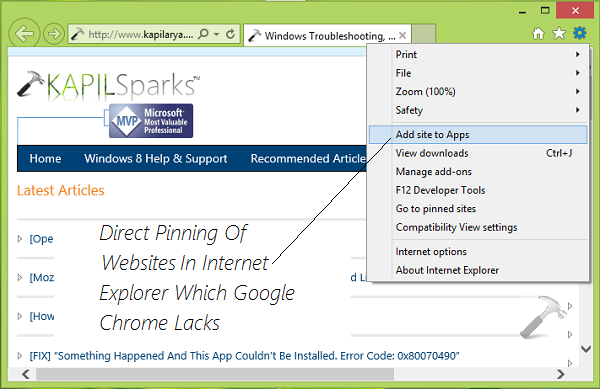
So how to pin websites to Start Screen so that we don’t need to enter URL each time to visit our favorite websites? Even if you try Internet Explorer and pin your favorite websites to Start Screen, the pinned website will open in Internet Explorer rather than opening in your favorite browser. Well, today I’m going to share you simple trick for Google Chrome, using which you can pin websites easily to Start Screen in Windows 8 or later. Here is how:
How To Pin Websites To Start Screen Using Google Chrome
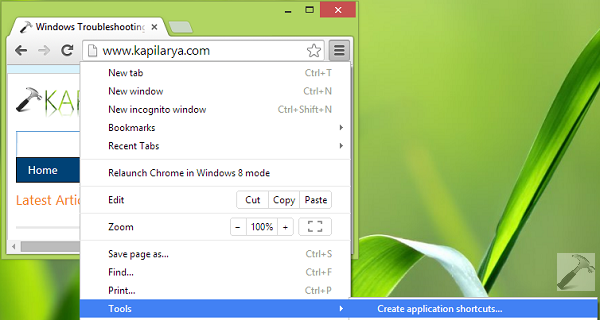
1. Open Google Chrome, visit the website that you want to pin to Start Screen, click on Settings icon. Select Tools -> Create application shortcuts.
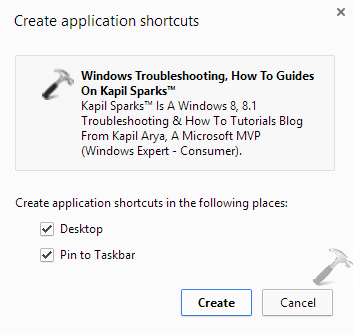
2. Then you’ll see following prompt, where you have the options to create application shortcut for Desktop and Pin to Taskbar, click Create. This will place a website pinned shortcut at Desktop.
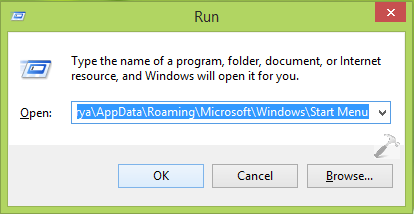
3. Next, press + R, type following in Run dialog box and hit Enter key:
C:\Users\<USERNAME>\AppData\Roaming\Microsoft\Windows\Start Menu
Substitute C: with your system root drive and <USERNAME> with your system user account name.
4. In the Start Menu folder so opened, move the pinned website shortcut which was created at Desktop in step 2.
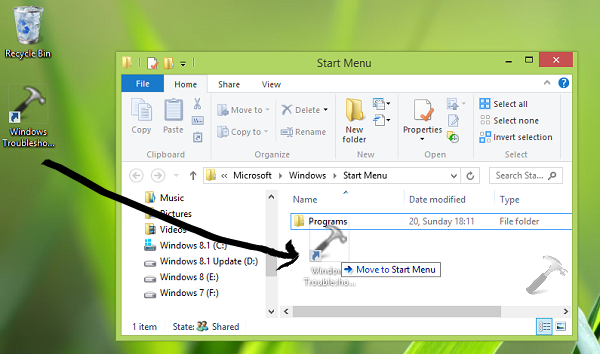
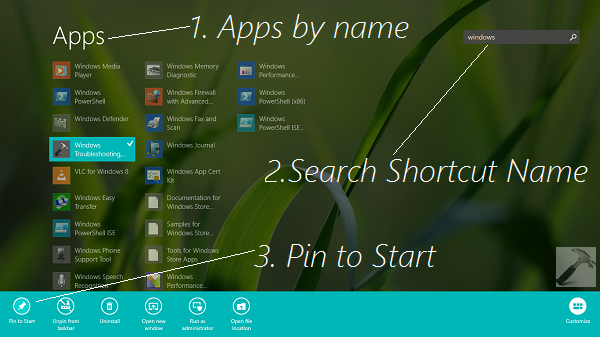
5. Moving on, go to Start Screen, and filter the Apps by name, search for the shortcut (which we placed to Start Menu folder previously) name. When you see the shortcut under search results, right click over it and select Pin to Start.
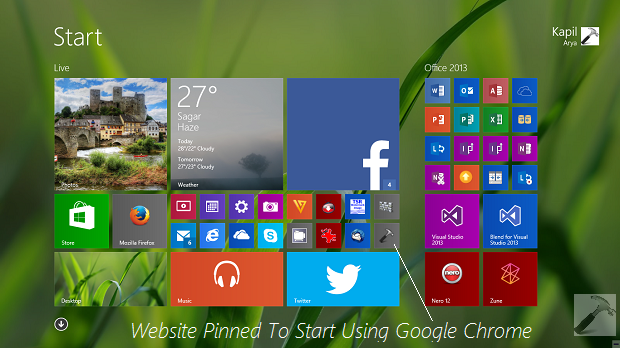
6. In this way, the shortcut is now pinned to Start Screen, so you can click it simply to open the associated website in Google Chrome.
That’s it!





Nice trick
Voila it worked hardly looking for this u saved my many hours man ty :-)
In older Google Chrome there was a option to do it like ie but now we have to use this trick. Thankx for sharing.
Awesome article Kapil kepp writing this tricks very helpful for me…!:-)