When you’re about to give PowerPoint 2013 presentation using a projector, you might be concerned about display. Incorrect display settings not only looks unproductive but it also compromise with your standard, against viewers. Hence, in order to have a great presentation, you need to confirm that frequency of external devices you’re about to use, matches with your computer settings.
![[FIX] PowerPoint Not Ending Presentation In Mirror Display Mode](https://htse.kapilarya.com/FIX-Issues-With-PowerPoint-2013.png)
Consider a scenario – you started a presentation in ‘mirror’ or ‘duplicate’ display mode. Now when PowerPoint goes to presenter mode, it changed the display to “extended” mode. This is an automation, and is referred as display topology. But now when the presentation ends up, PowerPoint should return back to ‘mirror’ or ‘duplicate’ mode. However this doesn’t happens and PowerPoint still remains in “extended” display mode.
Recommended : How To Start PowerPoint In Safe Mode
So how to fix this issue? Well, a simple and straightforward registry tweak will solve this problem for you. Here it is:
FIX : PowerPoint Not Ending Presentation In Mirror Display Mode
Registry Disclaimer: The further steps will involve registry manipulation. Making mistakes while manipulating registry could affect your system adversely. So be careful while editing registry entries and create a System Restore point first.
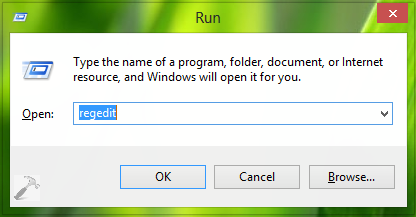
1. Press  + R and put regedit in Run dialog box to open Registry Editor (if you’re not familiar with Registry Editor, then click here). Click OK.
2. In the left pane of Registry Editor window, navigate here:
HKEY_CURRENT_USER\Software\Microsoft\Office\15.0\PowerPoint
![[FIX] PowerPoint Not Ending Presentation In Mirror Display Mode](https://htse.kapilarya.com/FIX-PowerPoint-Doesnt-Ends-Presentation-With-Mirror-Display-Mode.png)
3. In the left pane of above shown window, highlight the PowerPoint key and come to its right pane. In the right pane, right click in blank space and select New -> DWORD Value. Name the newly created DWORD as RestoreTopology. Double click on the same to get this:
![[FIX] PowerPoint Not Ending Presentation In Mirror Display Mode](https://htse.kapilarya.com/FIX-PowerPoint-Doesnt-Ends-Presentation-With-Mirror-Display-Mode-1.png)
4. Finally, in the above shown box, change the Value data to 1. Click OK. You can now close Registry Editor and reboot the machine to make changes effective.
Hope this helps! Go here to fix multiple issues with PowerPoint 2013.