

For Windows 8, we’ve previously shared the trick to put your desired image as the Start Screen background, which you can read here. However, after the release of Windows 8.1, it now becomes handy to set Desktop background as Start Screen background. This one is the improvement feature from Windows 8.1 and I guess you might have tried it. Here is the screenshot of the Start Screen enjoying same Desktop background:
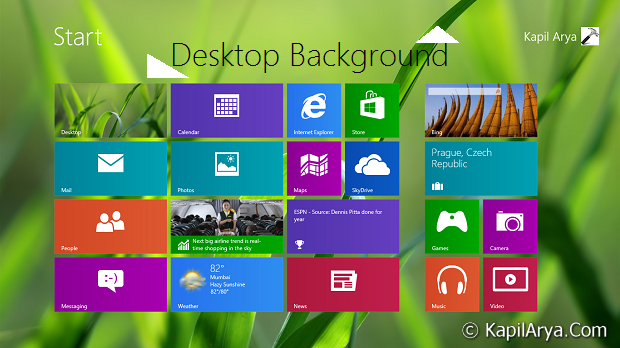
You can manually configure Windows 8.1 to apply this scheme from the Taskbar & Navigation Properties window (Right click on taskbar -> Properties) . But if you are using multi-user Windows 8.1, then there may be the chances that someone else can made changes and thus nullify the settings you have configured. An expert way is thus required to retain your desired configuration which you can achieve using Registry Editor.
So without wasting time in talks, lets see some practical action:
How To Set Desktop Background As Start Screen Background In Windows 8.1
Registry Disclaimer: The further steps will involve registry manipulation. Making mistakes while manipulating registry could affect your system adversely. So be careful while editing registry entries and create a System Restore point first.
1. Press  + R and put regedit in Run dialog box to open Registry Editor (if you’re not familiar with Registry Editor, then click here). Click OK.
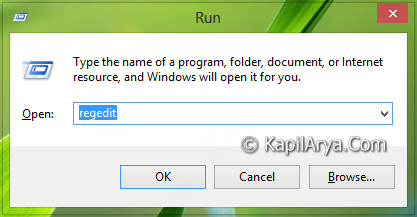
2. Navigate here:
HKEY_CURRENT_USER\Software\Microsoft\Windows\Current\Version\Explorer\Accent
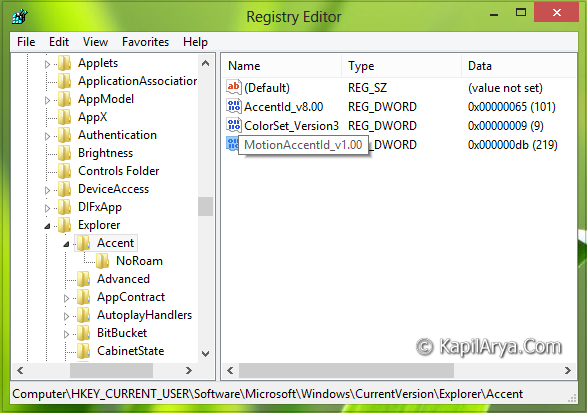
3. In the right pane of this location, look for the DWORD named MotionAccentId_v1.00, by default it must have Value data as 000000da . If you didn’t see it, then create a new one using Right click -> New -> DWORD Value. Double click the DWORD to modify:
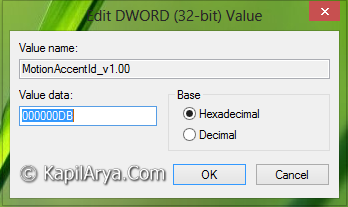
4. In the above box, put the Value data as 000000db. Make sure that the base selected here is Hexadecimal. Click OK. You may close the Registry Editor now and restart the Explorer or reboot to see the results.
Hope you enjoyed the tip & find it useful!
