

In some situations it became necessary for us to hide files or folders, so that others may not able to view them. Basically, hiding content is possible in Windows by imposing a layer of security. Thus the user who want to view hidden content have to bypass this security layer.
See : How To Save Or Print The List Of Hidden Files In Windows
Well, in Windows 8 or later, the option to hide files can be easily enabled or disabled from the ribbon under File Explorer. But if checking or unchecking the Hidden Items option is not working at your system, you may not able to view hidden stuff as a result of this.
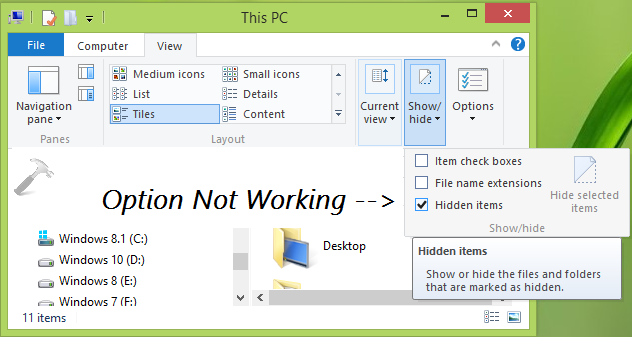
Hence in order to view hidden items, you need to make a different approach which is as follows:
FIX : Unable To Show Hidden Files And Folders In Windows 10/8.1
Registry Disclaimer: The further steps will involve registry manipulation. Making mistakes while manipulating registry could affect your system adversely. So be careful while editing registry entries and create a System Restore point first.
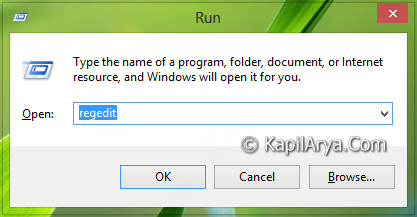
1. Press  + R and put regedit in Run dialog box to open Registry Editor(if you’re not familiar with Registry Editor, then click here). Click OK.
2. In the left pane of Registry Editor, navigate here:
HKEY_LOCAL_MACHINE\SOFTWARE\Microsoft\Windows\CurrentVersion\Explorer\Advanced\Folder\Hidden\NOHIDDEN
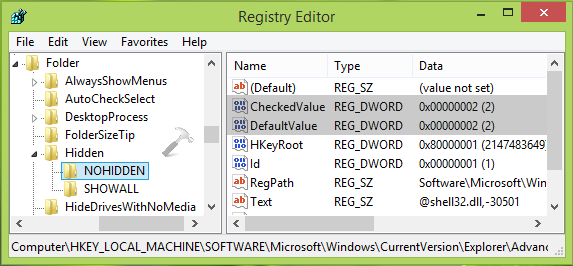
3. In the right pane of this registry location, create or modify the CheckedValue and DefaultValue registry DWORDs with 2 as their Value data. Then move to following registry location, next to current location:
HKEY_LOCAL_MACHINE\SOFTWARE\Microsoft\Windows\CurrentVersion\Explorer\Advanced\Folder\Hidden\SHOWALL
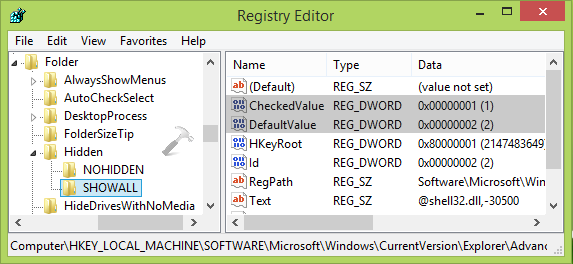
4. In the above shown window, you need to confirm that registry DWORDs CheckedValue and DefaultValue have their Value data as 1 and 2, respectively. If the same data not exist, modify it and make it same.
Once you’ve confirmed data at step 3 and 4, you can close Registry Editor and reboot the machine. After restarting the system, you must be able to view hidden files, by enabling its option in ribbon for File Explorer.
Hope this helps! Checkout how to change temporary files target folder location in Windows.




Kapil Arya,
Thank you very much for your article. I am having this problem in Windows 10 Pro x64, since 2 days ago. I was browsing Internet for the solution, then found yours. But the default value of (the registry values) for both NOHIDDEN as (2) / (2); and SHOWALL as (1) / (2) are already shown in my machine. That means in my case, the Unable Hidden Items is not related to this. Back to 2007 a post in CNET forum described a similar problem for WindowsXP machine. That post refers to HKEY_CURRENT_USER\Software\Microsoft\Windows\CurrentVersion\Explorer\Advanced, and suggests to change the Hidden registry value (0) to (1). But I was not allowed to change this value. So what might be the problem and solution for my machine?
Thank you in advance.
Thanks a lot Mr Kapil Arya. Your solution worked perfectly for me.
^^ Glad we could help :)