

Boot manager is important component of your system where Windows is located and booted every time. If you are facing the lose of Windows boot manager, you’re not alone. Using the fix mentioned here, you can easily recover your lost boot manager via setup disc. The major cause of lose of boot manager is corruption of Windows installation.

So without wasting your time, lets see how to restore the lost boot manager using setup disc…
How To : Recover Lost Boot Manager In Windows
1. Insert the setup disc under the DVD drive (Setup disc of any Windows OS can be used here). For example, let us consider that we’ve entered setup disc of Windows 7.
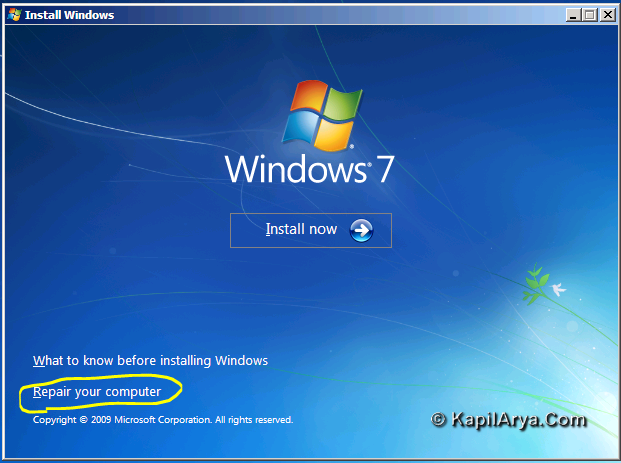
2. You will see the Repair your computer option here. Click this option which results another window named System Recovery Options. Locate Windows 7 under operating systems and select Next. Actually the “bootmgr” file is located in the root of setup disc. So it can be copied to system partition using the copy command.
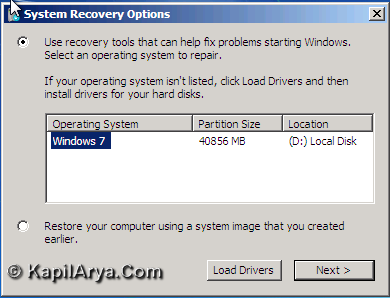
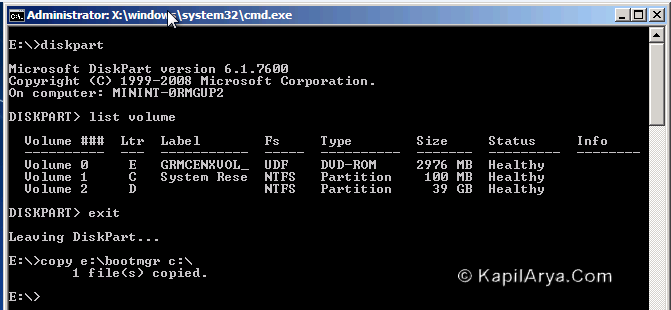
3. Now a new window opens, will ask you to choose the recovery tool. Click on “Startup Repair” and the installation process will automatically repair the system. But this will repair the system files. Our goal is to restore the boot manager, hence type the following copy command to copy the boot manager (continuation of step 2):
copy e:\bootmgr c:\
Here it should be noticed that you may have different drives. Below image illustrates which drive to choose.
4. Finally system will prompt for reboot which should allow it to boot next time. In this way boot manager is restored.
That’s it!






What I use always is “bootrec /fixboot” command, it works fine for me….
Yet another……….
1. Put the Windows 7 installation disc in the disc drive, and then start the computer.
2. Press a key when the message indicating “Press any key to boot from CD or DVD …”. appears.
3. Select a language, a time, a currency, and a keyboard or another input method, and then click Next.
4. Click Repair your computer.
5. Click the operating system that you want to repair, and then click Next.
6. In the System Recovery Options dialog box, click Command Prompt.
7. Type Bootrec /RebuildBcd , and then press ENTER.
^^ Good to know :)
Hello Kapil, plz. can you tell me how to identify whether a system is 32-bit or 64-bit????
^^ Its very simple! Type “msinfo32.exe” inside Windows 7 search box. Click on the program found so far.
It will open System Information, under System Summary check for “System type”.
If it is x-86 -> 32-bit and if x-64 -> 64-bit.
Hello kapil i want to know how to solve the problem of windows boot manager without disc
^^ You would at least need the recovery/installation disc to solve this kind of issues, without it there is no possibility.