

“Errors were detected while saving in Microsoft Excel” in Windows 11 is one of such errors that can destroy your mood at once. You have taken hours to write reports, manipulate the formulas, and sort the data only to receive this message when you are trying to save. At this point, the urge to throw the laptop out of the window is tempting.

But let’s be calm, and have the peaceful (and wiser) way. With the basic steps that are presented in this article, you will be able to correct the error and save your Excel spreadsheet without losing all your data.
Page Contents
Why Do Errors Occur While Saving in Microsoft Excel?
Errors do occur while saving a file in Microsoft Excel. Its common reasons include-
- Corrupted Excel workbook.
- Invalid named ranges.
- Conflicts in regions or languages.
- Damaged tables or formulas.
However, there are compatibility problems with an older version of Excel that can stop file creation or other functions.
What Most Users Don’t Realize About Excel Saving Errors
The message about the errors in saving to Microsoft Excel normally shows up in advance of the real loss of data.
- Excel has enough intelligence to identify the inconsistencies.
- Broken references.
- Disputing local environments.
- Corrupted tables.
- Unsupported elements.
Excel does not fail silently and instead gives you an opportunity to correct the issue by alerting you.
Fix Errors were detected while saving in Microsoft Excel
With the help of the methods described below, the issue could be solved, and you could save your data and proceed with the work.
Fix 1: Save the Excel File as XLSB Format
In some cases, it has something to do with file format capabilities.
1. Open your Excel file. Click File > Save As.

2. Choose a different location.

3. Under Save as type drop-down list, choose Excel Binary Workbook (.xlsb).
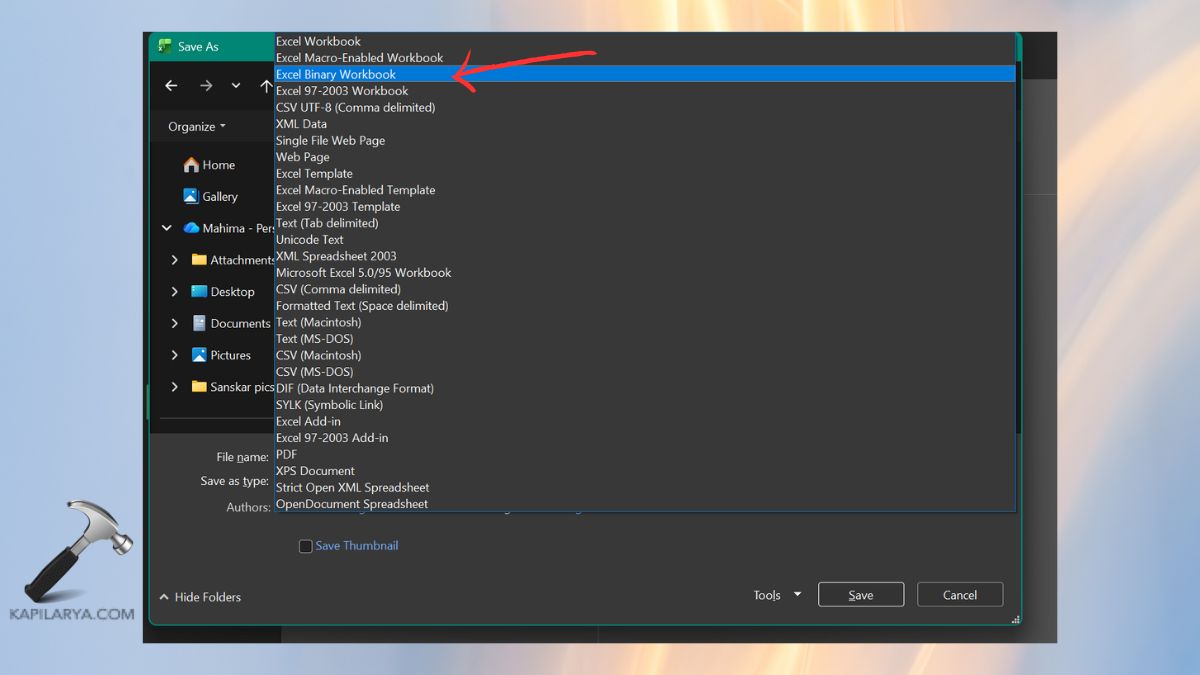
Click Save.
Fix 2: Convert Excel Table to Range
Sometimes, Excel tables lead to saving conflicts.
1. On Excel Table, click anywhere on it. Go to the Table Design tab.
2. Click Convert to Range.

3. Confirm the action.
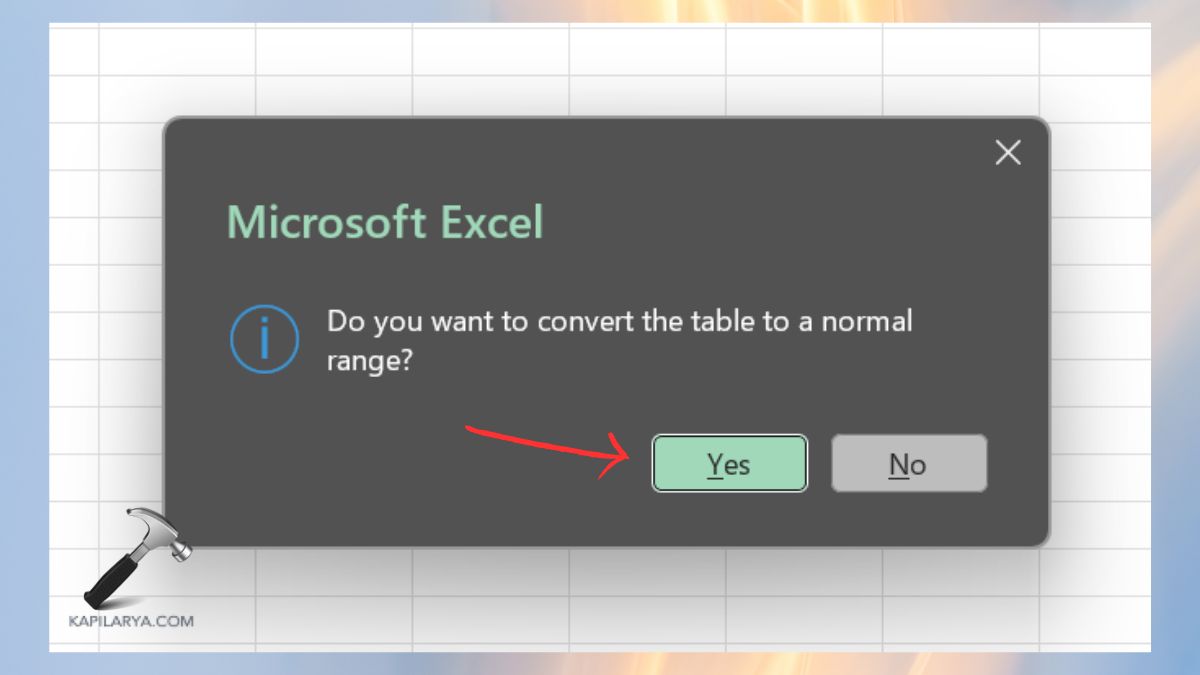
Try saving the file again.
Fix 3: Check and Delete Invalid Named Ranges
The most typical hidden cause is broken or invalid named ranges. Excel will fail to save files correctly in those cases when references are disrupted, thus causing saving errors.
1. Open Excel. Go to Formulas > Name Manager.

2. Look for names showing “#REF!” or errors. Select the invalid range. Click Delete.
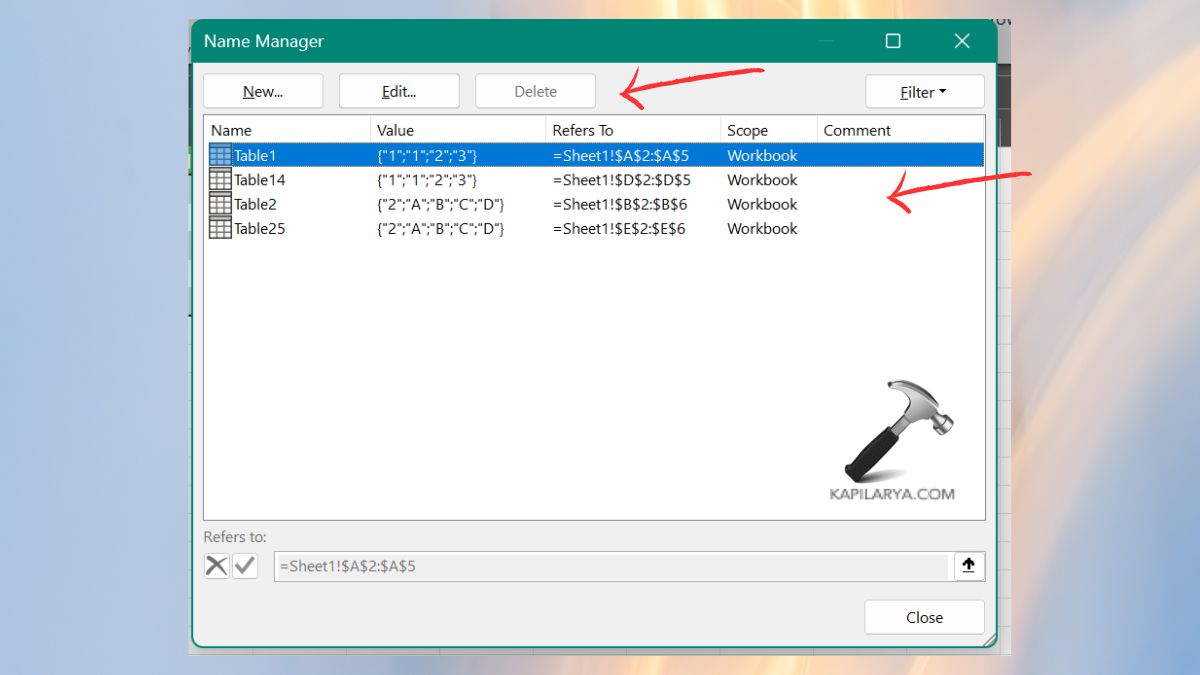
3. Now, try again to Save the workbook.
Fix 4: Adjust Excel’s Language and Region Settings
The incompatibility of regional settings may disrupt the process of saving in Excel. The approach comes in particularly handy when using Excel files that are shared across systems.
1. Open Excel. Go to File > Options.
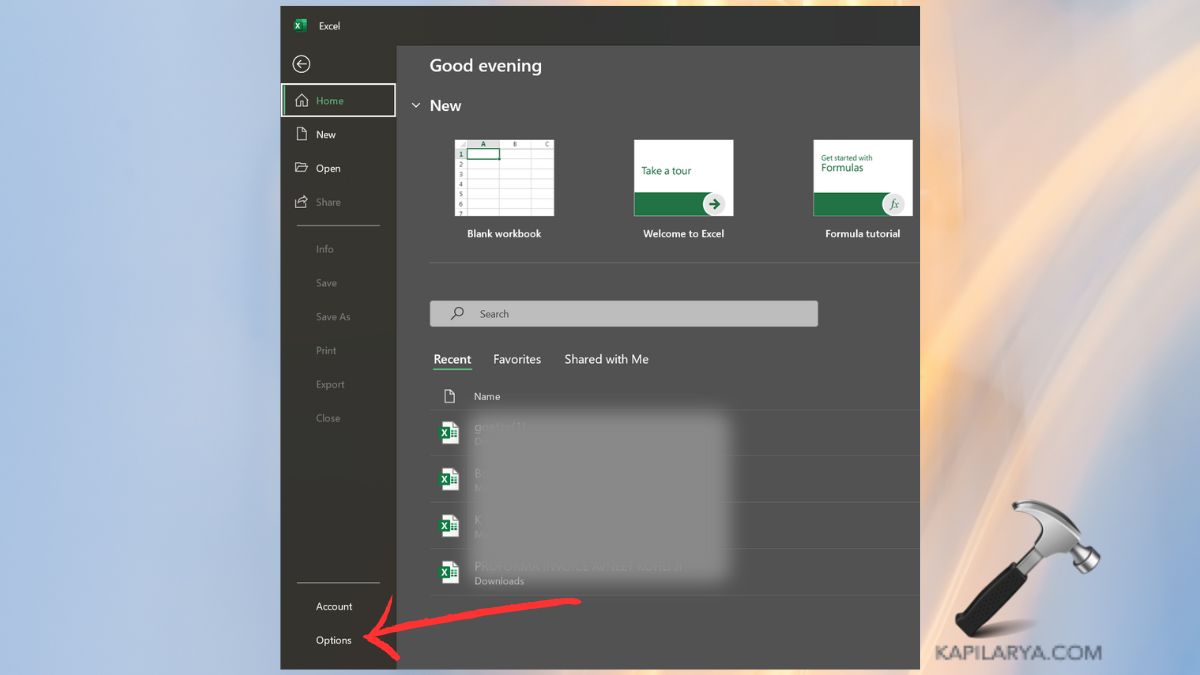
2. Choose Language. Make sure that you have adapted editing and display languages to your system region.
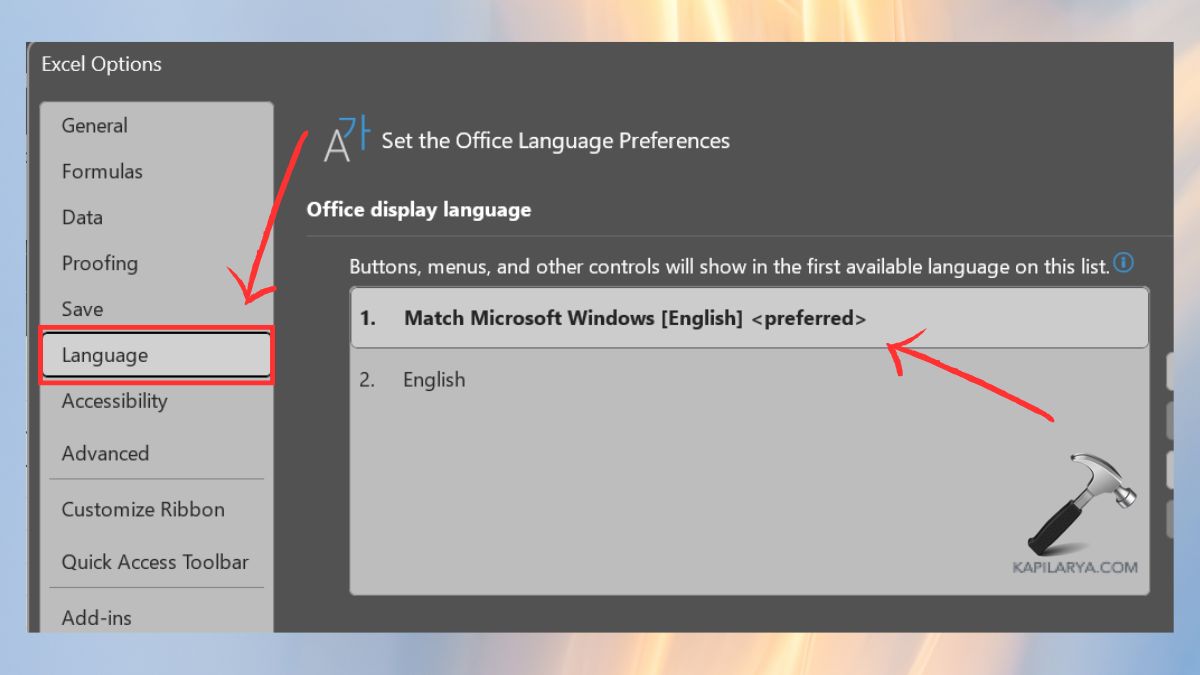
Click “OK” and restart Excel. Save the file again.
Fix 5: Create a New Workbook and Move Data
In case the workbook itself is corrupt, therefore, this is the best approach. It erases corrupted information and preserves your information.
1. Create a new blank Excel workbook.
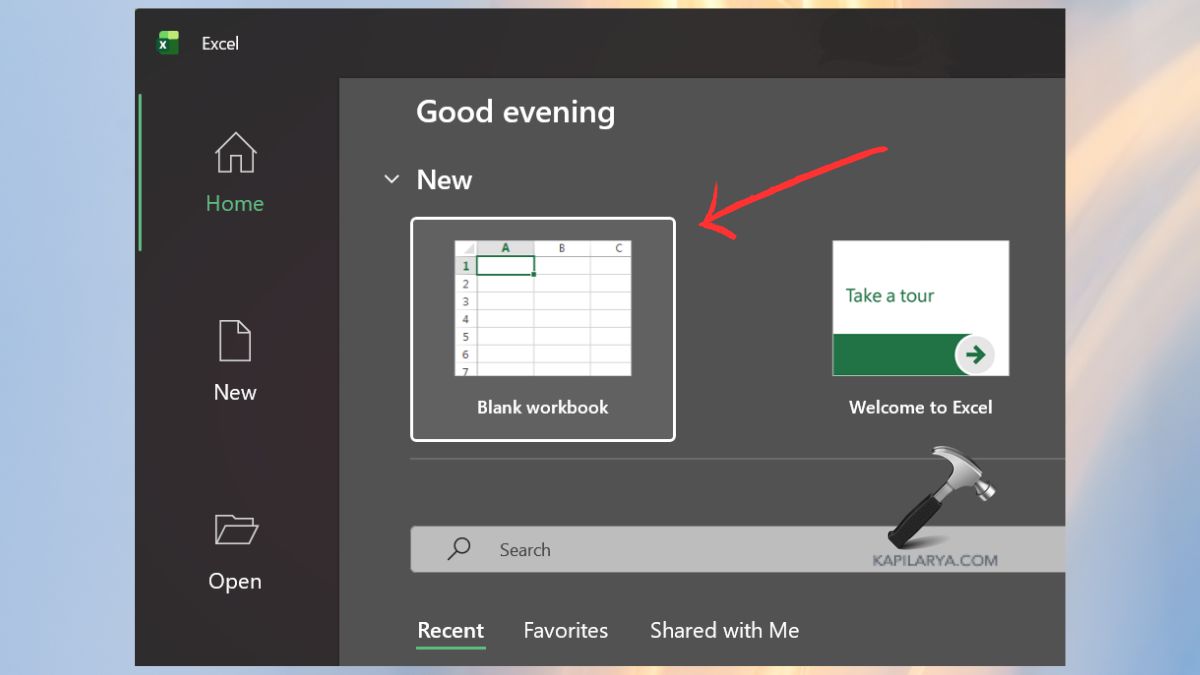
2. Duplicate sheet after the previous sheet of the bad file. Paste on the basis of Paste Special/Values.
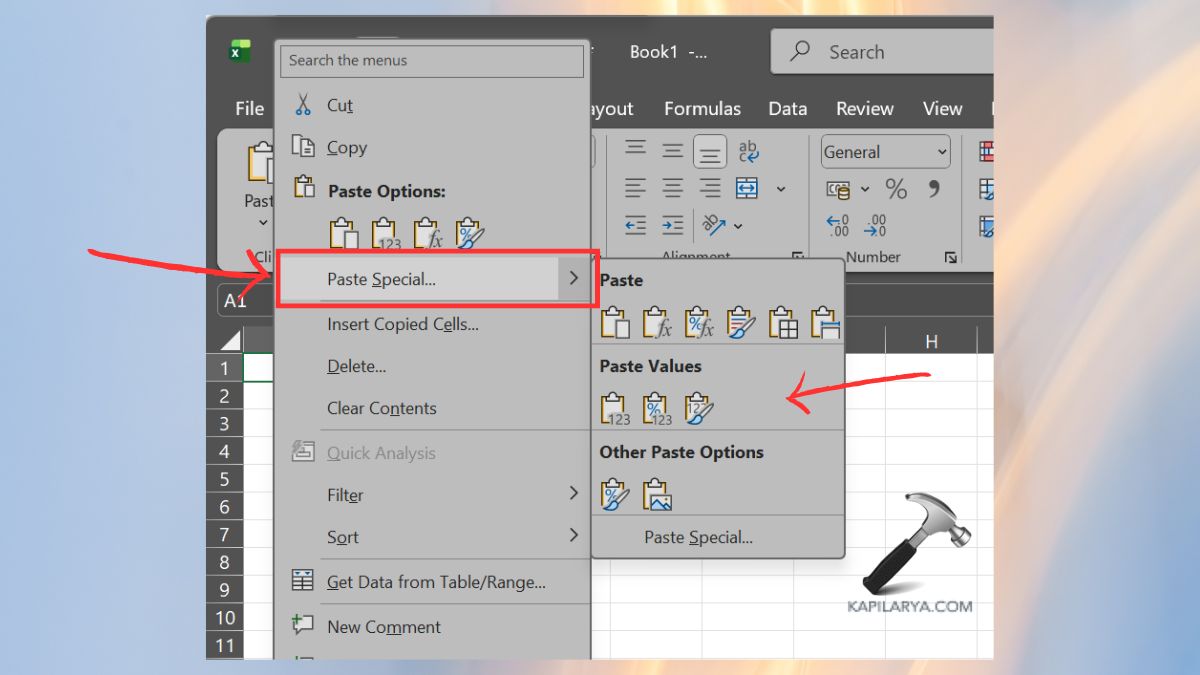
Now, Save the new workbook.
Frequently Asked Questions (FAQs)
What does “Errors were detected while saving in Microsoft Excel” mean?
It indicates that Excel encounters some problems in the workbook that cannot allow it to save properly, typically since it is corrupt or incorporates invalid items.
Why is Excel not allowing me to save files?
This occurs either through file corruption, damaged formulas, inappropriate settings or permission within the workbook.
Can I recover my data if Excel shows this error?
Yes. Recovering all data is typically completed by using such techniques as saving as XLSB or creating a new workbook.
Does this error occur in all Excel versions?
Yes, it can occur in Excel 2010, 2013, 2016, 2019, and Microsoft 365.
What if Microsoft Excel crashes when saving a file?
In the event of a crash during the saving of the file in Excel, then go through the steps in the guide in detail to fix Microsoft Excel crashes when saving a file.
That’s it!


