

Have you ever tried to open an Excel file that you need, but as soon as you open it, you get the most dreaded message, which is — The file is corrupted and cannot be opened in Excel? There is no need to panic because you are not alone, and even better, you are in the right place!

It is a widespread error in Excel that happens at the most inopportune moments when it is time to present a report, send your work to a client, or do some last-minute calculations. It tends to occur because of the high security settings in Excel, or power loss, or when the file is corrupted during transfer in Windows 11. The good news, though, is that you do not have to be a genius to put it right.
Here, we have created a step-by-step guide to tell you about 8 quick and simple solutions to the problem and how to retrieve your data.
Page Contents
Fix ‘The file is corrupted and cannot be opened’ in Excel
The following are 8 fixes that will help you recover your Excel file as well as avoid the recurrence of this problem. Be very careful with these step-by-step instructions.
Fix 1: Change the Protected View Settings in Excel
Protected view is another of the reasons why Excel may block files. These are put to safeguard your systems against sources of uncertain trust, but may not allow legitimate files to open.
1. In Excel, click the File menu and then click Options.

2. In the Excel options dialog box, click Trust Center, and then click Trust Center Settings.

3. Press Protected view. Tick the following options off your list
a. Enable Protected View for files originating from the internet
b. Enable Protected View for files located in potentially unsafe locations
c. Enable Protected View for Outlook attachments

4. Then, enter OK and restart Excel. Open your file again.
Fix 2: Use Excel’s Built-In “Open and Repair” Feature
Open and Repair is the built-in tool in Excel that repairs a corrupt file.
1. Launch Excel on the computer. On the menu Bar, select File > Open > Browse.

2. Point to the Open button, and select Open and Repair.

3. Click Repair so that the most data can possibly be recovered.

In the event of the Repair being unsuccessful, choose Extract Data to retrieve cell values and formulas.
Fix 3: Switch Excel Calculation to Manual Mode
When a file is complex or large, there is a chance that Excel will run into a crash during automatic calculation. Altering the calculation mode will assist you in opening the file.
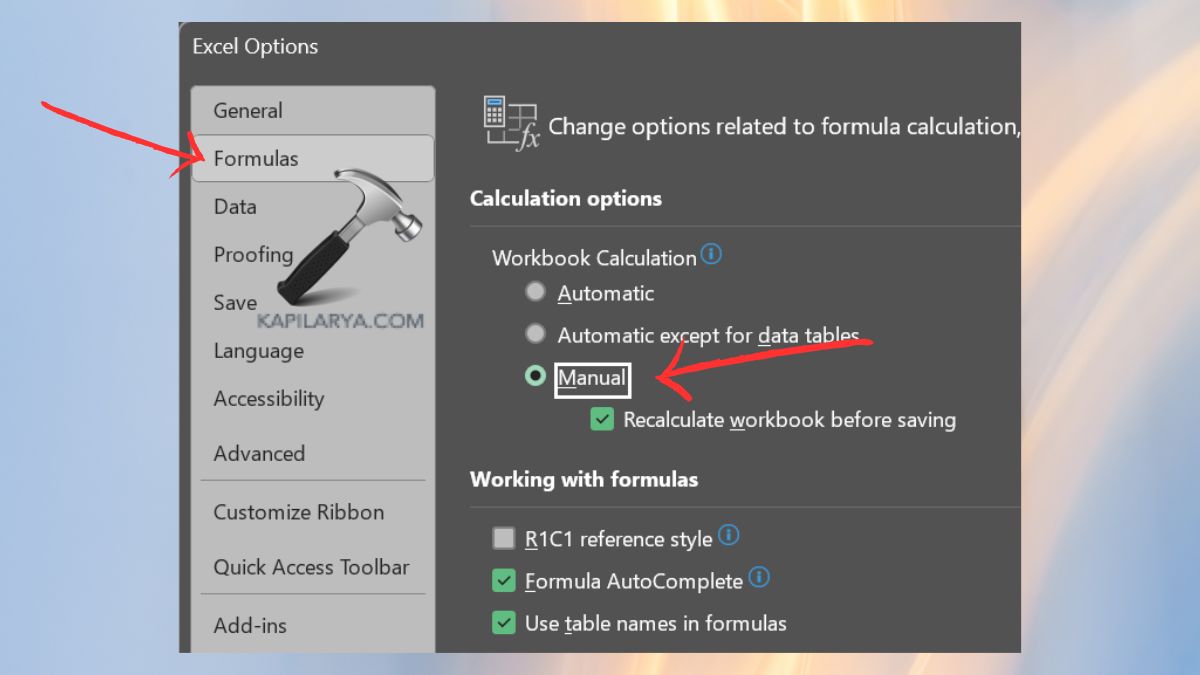
1. Launch a fresh Excel workbook (not the corrupted one). Go to the menu: File > Options > Formulas.
2. Under Calculation options, set it to Manual. Try to open the corrupted file so that after clicking OK, the file should be opened.
Fix 4: Change Component Services Settings in Windows
Excel files can be blocked by Windows when there is a wrong configuration of the component services. It can be remedied by changing the permissions.
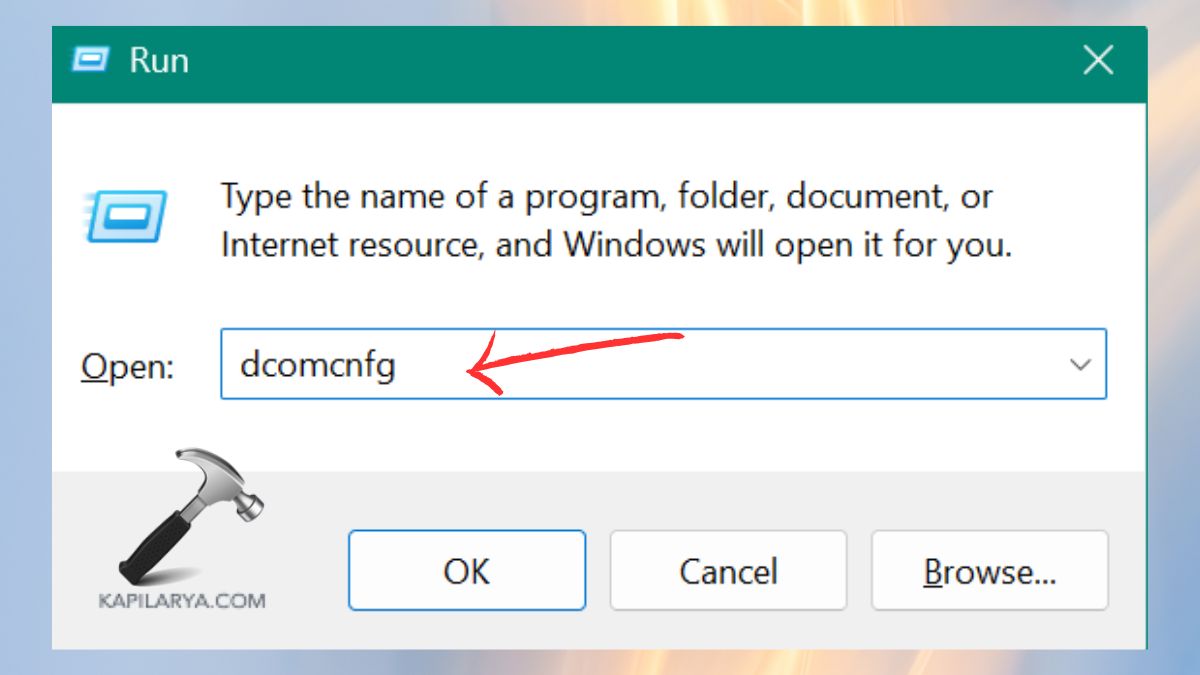
1. Press the keys Win + R and type the following command, and press Enter.
dcomcnfg
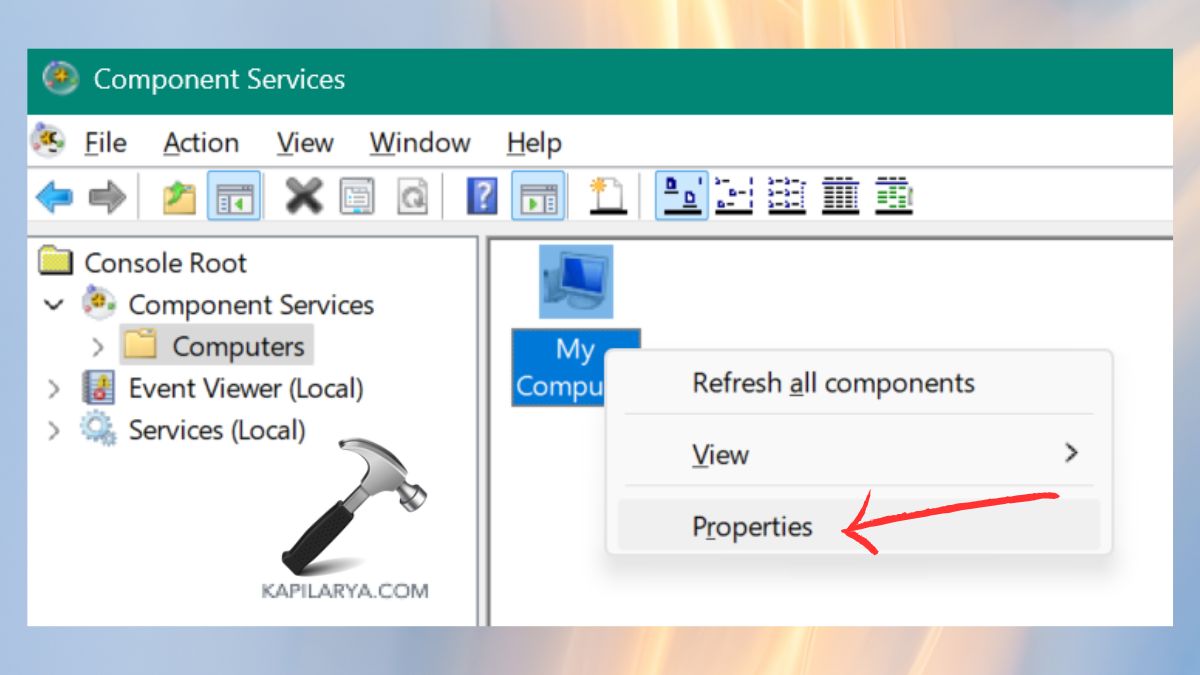
2. In the menu, go to component services > computers > my computer.

3. Right-click My Computer and select Properties.
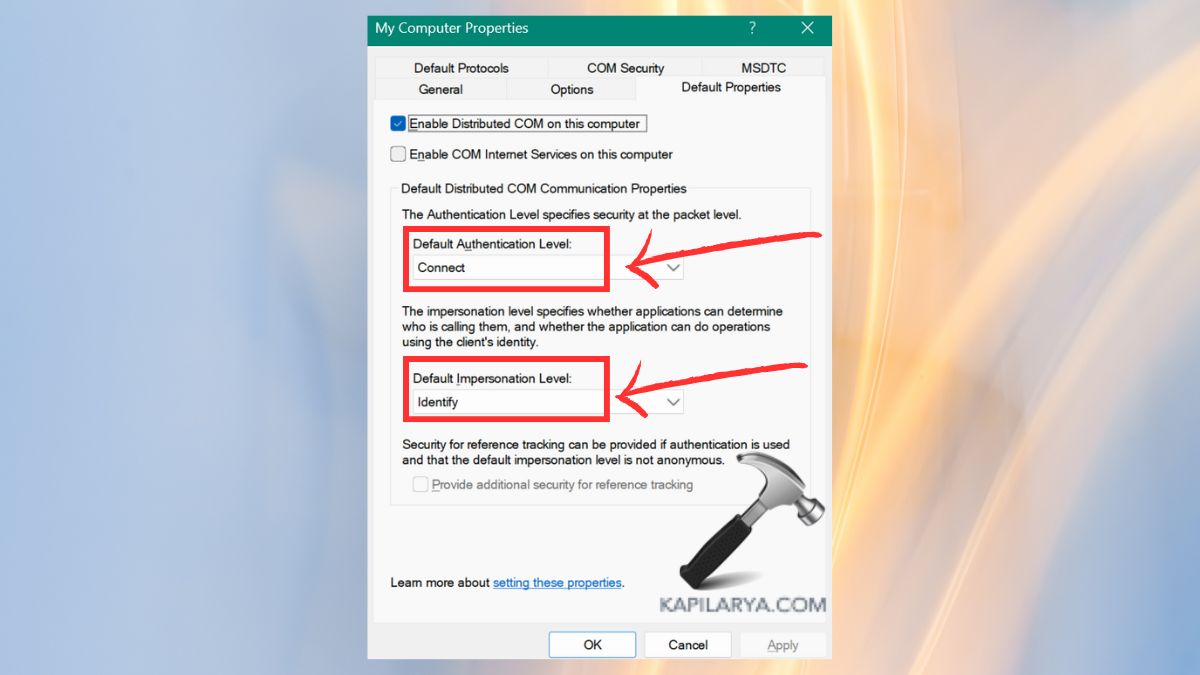
4. Click on the Default Properties tab. Set:
a. Default Authentication Level: Connect
b. Default Impersonation Level: Identify
Apply and OK, then restart your PC.
Fix 5: Revert the File to a Previous Version
You might be able to undo a previous working version of your file if you have File History or OneDrive turned on.
1. Right-click on the corrupted Excel file. Select Properties.

2. Click on the Previous Versions tab. Select the previous version (in case available) and hit Restore.

Fix 6: Use External References to Recover Data
This technique will draw information out of the corrupted file without opening it.
1. First, open a New workbook to attempt this solution.
2. In A1, type:
='[CorruptedFile.xlsx]Sheet1'!A1
You must replace “CorruptedFile” with the file name that is actually corrupted. Press Enter.
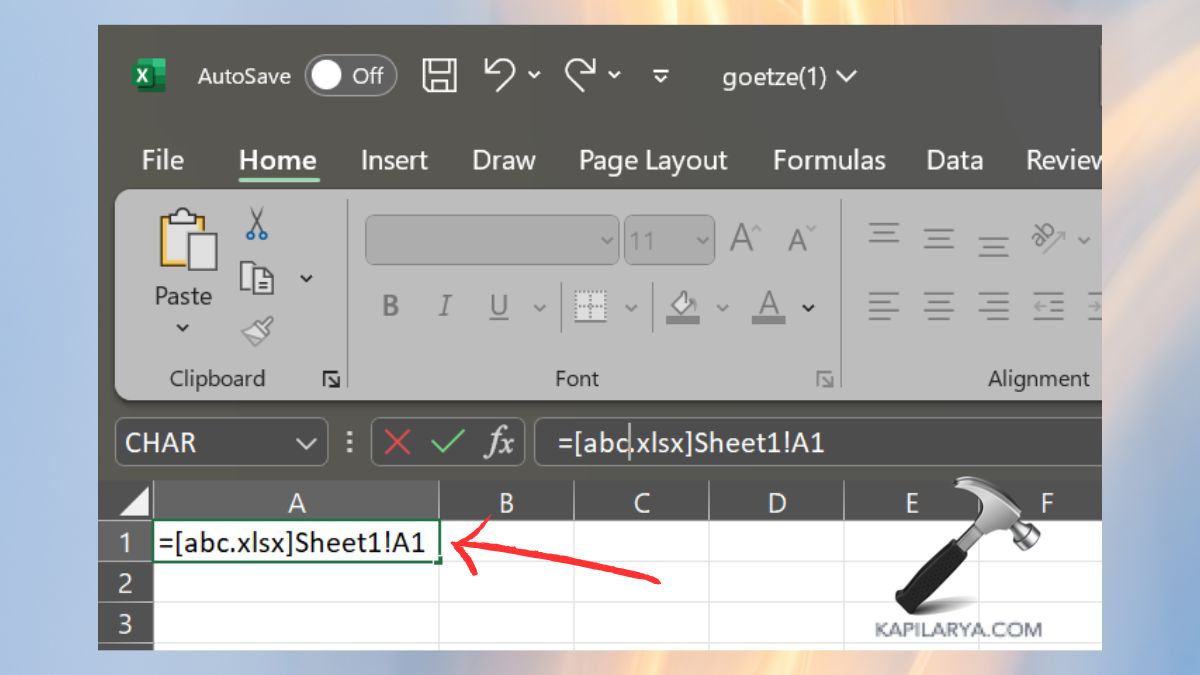
3. When you have it, copy the formula into several rows and columns to get more data. To recover the values, copy and paste them onto another page. Whenever you select any value, you will see the file path.

Fix 7: Use Excel in Safe Mode
Starting Excel in Safe Mode turns off Excel add-ins and customizations that can be the source of the problem.
1. Press Win and R, type this command in the box and press Enter.
excel /safe

2. Excel will be opened on Safe Mode. Now, open the corrupt file.
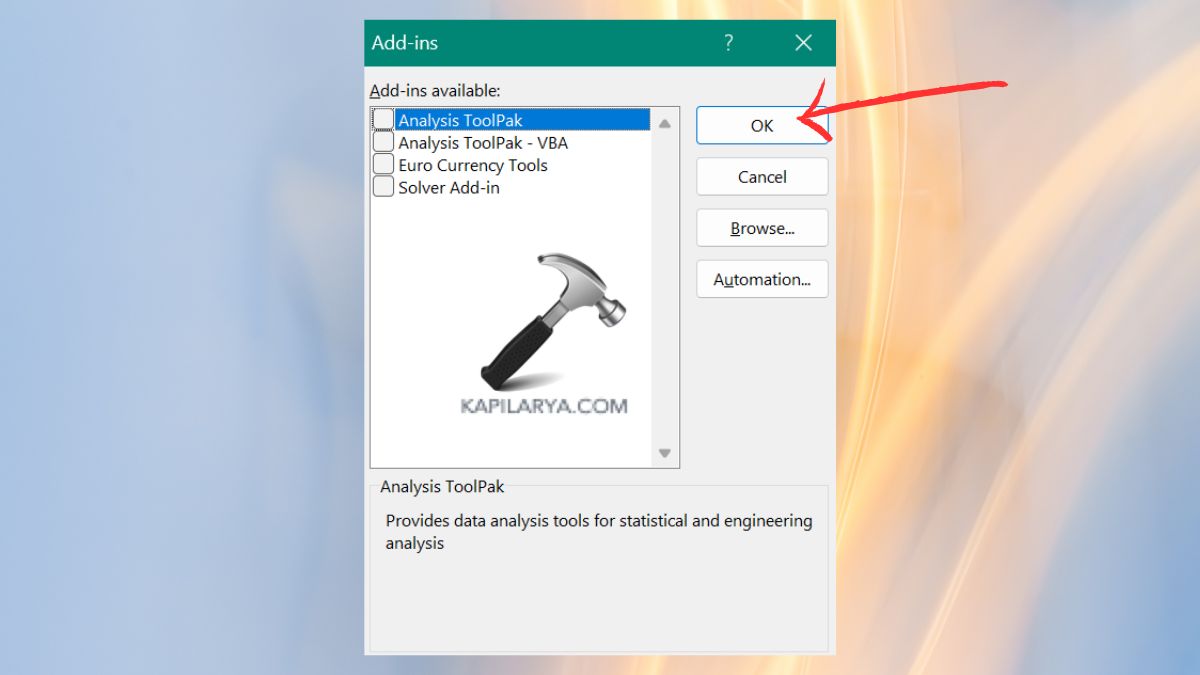
3. In case it is working, turn off corrupted add-ons. For that, go to File > Options > Add-ins.
4. To find out the problem, disable COM Add-ins and Excel Add-ins separately. Click on “Go” option as show in the screenshot.

5. Uncheck the options and tap “OK”.
Frequently Asked Questions (FAQs)
#1 Why does Excel show “The file is corrupted and cannot be opened”?
This mistake normally occurs because of Protected View settings, corruption of files in transit, or when they are opened in untrusted places.
#2 Can I recover a permanently corrupted Excel file?
One could make an attempt to restore the data with the help of the Open and Repair option, restoring an older version, or recovering the data with the help of external references.
#3 Does disabling Protected View make Excel unsafe?
Turning off Protected view will put your system at risk of encountering risks in the event you open files that are not familiar to you. You should only disable it on trusted files.
#4 What tools can I use to fix a corrupted Excel file?
Besides the built-in repair utilities, a third-party program such as Stellar Repair for Excel or Kernel Excel File Repair may also be useful in extreme corruption situations.
That’s it!


