Is your USB drive not showing up in Windows 11? This can be frustrating whenever you require transferring files in a hurry in File Explorer. Windows 11 has improved security and hardware management. And, at times, even minor problems such as unexpected power outage, improper removal of a device, or old firmware can result in the disappearance of your USB device of the File Explorer.
Windows, at times, does not recognize a pen drive, a flash drive, or an external hard disk or a memory card reader. This guide enables all people to correct the issue without necessarily having technical knowledge.
Page Contents
Why Is My USB Drive Not Showing Up in Windows 11
The most common causes include:
- Broken and old USB drivers.
- USB port or cable issues.
- Drive letter conflicts.
- USB is disabled in the BIOS.
- File system corruption.
- Partition problems or RAW format.
- USB ports are being suspended at power management.
- Physical damage to the USB stick.
Fix USB drive not showing up in Windows 11 File Explorer
The good news? All these issues can be fixed at home, without technical expertise. All the methods are listed below in two major scenarios.
Scenario 1: USB Drive Not Showing Up in File Explorer but Appears in Disk Management
This scenario is very common. It is when Windows recognizes the USB physically, but is unable to load it and set it up correctly in the file explorer. These are the solutions to both of these.
Fix 1: Assign a New Drive Letter
Windows demands an exclusive drive letter of storage devices. When one refreshes it, it reinstates how it is read by File Explorer. When you do not have a drive letter assigned to your USB, you can not see it within the file explorer. This may easily occur when there are two drives of the same letter.
1. Click on Win + X > tap on Disk management.

2. Identify your USB drive on the list. Right-click it > choose Change Drive Letter and Paths.
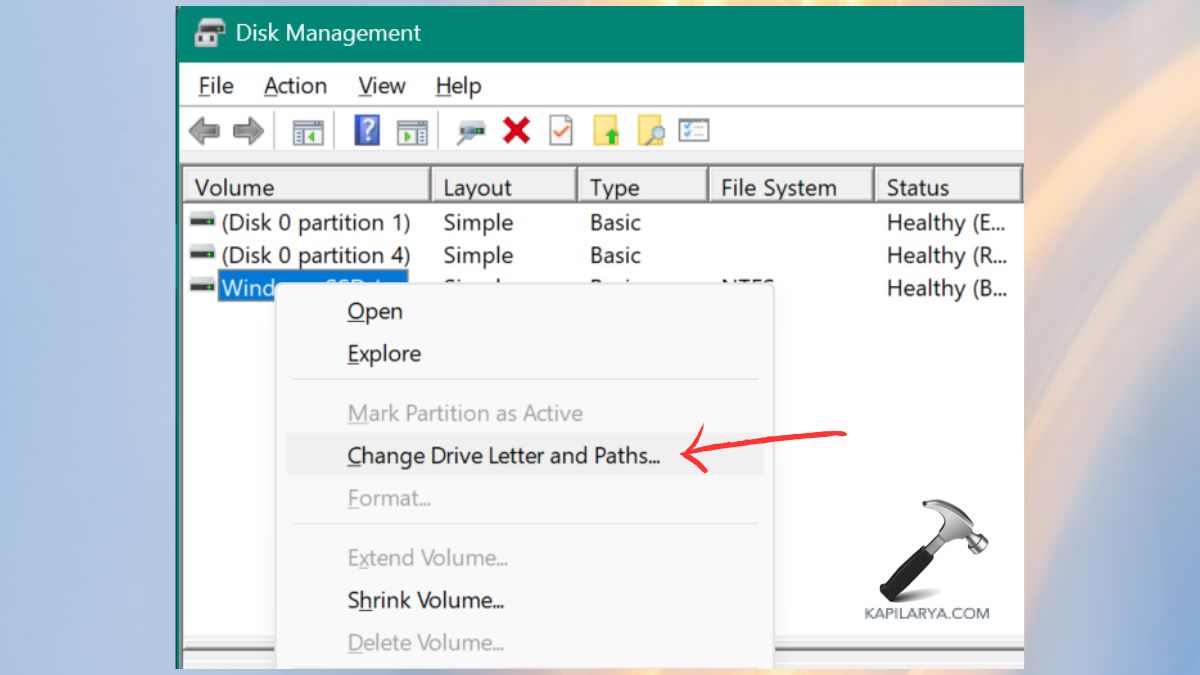
3. Click the Add (or Change) button and changing the letter to a new one, like “G”, “H”, or “J”.
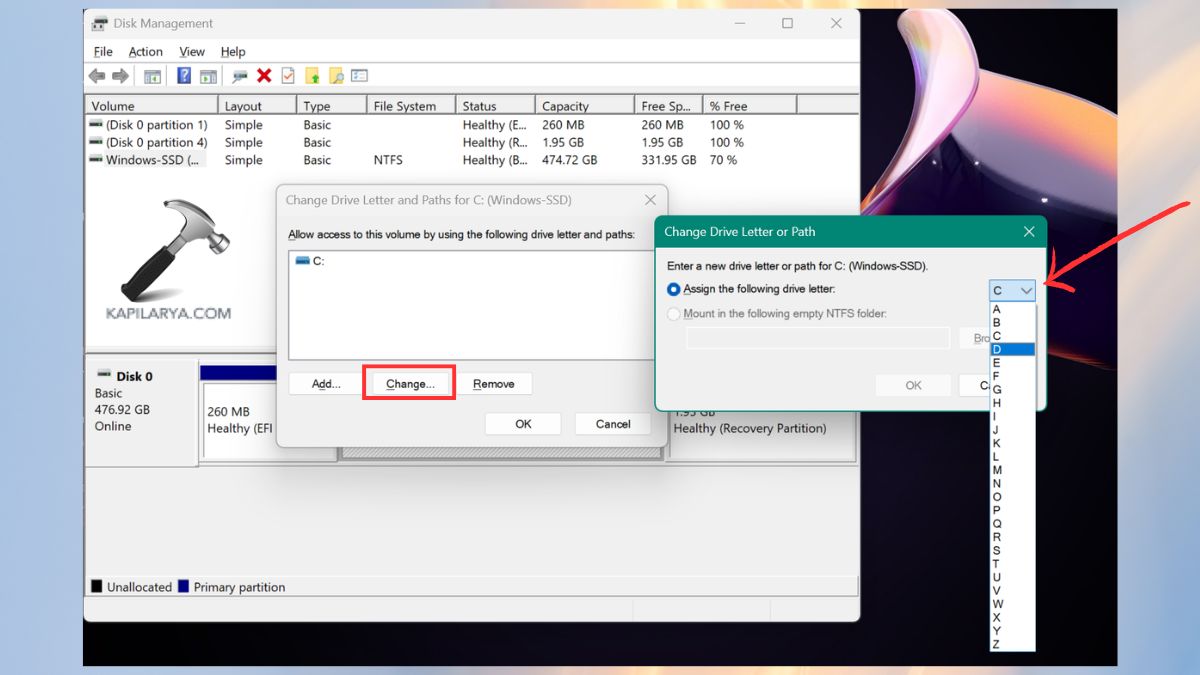
Save and verify the File Explorer.
Fix 2: Update or Reinstall USB Drivers
The USB drive not showing up in Windows 11 problem can also be caused by corrupted drivers.
1. Press Win + X > Device Manager.

2. Expand the Universal Serial Bus controllers. Now, right-click on the USB device > select Update driver.

3. Auto-select search of drivers. Right-Click your USB > Uninstall this device.
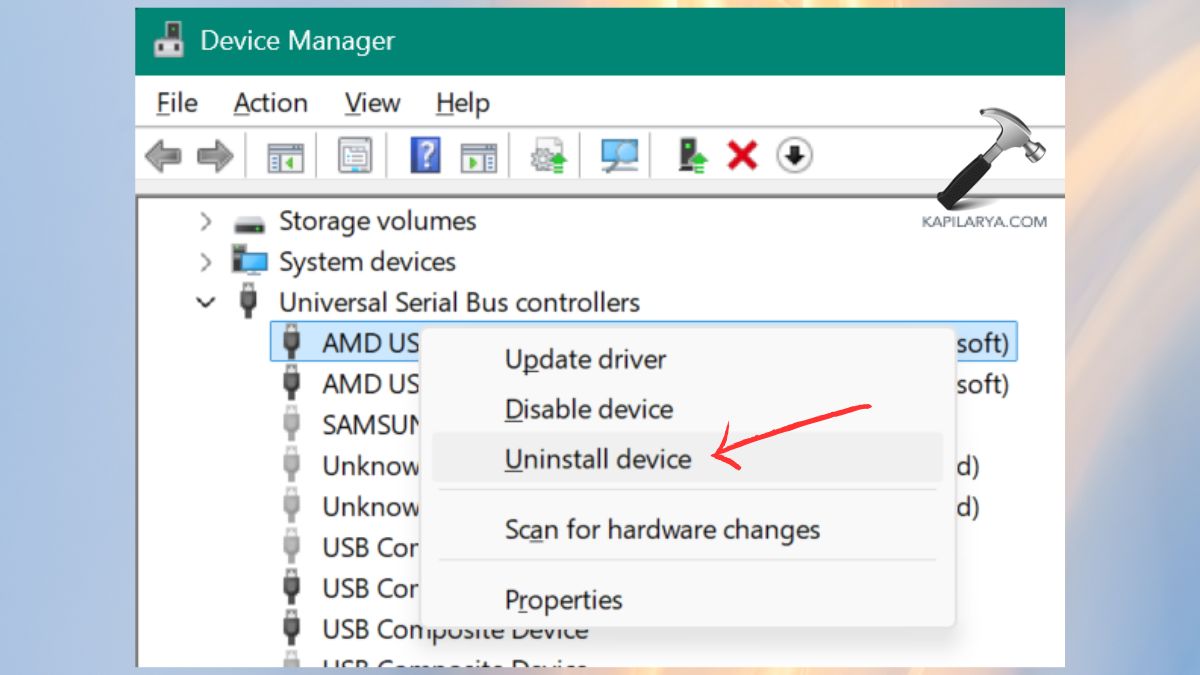
Restart your PC. A new driver will be automatically reinstalled by windows.
Fix 3: Use Windows Disk Repair Tool
In case your USB drive is internally corrupted, it will show up in Disk Management, but not in File Explorer. It can be fixed with the help of CHKDSK.
1. Firstly, open Command Prompt (As an Administrator).

2. Enter the following command and press Enter. “E:” is your USB drive letter; replace it with the “E:”.
chkdsk E: /f /r /x

Let Windows scan and identify errors. Then, once you fix the file system, remove the USB and then re-insert it.
Fix 4: Partition the USB Drive
You have to make a partition in case your USB is Unallocated in the Disk Management.
1. Open Disk Management. Right-click the unallocated disk > select New Simple Volume.
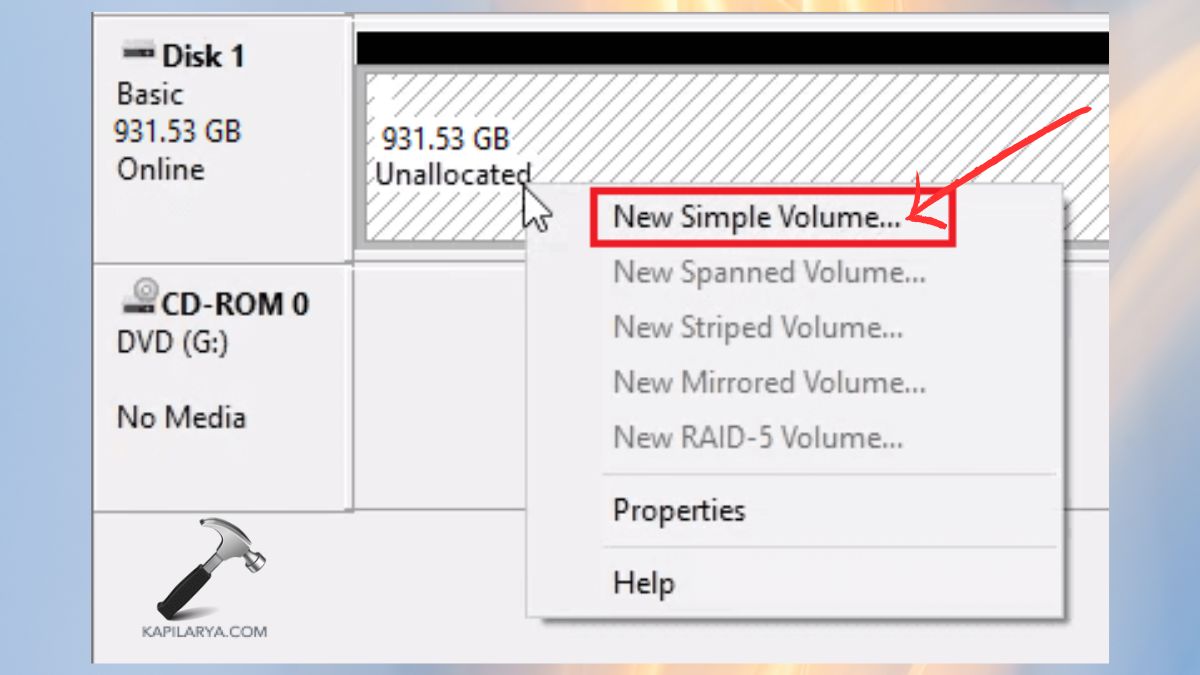
2. Select full size > Next. Assign a drive letter > Next.
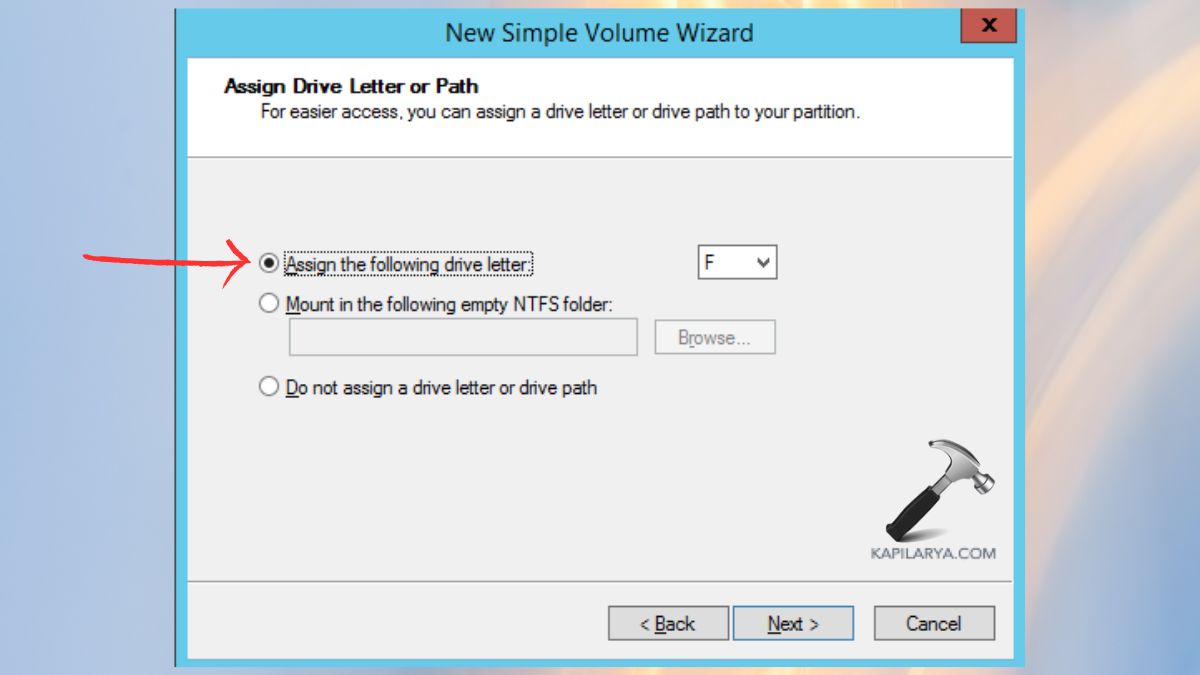
This will automatically appear in the File Explorer drive.
Fix 5: Reformat the USB Drive
When your drive is found to be RAW, Corrupted or even unreadable, it will be fixed by formatting. This will delete your information, and thus should be used as the final alternative.
1. Right-click the USB in Disk Management. Select Format.
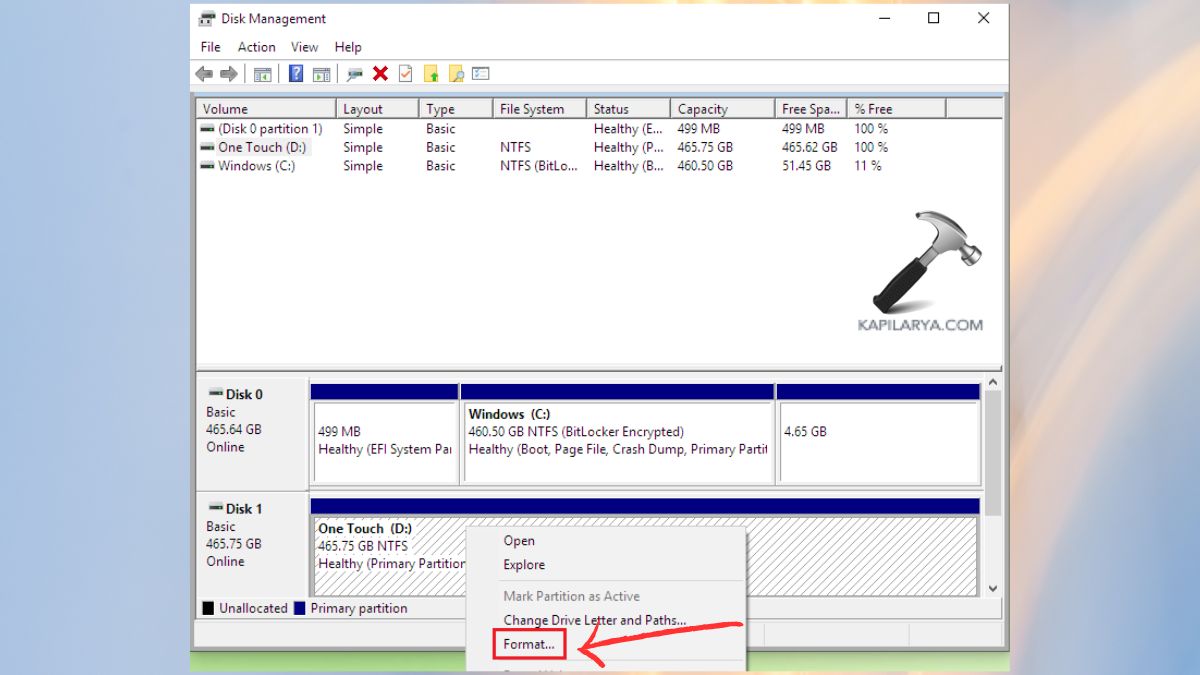
2. Choose file system:-
- exFAT – Recommended for USB flash drives.
- NTFS- Windows use only.
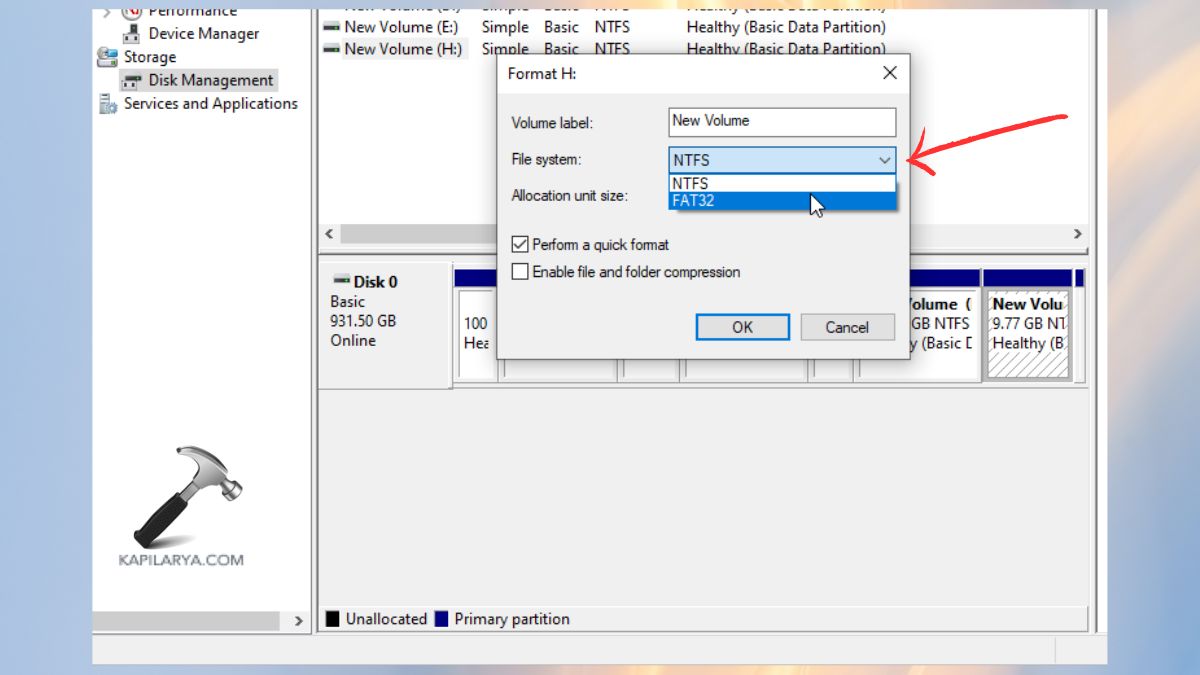
Click OK. After formatting, one should see the USB normally displayed in File Explorer.
Fix 6: Format the USB Flash Drive Using File Explorer
In case your USB is not recognized as a device, but listed under “Devices”, the formatting will also work with File Explorer.
1. Open “This PC” in File Explorer.

2. Click on the USB drive on the right-hand corner > Format.
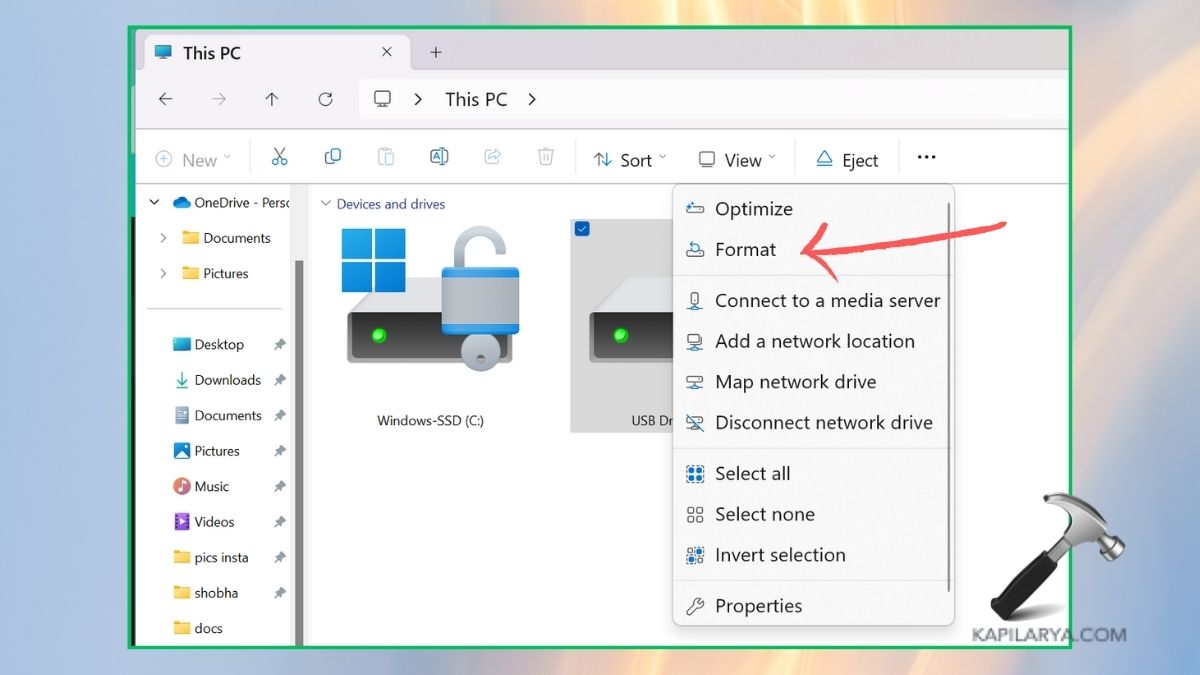
3. Select exFAT or NTFS.

Click Start. This reformats your USB and normally solves the problem of unreadable or hidden drive.
Scenario 2: USB Drive Not Showing Up in File Explorer AND Disk Management
In case your USB fails to appear anywhere in your system, neither in the File Explorer nor in the Disk Management. It is simply that it is not being recognized by the system at all. Hence, this could be a result of hardware, BIOS, or power.
These are the ways to correct this.
Fix 1: Check USB Connection
USB not detected issues are the most frequent problems that happen due to loose connections. Try the following:-
1. Plug the USB into an alternate port (would be preferable USB 3.0- USB 2.0).
2. Once more, restart your computer and reconnect the USB.
3. Test the USB in a different laptop or computer.
4. In case an external HDD is used, change the cable.
5. Wipe the USB port with compressed air.
6. In case the USB operates in a different machine, the port can be defective in your PC.
Fix 2: Disable USB Selective Suspend
For this, Windows operates on the system named USB Selective Suspend. This will save its power by disabling idle USB ports. At times, it hangs your USB gadget wrongly.
1. Open Control Panel.
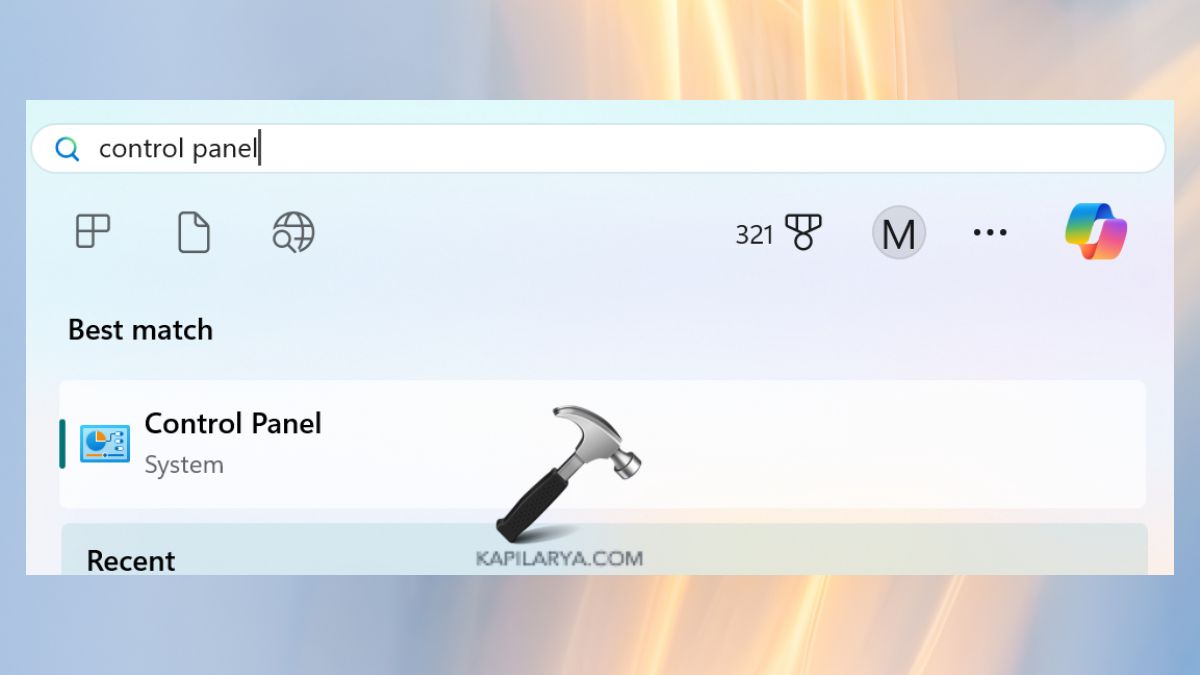
2. Go to Power Options.

3. Go to Change plan settings alongside the active plan.

4. Select Change advanced power settings.

5. Expand USB settings > USB selective suspend settings. Set it to Disabled.
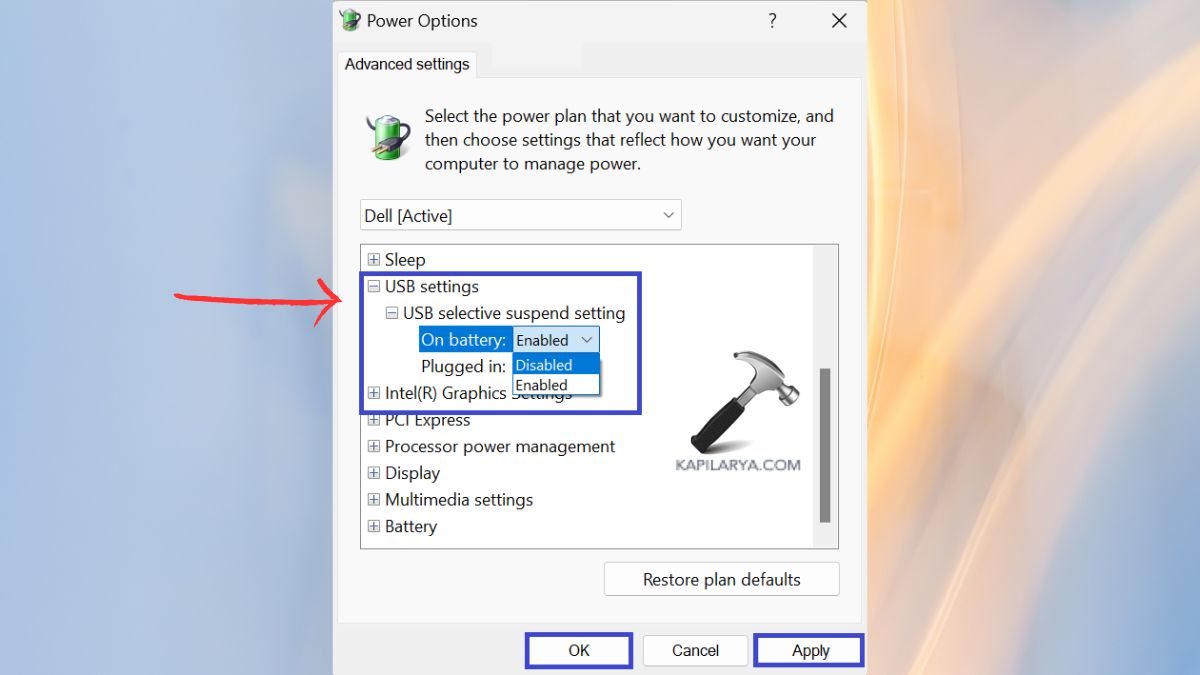
Click Apply. Replug your USB back in and see whether it shows or not.
Fix 3: Enable USB Ports in BIOS
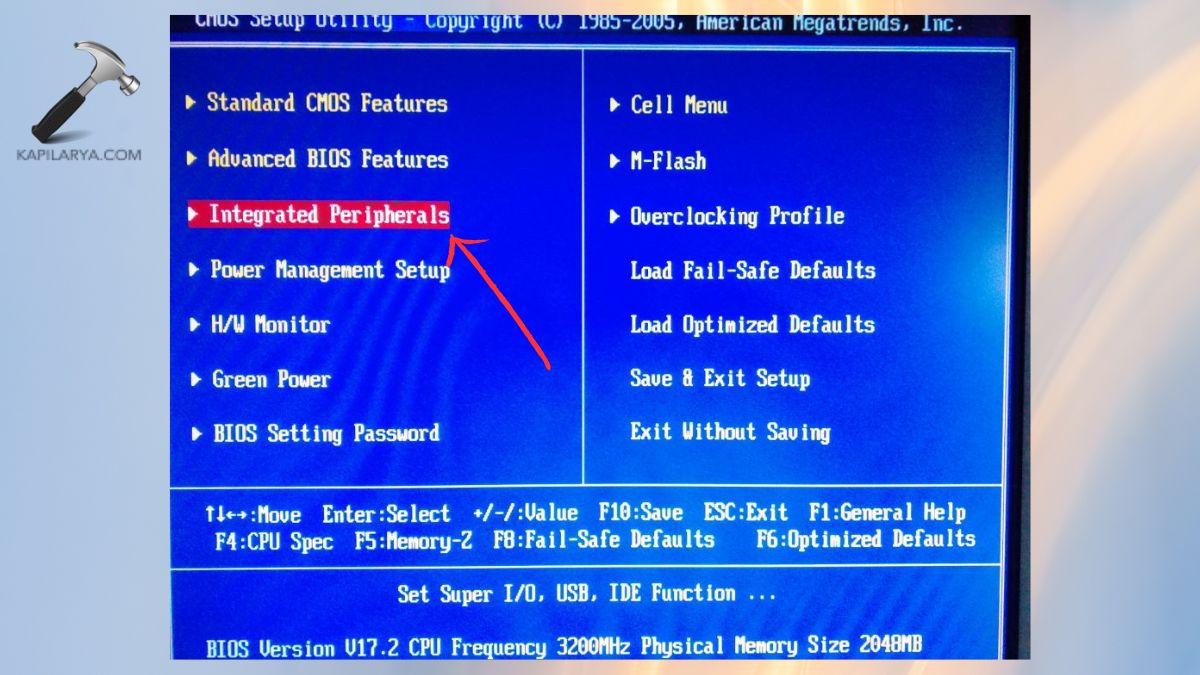
When you are in BIOS, and the USB ports are disabled, you are unable to see your USB drive at all in Windows.
1. Boot your PC on and press F2, Del, Esc or F10 in order to get into BIOS.
2. Navigate to settings such as:-
- Integrated Peripherals.
- Advanced USB Configuration.
3. Look for options like:-
- USB Controller.
- Legacy USB Support.
- Front Panel USB.
Finally, ensure that it is turned on or “Enabled”.
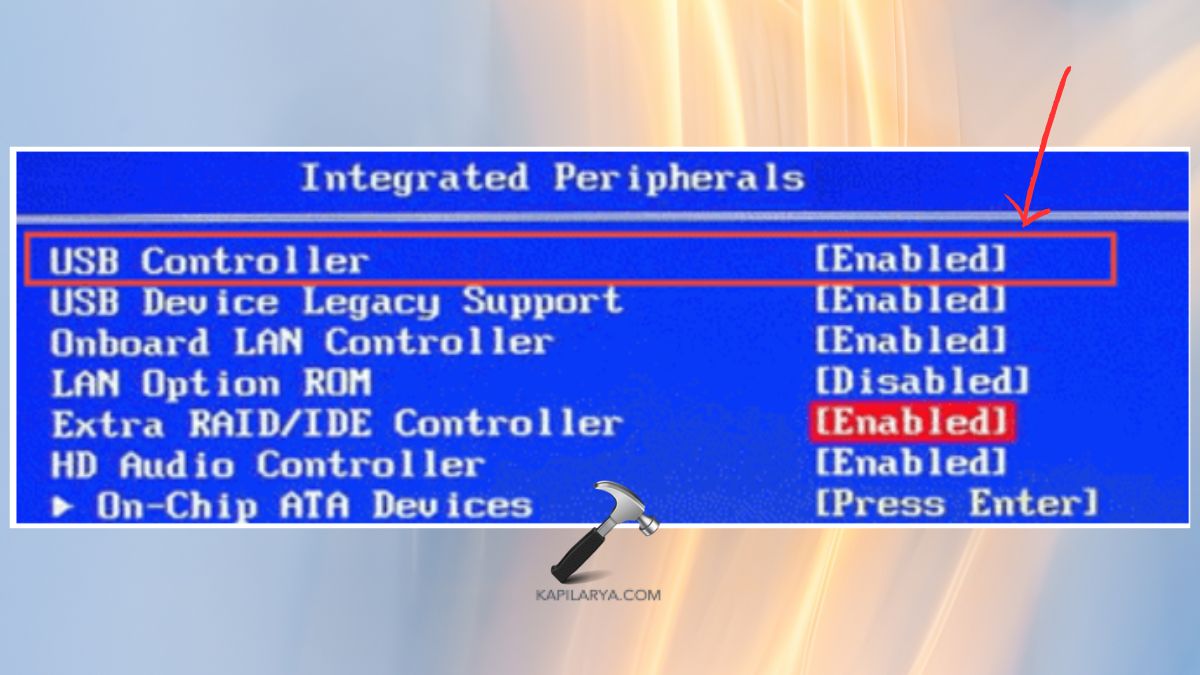
Make system changes and reboot Windows. A faulty USB controller in BIOS is one reason that is not completely considered by users to detect the USB problems.
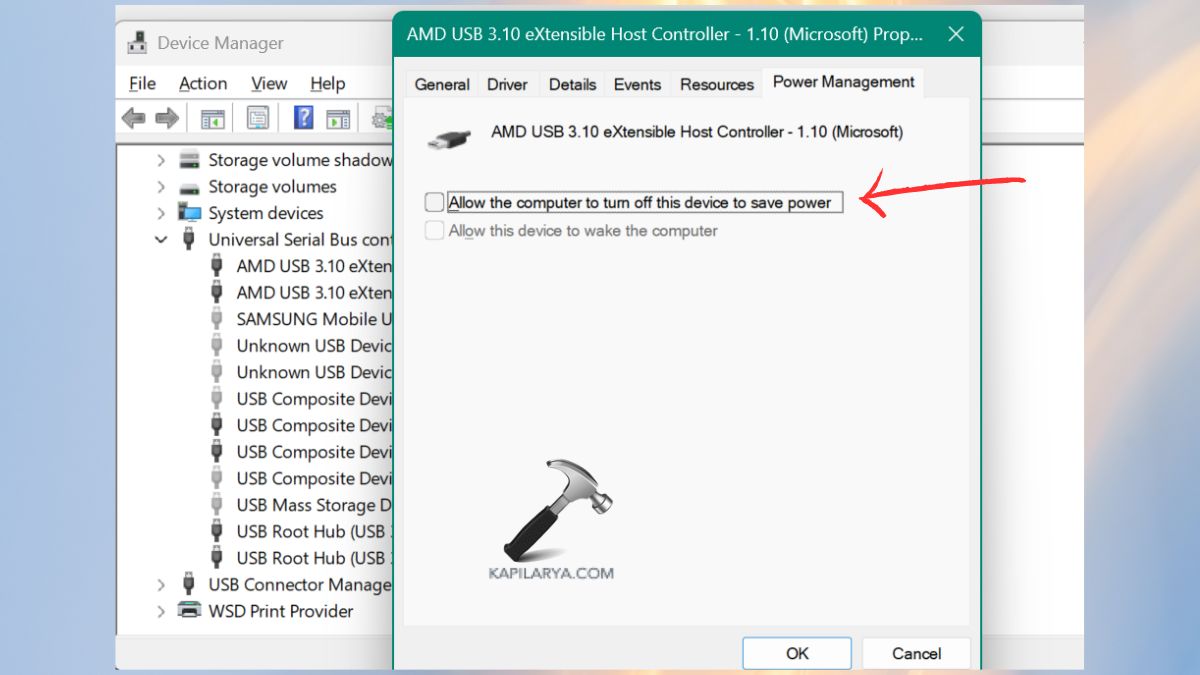
Fix 4: Change USB Power Settings
There are power plans which do not allow the USB ports to be powered consistently.
1. Open Device Manager from Win+X or Search menu.

2. Expand the Universal Serial Bus controllers. Select all USB Root Hubs > Properties.
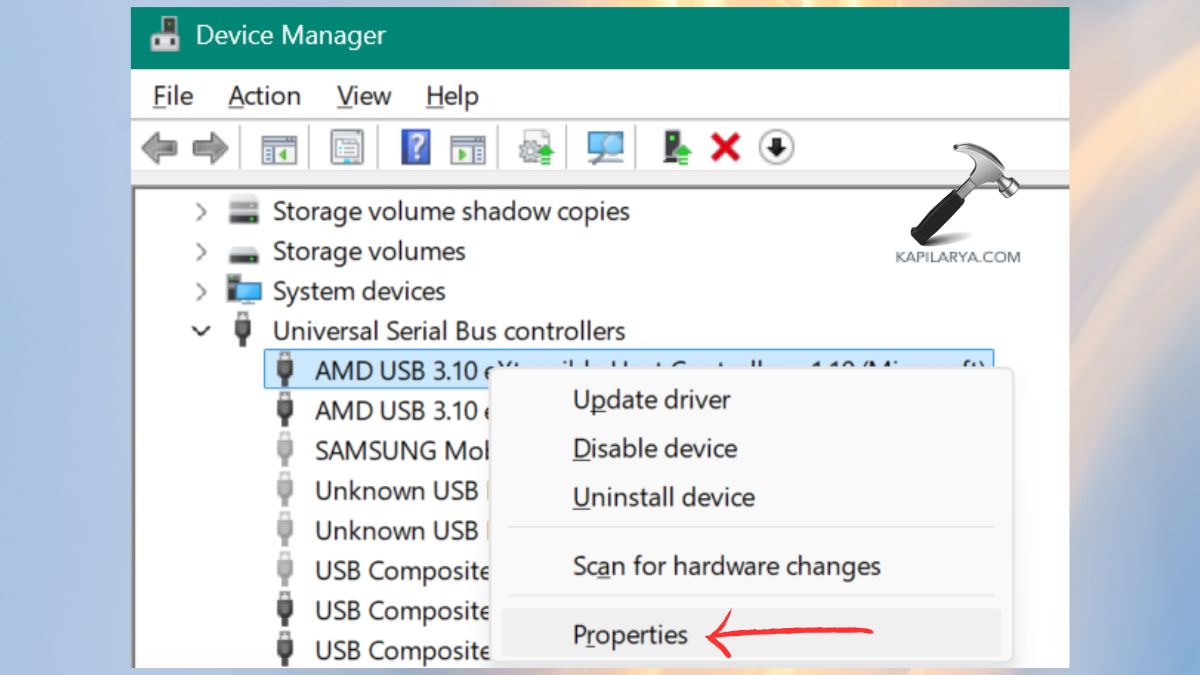
3. Go to the Power Management tab. Deselect Allow the computer to switch off this device to power option.
Click OK. Repeat for all USB root hubs.
Fix 5: Try Using a USB Hub or Extension
In case the laptop ports are weak, revive a drive using a powered USB hub.
1. Insert the USB flash into a USB hub which has power.
2. Using the hub, connect it to your computer.
3. This is to avoid bad PC USB ports by supplying external power.
Additional fix: Verify USB Drive Health
In case neither of the methods had any effect, the USB drive might be damage internally. Check using another system:-
1. Check the USB on a Mac, Linux or Android phone (with OTG).
2. Unless it is found anywhere, then the USB drive is likely to be faulty.
3. In the case of important data, get a data recovery expert.
Frequently Asked Questions (FAQs)
Why is my USB not showing in File Explorer but visible in Disk Management?
This occurs because of a lost or incompatible drive letter, corrupt files system or undefined partition. Normally, you can fix it by assigning a new letter or fixing the disk.
Why is my USB completely invisible in Windows?
And there is a possibility that you have a USB that was disabled in BIOS, has a bad connection, has failed ports, or is damaged.
Will formatting the USB fix detection issues?
Yes, raw disks or damaged file systems are fixable by formatting. However, it will wipe all the information on the drive.
Can I recover files if my USB is not showing?
Yes, the USB must be recognized in Disk Management at least to recover successfully.
That’s it!