

If you’re using Internet Explorer (IE) as your primary browser sometimes you may experience annoying warnings from the browser. This post talks about one such warning which you might see while surfing the web.
In this case, while viewing a particular website, we came to get following message:
Page Contents
A website wants to open web content using this program on your computer
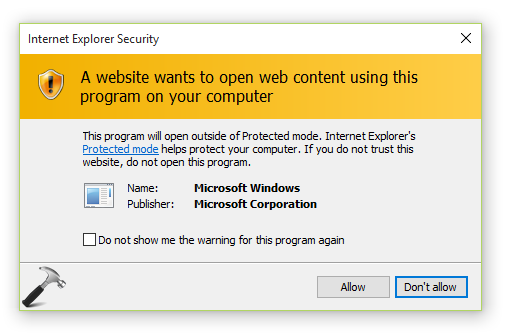
As you can see in the above shown screenshot, IE‘s protected mode is responsible to display this message, as it is assuming Microsoft Windows as not a trusted program. No matter how much time we restart IE and even the system itself, the message keeping appearing and its quite frustrating. So users may also realize that checking Do not show me the warning for this program again option is also of no help.
So if you’re also facing this issue on your system, this article is for you.
FIX : A Website Wants To Open Web Content Using This Program On Your Computer Warning In Internet Explorer/Windows 10
FIX 1 – Using Internet Properties
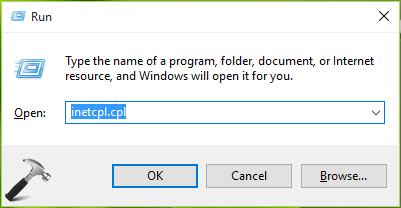
1. Press  + R and type inetcpl.cpl in the Run dialog box, to open Internet Properties.
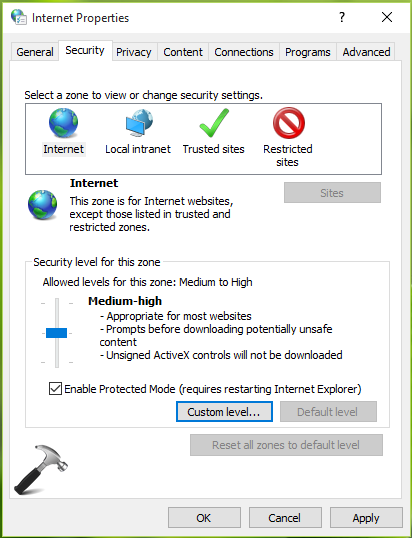
2. Next, in Internet Properties window, switch to Security tab. Click on the Custom level button there.
3. Then in Security Settings – Internet Zone window shown below, scroll down and look for Display mixed content setting. The setting might be set to Prompt and this is the root cause of this issue. Set it to Enable option and click OK, Apply, OK.
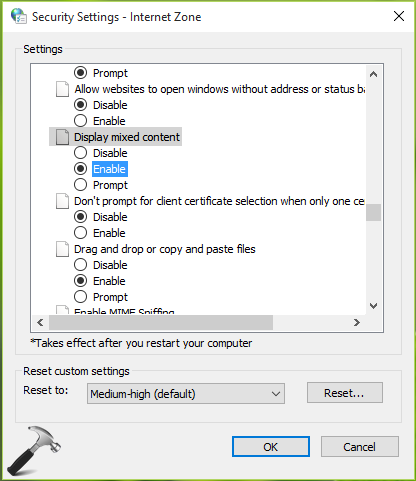
Restart your machine to make changes effective. After reboot, the problem should be resolved.
FIX 2 – Reset IE/Microsoft Edge Settings To Default
If you’re still facing the problem even after following FIX 1, you can try resetting IE to its initial configuration. Here is how to do this:
Learn how to reset IE to default settings in Windows
Resetting IE should significantly help you to get rid of this issue.
Hope this helps!

Thanks! Saved me a headache. Everything else I tried was wrong.
^^ Glad we could help 😎