

While accessing or copying files from local home server, network share or site, you might receive following warning:
Page Contents
These files might be harmful to your computer
Your Internet security settings suggest that one or more files may be harmful. Do you want to use it anyway?
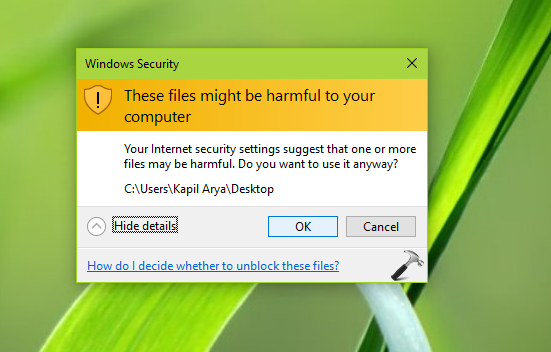
If you’re pretty sure that the share from which you’re getting file(s) is trustworthy but still you see this warning, you need to fix it. On local servers this warning is actually meaningless because the servers or shares are yours. The warning seems legitimate only for third-party shares/servers. So you can turn off this annoying warning for local intranet zone. Here’s how:
FIX: ‘These Files Might Be Harmful To Your Computer’ In Windows 10/8.1/8/7
FIX 1 – Via Internet Properties
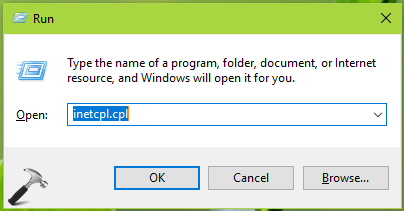
1. Press  + R and type inetcpl.cpl in the Run dialog box, to open Internet Properties.
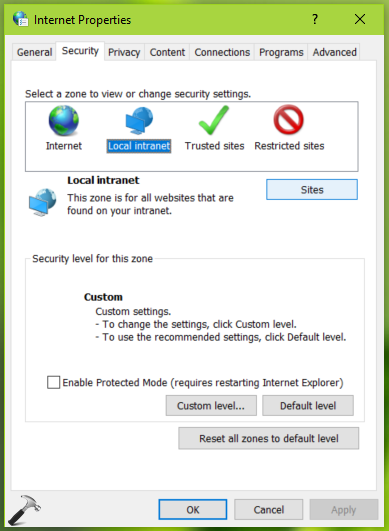
2. In Internet Properties window, switch to Security tab. Select Local intranet and click Sites button.
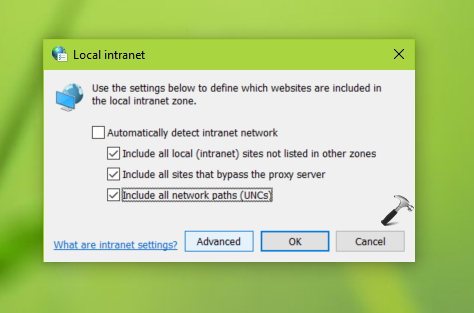
3. Next, click Advanced in Local intranet window.
4. Finally, add your local sites, share’s IP address to the zone list. You can add a wildcard entry as well, for example, share 192.168.1.* should cover 192.168.1.101, 192.168.102 and so on. Click Close, once you’re done.
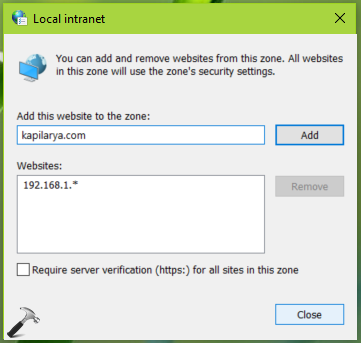
Exit Internet Properties. You would no longer face the warning now.
FIX 2 – Via Group Policy
1. Press + R and put gpedit.msc in Run dialog box to open Local Group Policy Editor. Click OK.
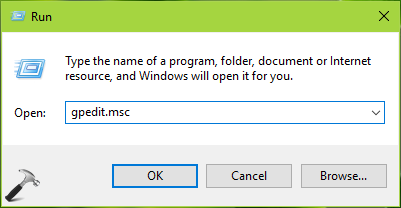
2. Next, in the GPO snap-in window, navigate here:
User Configuration > Administrative Templates > Internet Explorer > Internet Control Panel > Security Page
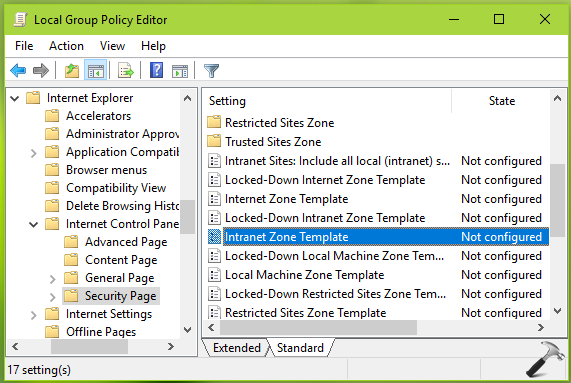
3. In the right pane of Security Page, look for the policy setting named Intranet Zone Template. The policy is Not Configured by default. Double click on it to to modify its status:
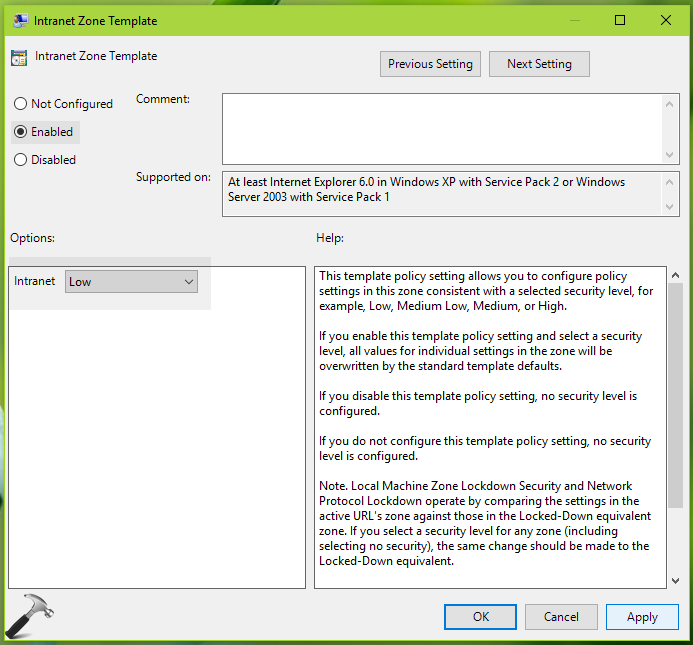
4. Set the policy status to Enabled and under Options, set Intranet drop-down to Low. Click Apply followed by OK. Now again in right pane of Security Page, look for the policy setting named Site to Zone Assignment List. Double click on it to to modify its status:
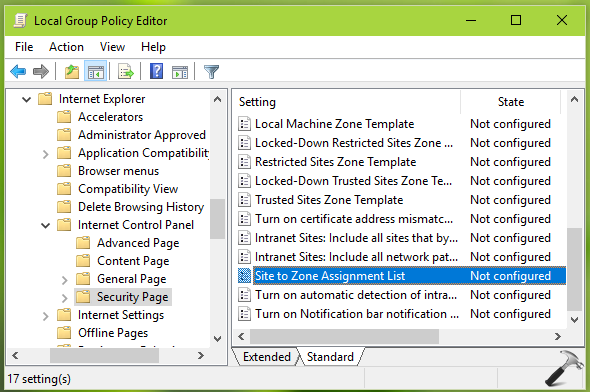
5. Set the policy status to Enabled. Under Options, click Show button.
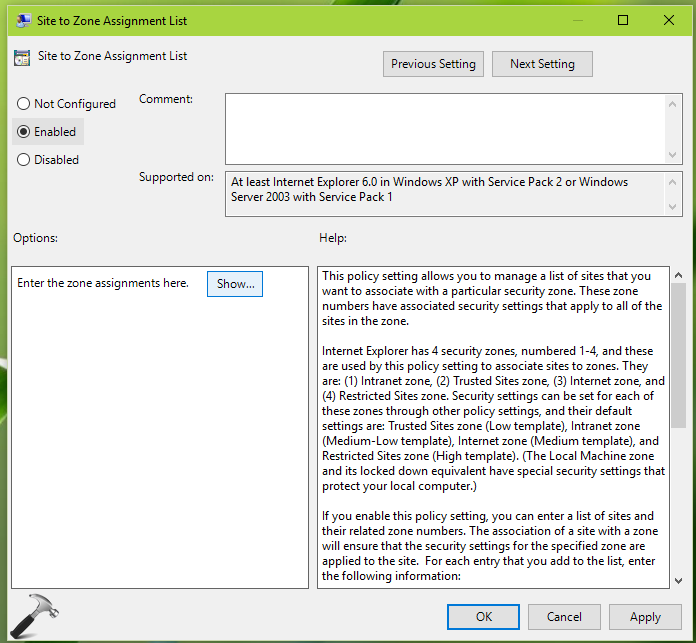
6. Finally, in Show Contents, type the share’s IP address or site name with which you’re getting title warning. Wildcard entries are accepted here as well. Click OK, Apply, OK.
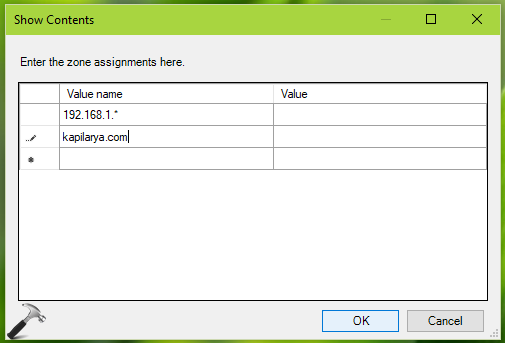
Exit Group Policy Object snap-in. Reboot your system to make changes effective. After restart, you’ll no longer see the warning.
Check following video to illustrate this fix:
Hope this helps!
