

Recently while navigating through the Windows 8 File Explorer, I pointed out that whenever we have bulk of files to deal with, there is a helpful selection option in the ribbon.
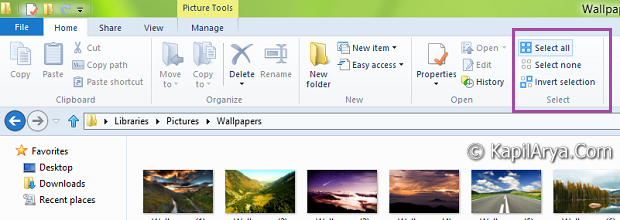
This provided me the key idea to create this article. Actually after making some tweaks in Registry Editor, I was able to bring those selection options to context menu inside Windows 8. Hence using context menu, you can get same options everywhere expect Explorer also.
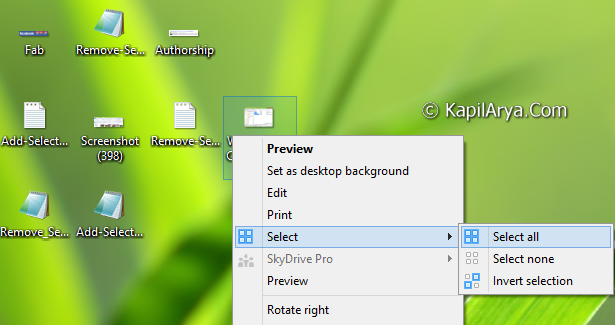
So without wasting anymore time, lets share the trick…
Page Contents
How To : Add Multiple File Selection Options To Context Menu
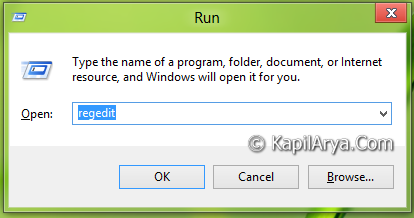
1. Press  + R and put regedit in Run dialog box to open Registry Editor (if you’re not familiar with Registry Editor, then click here). Click OK.
2. Navigate to the following location:
HKEY_CLASSES_ROOT\*\shell
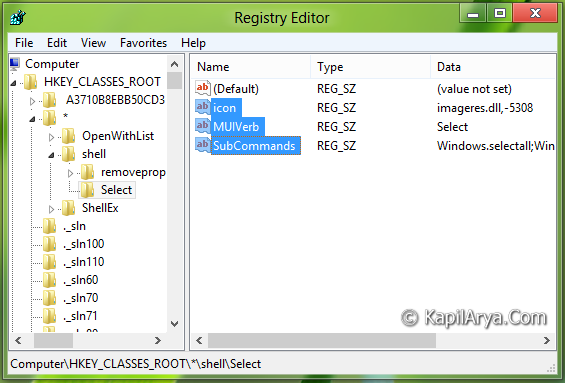
3. In the left pane of this location, create the key Select .
4. Now come to right pane of above created key, create following strings by right click -> New -> String Value and fill them with corresponding data:
icon – imageres.dll,-5308
MUIVerb – Select
SubCommands – Windows.selectall;Windows.selectnone;Windows.invertselection
5. Repeat this procedure for these locations as well:
HKEY_CLASSES_ROOT\Folder\shell
HKEY_CLASSES_ROOT\Library\Folder\Background\shell
6. Now go to following location, repeat step 3.
HKEY_CLASSES_ROOT\Directory\Background\shell
7. Similar to step 4, create strings in right pane with following data:
icon – imageres.dll,-5308
MUIVerb – Select
SubCommands – Windows.selectall
8. Close the Registry Editor to get results.
9. Whenever you want to remove the Select option from context menu, follow the negative of above steps and delete those strings and keys which you’ve created.
Download Direct Registries
To made the work easy, we’ve created direct registries. All you need to do is to open these files with Registry Editor. Click Yes for prompts.
Reboot and get results.
Checkout the video tutorial:
Hope you enjoyed the tweak!







^_^ AWeSome!!!
Good job Kapil, as usual :)
Excellent article man!
Hope to get same piece of work from you in future :D
THnaks for nice article. Is it needful to add registries in step 5,6,7??
^^ You can skip them, but you won’t get the “Select” in context of all places :)
Nice article…
How can we make this same tweak for GPO??
Anyways thanks for gud article
thanks 4 yet another cool tip..