

In terms of the Internet, Do Not Track (DNT) means setting a mechanism as per user preferences. If user doesn’t wants to be tracked while browsing the web, he basically wants to activate the DNT mechanism. In web, tracking is done to provide user an experience based on his interests.
Microsoft Edge browser provides users the choice to get tracked or not. Users can independently make their choice in the browser settings. In this article, we’ll see how you can allow or prevent Edge from sending DNT requests.
Page Contents
How To Allow/Prevent Microsoft Edge To Send Do Not Track Requests
Method 1 – Via Microsoft Edge Settings
1. Open Microsoft Edge, click on triple dots ( · · · ) at top right corner, and select Settings.
2. Then switch to Privacy & security section.
3. Under Privacy & security, upon scrolling, you’ll find Privacy heading. Toggle the option for Send Do Not Track requests to On, to prevent Microsoft Edge from DNT requests. Similarly, if you turn Off this option, Microsoft Edge will be able to send DNT requests.
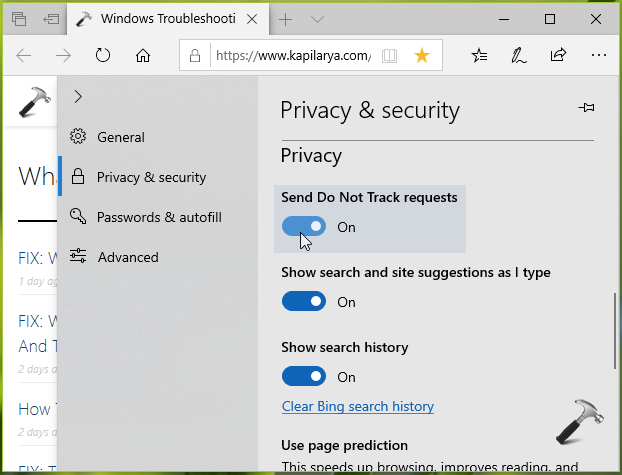
Whatever option you choose, the settings will be immediately applied.
You can also change this setting via registry manipulation as mentioned in Method 2.
Method 2 – Via Registry
Registry Disclaimer: The further steps will involve registry manipulation. Making mistakes while manipulating registry could affect your system adversely. So be careful while editing registry entries and create a System Restore point first.
1. Press  + R and put
 regedit in Run dialog box to open Registry Editor (if you’re not familiar with Registry Editor, then click here). Click OK.
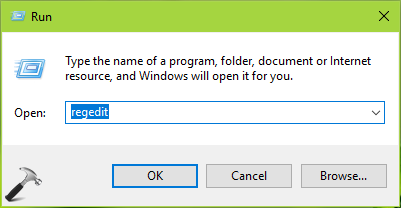
2. In left pane of Registry Editor window, navigate to following registry key:
HKEY_CURRENT_USER\Software\Classes\Local Settings\Software\Microsoft\Windows\CurrentVersion\AppContainer\Storage\microsoft.microsoftedge_8wekyb3d8bbwe\MicrosoftEdge\Main
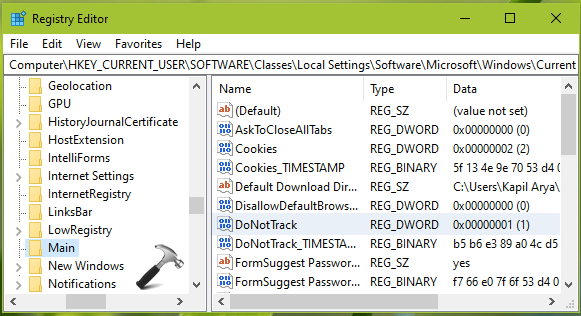
3. In the right pane of Main registry key, double click on DoNotTrack registry DWORD (REG_DWORD) to modify its Value data.
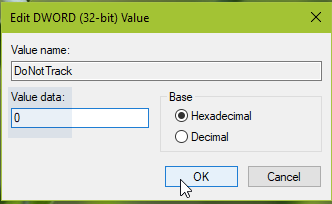
4. Finally, set the Value data to 1 to prevent Microsoft Edge from sending DNT requests. Or you can set the Value data to 0 to allow Microsoft Edge from sending DNT requests. Click OK and exit Registry Editor.
5. Reboot your system to make changes effective.
That’s it!





Just btw., this is where (3rd-party) Windows Registry editors may come in handy (I’ve been using TorchSoft’s Registry Workshop). The value on the right, “DoNotTrack” cannot be exported via built-in regedit.exe and only the entire Key can… In this case, it is “Main” from the Microsoft Edge path. The problem with this is that if we’d ever like to restore, there are many values there and others may have (automatically) changed also, so that would be no good.
^^ I mean, if you’re doing a lot of registry changes and this could be one way to keep track of everything (exporting the original and /or modified values)
P.S. I am NOT endorsing that software, for one thing it’s not free; & it only has a trial version, perhaps 30 days or something like that. :)
^^ Thanks for your comment.