

In the basic sense, Windows 8 or later provides us revamped kind of Explorer. Some of the new features introduced in the new Explorer is awesome, for example the Ribbon. It have all the necessary options which a user need for a folder. On the View tab there are options to get detailed view, a view with navigation options and preview frame that could preview the selected content. Here is how new Explorer gives you significant options:
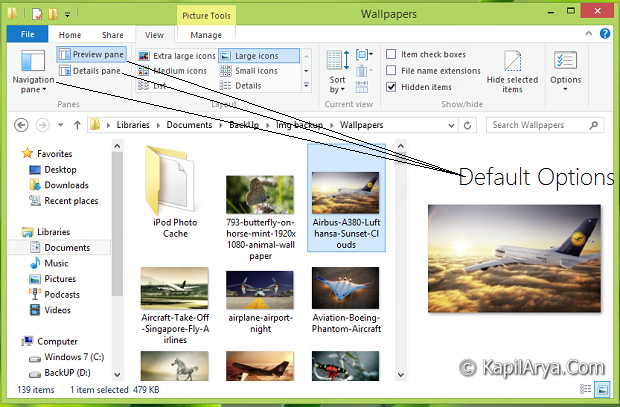
Obviously you can enable the three panes viz. Navigation, Details, Preview with default Explorer method enabling and disabling, i.e. to double click on required entry and it will hide. Of course, on next double clicks, it’ll go visible. But what if you want to disable it permanently? In that case, you need to Jailbreak your Windows using the registry method provided below.
How To Enable Or Disable Pane Options In Windows 8/8.1
We’ve provided the direct registries in order to make your work simplified, all you need to do is download the required registry file and then right click on it, finally click Merge.
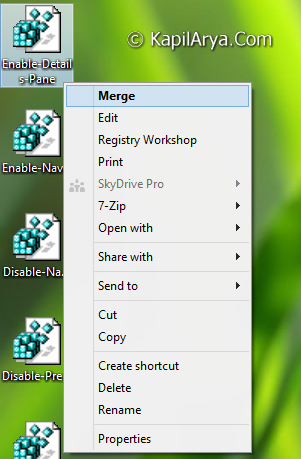
Here are the download links:
Download Registry To Disable Preview Pane
Download Registry To Disable Navigation Pane
Download Registry To Disable Details Pane
Download Registry To Enable Preview Pane
Download Registry To Enable Navigation Pane
Download Registry To Enable Details Pane
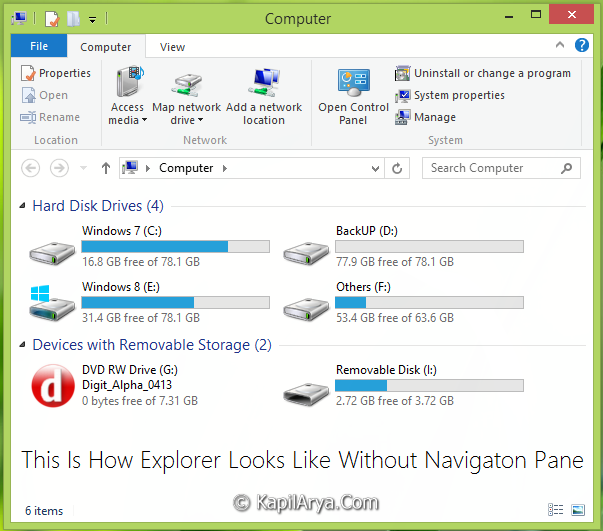
Once you have merged above downloaded registry file, reboot to get desired results. That’s it. Here is how Explorer looks without Navigation pane:
Hope you find the tip useful!







Finally! I have been searching off and on for MONTHS for this! Thank you!!
^^ Glad to help, Daniel 😎