

We’re regularly posting on Windows 8 and hope that you guys are enjoying our stuff. Today we’re going to post yet another possibility for Windows 8.
In Windows 8, secure sign-in provides an additional layer of security that guarantees that the authentic Windows sign-in screen appears, protecting the system from programs that mimic a sign-in to retrieve password info.
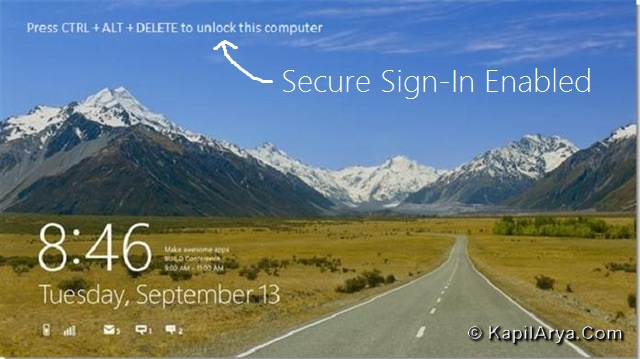
When secure sign-in is enabled on your system, a message, as shown in above image is displayed over lock screen. Now here is how to enable or disable this option:
Actually we have three different methods to make this done. Pick your best method and move on.
Enable Or Disable Secure Sign-In Via User Accounts
1. Press  + R and input netplwiz in Run dialog box. Click OK.

2. In User Accounts window, switch to Advanced tab. Check Require users to press Ctrl+ Alt+Delete to enable secure sign-in. This option is unchecked by default.
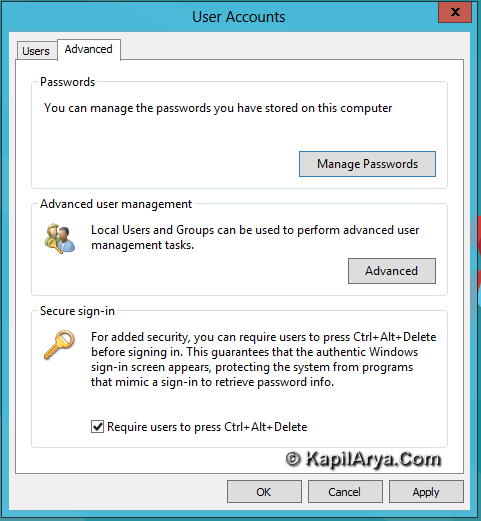
Click Apply followed by OK to get desired results.
Enable Or Disable Secure Sign-In Via Local Security Policy
1. Press + R and put secpol.msc in Run dialog box. Click OK.

2. In left pane, click Local Policies then Security Options. Now in right pane, look for Interactive logon: Do not requires CTRL+ALT+DEL. By default, this is set to Not Defined.
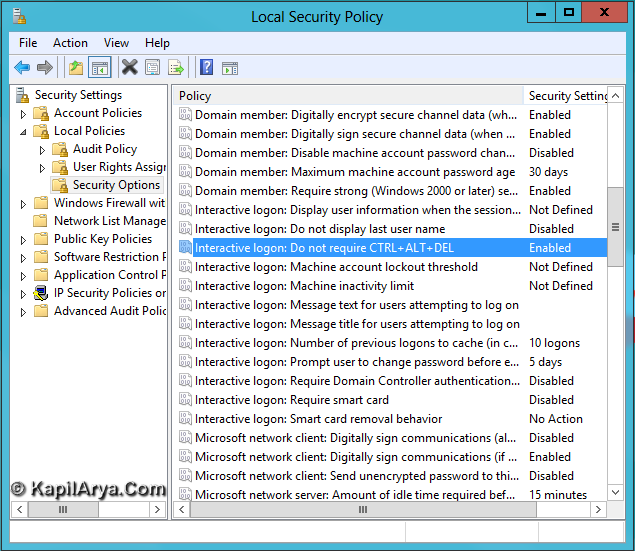
3. Double click on above shown policy and you’ll get window shown below. To enable secure sign-in, you can choose Enabled and to disable secure sign-in, pick Disabled.

Click Apply followed by OK to get results.
NOTE : If you choose Enabled, the option shown in Method 1 will be automatically greyed out. To make that option working again, you have to download and run the registry to disable secure sign-in provided in next method.
Enable Or Disable Secure Sign-In Via Registry
For the sake of simplicity, we’ve created the direct registry scripts which you can download using below links to apply and get desired results. This will save your time and make the operation very handy. Here are the download links:
Click on above downloaded file and run it. You’ll get following prompt:
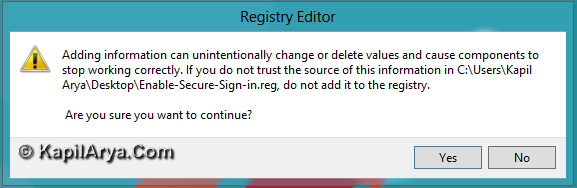
Press Yes then you’ll get this:

In this way, you can enable or disable secure sign-in very easily.
That’s it!


thanks.. . .. .. .
i was able to enable it but cant set it not configured again, help please!!!
@alicia,you can use disable registry script as mentioned.
thanks for awesome article
omg esc stops on securesign-in!!!
probably bookmark this
hi i m regualry observing ur posts
nice job man :d
awesome ;)
thanks kapil :)