

For systems connected as a part of domain, we can use same WORKGROUP to share files and folders. This sharing is done through network connections and it is important that all network locations must be well defined; in order to successively share the content. Basically, you can manage the WORKGROUP folders using File Explorer available in Windows 8 or later.
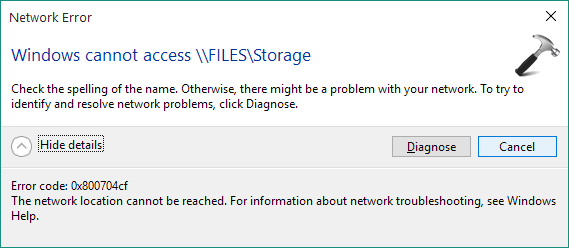
Recently, we came around a weird problem regarding this. In this case, we were able to locate list of files and available shares on the machine. However, when we tried to click on a specific share for instance say Storage, it gives following error:
Page Contents
Windows cannot access <the share>
Error code: 0x800704cf
The network location can’t be reached. For information about network troubleshooting, see Windows Help.
If you’re also facing this same error in your WORKGROUP environment, you can try following fixes to solve this issue.
FIX : Error 0x800704cf – The Network Location Can’t Be Reached In Windows 10/8.1/8/7
FIX 1 – Using Network Adapter Settings
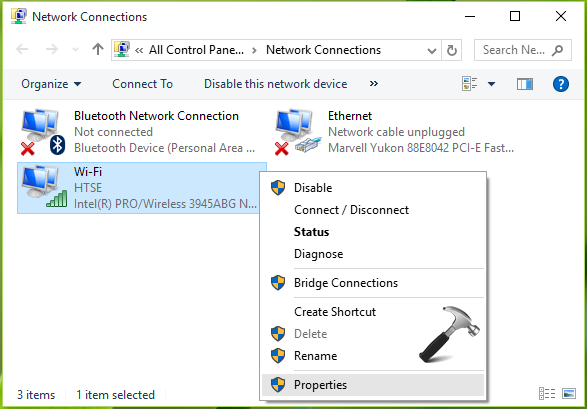
1. Navigate to Control Panel > All Control Panel Items > Network Connections. In the Network Connections window, right click on your network adapter and select Properties.
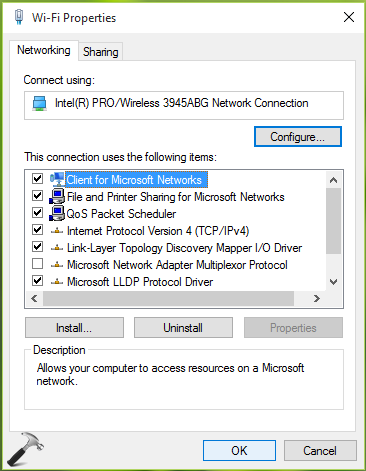
2. Next, in the network adapter’s property sheet , you have to uncheck Client for Microsoft Networks option. Then click OK.
Now exit from Control Panel and reboot your system. After restarting the machine, you’ll find that issue has been resolved already.
You can also fix this problem using Registry Editor, here is how:
FIX 2 – Using Registry Manipulation
Registry Disclaimer: The further steps will involve registry manipulation. Making mistakes while manipulating registry could affect your system adversely. So be careful while editing registry entries and create a System Restore point first.
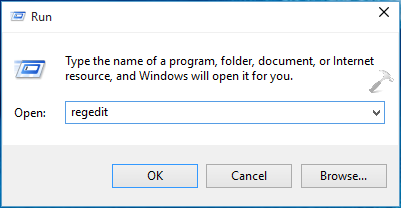
1. Press  + R and put regedit in Run dialog box to open Registry Editor (if you’re not familiar with Registry Editor, then click here). Click OK.
2. In the left pane of Registry Editor, navigate to following registry key:
HKEY_LOCAL_MACHINE\SYSTEM\CurrentControlSet\Services\NetBT\Parameters
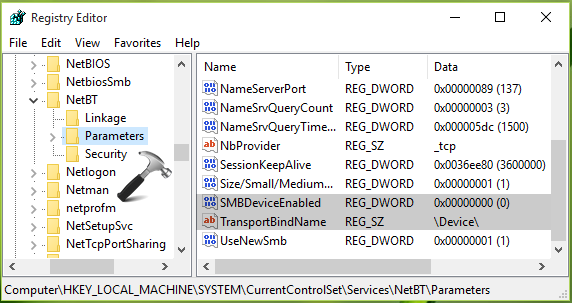
3. Next, highlight the Parameters key and come to its corresponding right pane. Here, make sure that Value data for TransportBindName registry string (REG_SZ) is set to \Device\. Also check whether SMBDeviceEnabled named registry DWORD (REG_DWORD) exists or not. If the DWORD exists and has a Value data of 0 assigned, it means direct hosting is disabled. You have change this Value data to 1, in order to resolve this issue and enable direct hosting. So simply double click on the registry DWORD to get this:
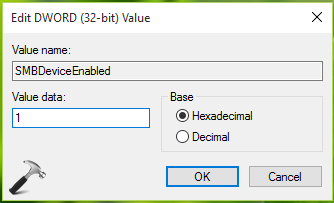
4. Finally, set the Value data to 1 in above shown box and click OK. Close Registry Editor and reboot to get the issue resolved permanently.
Hope this helps!
Related fix: The network path was not found (error 0x80070035).






In my system SMBDeviceEnabled named registry DWORD (REG_DWORD) does not exist. Is this the reason of 0x800704cf error?
^^ Suggest you to create the value and set it to 1, see if it resolves the problem for you :)
Unchecking Client for Microsoft Networks worked perfectly. THANKS!
^^ Glad we could help :)
The first step worked. Thanks
^^ Awesome 😎
Hi Kapil!
I am using windows 10 on Dell Laptop. Two days ago ago I wanted it to restore to an earlier point which was unsuccessful and windows could not load and I had to reset it. After reset windows is working normally but its activation gets failed. Similarly, updates and some apps from store also are not downloaded. error code is 0x0800704CF. Please help me..
Hello Kapil, I tried both way, none of the worked for me ;(
Its working. Thanks a lot.
^^ Happy to help ☺️
Hello, i’m using a windows 7 computer, the 1st procedure did not work, in the 2nd procedure i couldn’t find any SMBDeviceEnabled. How can i fix this problem?
I have tried all above options, but problem remain as it is. Any suggestion, how to resolve it?
hi … In my system SMBDeviceEnabled named registry DWORD (REG_DWORD) does not exist. How do I create the value and and set it to 1?
Thanks!
^^ Right click on the right pane corresponding to Parameters registry key. Select New > DWORD Value. Right click on it and select Rename and type SMBDeviceEnabled. Now set its value to 1 by double click on it.
Thanks solution 2 helps me on the same problem and FYI I tick the client for Microsoft Networks reboot then it works fine Thanks so much.
^^ Glad to help!
Windows 10 pro over two years updated from afterward caught this error on devices.
Don’t feel vpn is mainly related this , because IPv4. v6 property of VPN enabled “connected always , and media metric” , only my vpn unsupporting v6 during .
#1 NetBT parameter router , bind etc…., all with Device IPv6
– IPv6 PC fetched local layer v6, isp supporting partial client but ::1 auto to its DDNS v6 first WAN.full.v6 128 ip ?
– SMBDeviceEnable 64bit why not existing as the capture , of course added , thank you advise
– changed motherboard Computer having domainated IPv6 of ISP as Mutliple networks existing
at Dhcpv6DUID interface and IPv4 interface two mac.ethernets? Unable following rcf3315 _ no. 9 even to Microsoft case tracking unsolved ?!
The decade windows experiences, feeling every solution from Microsoft , or ISP after later anti-virus and pc-doctor , gradually preferring to comprising strict protocol policies , “compositely to overcome giving solutions to cover manually methodical front the clients to the Global networks ” ?!
Most would not go first enter IPv6 at Microsoft ‘s 6to4 server pseudo times … ? That clients most of , inside circles “protected , or victims any ” would be mangled between in the shared NetBT status.
#2 Microsoft at wifi enforced into windows files and print sharing ,
– once in routerring service not in wifi without wifi devices (most of this time , wifi device having higher speed than the wire-router), short coming to IPv6 , and file shared … you losing update of windows ?
Sincerely
it is possible in windows 7 32 bit ultimate version ?
^^ Should work.