

Windows 10 comes with Mobile hotspot feature, which can use to share network data from your system to other devices. You can connect multiple devices with wireless capability with network data from Windows 10 machine.
But on some systems, Mobile hotspot feature may be missing. As you see in below shown screenshot, Mobile hotspot should be appearing after Airplane mode, but the section is entirely missing.
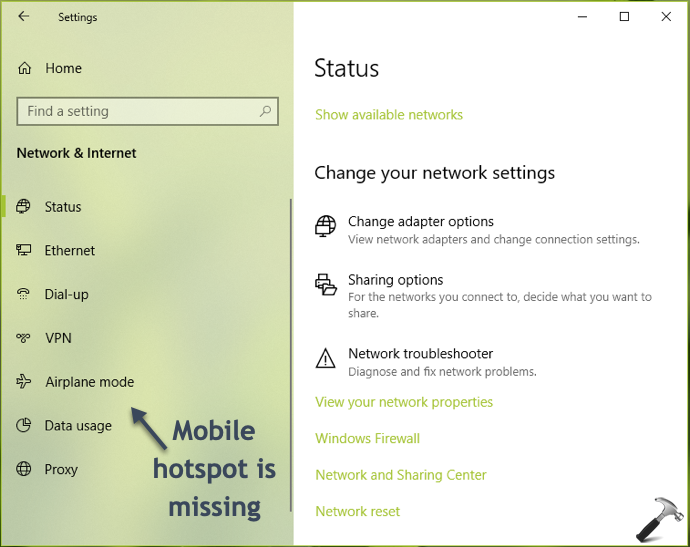
If you’re also wondering why Mobile hotspot is missing, then below mentioned fixes will answer your queries.
Page Contents
FIX: Mobile Hotspot Missing In Windows 10
FIX 1 – Check If Your System Has Hosted Network Capability
1. Right click Start Button or press  + X keys and select Command Prompt (Admin).
2. In the Command Prompt window, type following command and press Enter key:
netsh wlan show hostednetwork
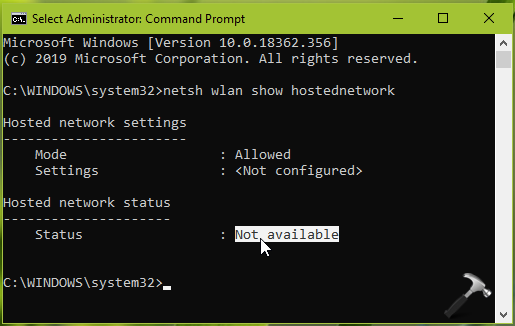
3. Notice the Hosted network status section now. As you can see in the screenshot, it says Not available. This means the system is missing required hardware to host a network. For this reason, Mobile hotspot section is entirely missing from Settings app. In that case, you don’t have options to host network from present machine. If your work relies mostly on hotspot, you need to opt for another machine, which have hosting capabilities.
If the Hosted network status reports as Yes or Not started, carry on with below fixes.
FIX 2 – Enable Mobile Hotspot Via Registry/Group Policy
Another reason for missing Mobile hotspot section is having it disabled via registry or Group Policy setting. If your system is part of domain or organization, it might be possible that your domain controller or system administrator has applied those policies. You can refer this guide to enable Mobile hotspot section.
FIX 3 – Via Device Manager
If Mobile hotspot section was present earlier on your system but missing after some update, you may try these steps to see if this helps:
1. Open Device Manager.
2. Expand Network Adapters, right click on Microsoft Hosted Network Virtual Adapter and select Enable.
3. Restart your system and then you’ll find that Mobile hotspot section is visible now.
Hope this helps!
Also see: Hotspot not working after Windows 10 update.


I have faced this issue twice of hotspot option missing after installing Windows 10 and both of the times, i started downloading Windows updates and installed the updateds. The option becomes visible and fully functions correctly after updates installation. It worked twice. Hope it works for everyone.