

Recently, we discussed how to erase history from Run, for most recently used terms, in following article:
How to delete Run history in Windows 10/8/7
Now this article talks about yet another aspect of same topic. Actually, sometimes users may found that Run history aka RunMRU (Run Most Recently Used) list is no longer being saved on their Windows operating system. As a consequence of this, they need to type the commands/locations again and again to open the frequently or recently used items.
If you’re also facing this issue on your Windows 10, here is how fix it.
Page Contents
FIX: Run History Not Saved In Windows 10
FIX 1 – Via Settings App
1. Right click Start Button or press  + X keys and select Settings.
2. In the Settings app, navigate to Privacy > General.
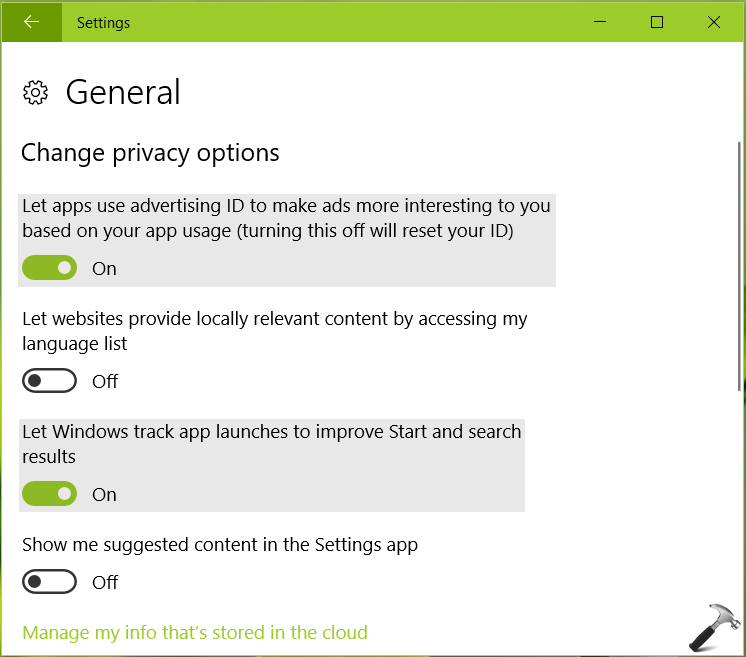
3. Under Change Privacy options, make sure Let apps use advertising ID to make ads more interesting to you based on your app usage (turning this off will reset your ID) and Let Windows track app launches to improve Start and search options are enabled.
4. Then again in the Settings app, navigate to Personalization > Start. Enable Show most used apps option.
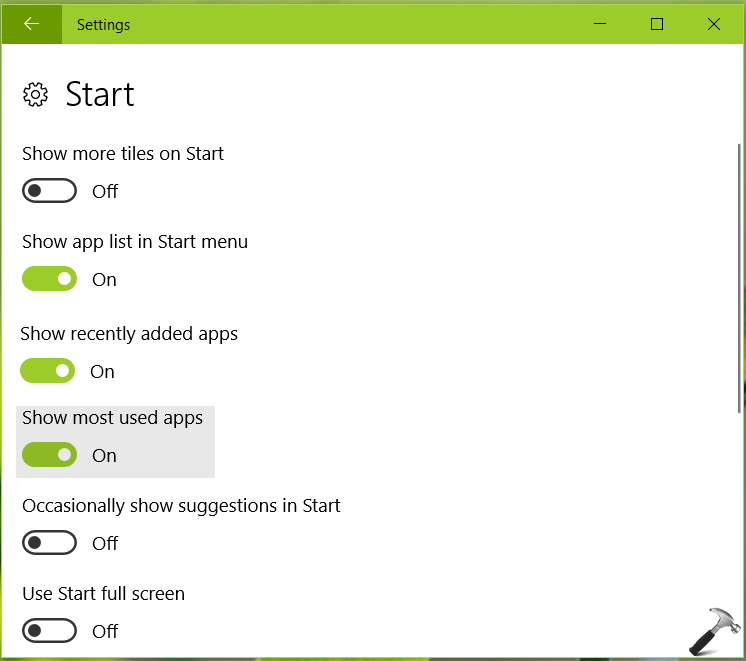
Reboot the machine. After restart the issue should no longer persist. You can also try alternative registry fix to solve this problem.
FIX 2 – Via Registry
Registry Disclaimer: The further steps will involve registry manipulation. Making mistakes while manipulating registry could affect your system adversely. So be careful while editing registry entries and create a System Restore point first.
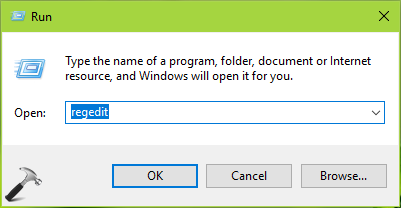
1. Press + R and put regedit in Run dialog box to open Registry Editor (if you’re not familiar with Registry Editor, then click here). Click OK.
2. In left pane of Registry Editor window, navigate to following registry key:
HKEY_LOCAL_MACHINE\SOFTWARE\Microsoft\Windows\CurrentVersion\Policies\Explorer
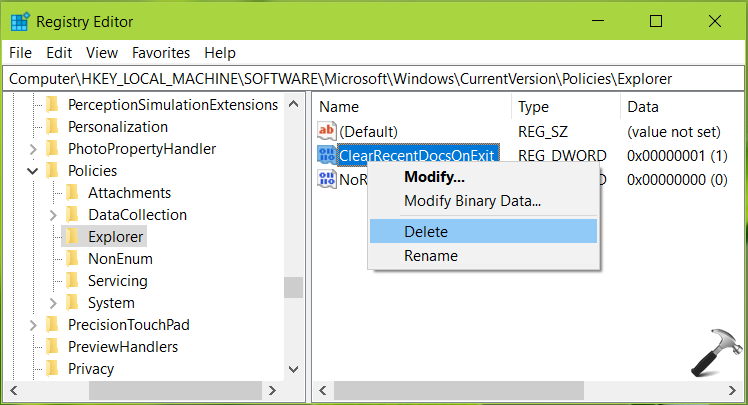
3. In the right pane of Explorer registry key, look for registry DWORD (REG_DWORD) named ClearRecentDocsOnExit. Right click on it and select Delete. Select Yes in the confirmation prompt so appear.
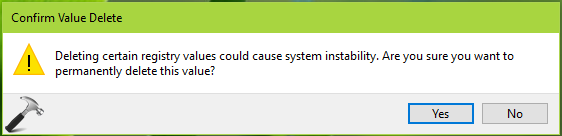
4. Delete ClearRecentDocsOnExit DWORD from these registry locations as well:
HKEY_CURRENT_USER\Software\Microsoft\Windows\CurrentVersion\Policies\Explorer
HKEY_USERS\.default\Software\Microsoft\Windows\CurrentVersion\Policies\Explorer
Close Registry Editor and reboot the machine to get fixed.
Hope this helps!

![[How To] Clear Address Bar History For File Explorer In Windows 10](https://www.kapilarya.com/assets/File-Explorer-6-768x512.png)
