

Microsoft keeps offering Windows Updates to your Windows 10 device to ensure it is up-to-date, safe and secure to use. You’re always recommended to install latest updates available to you.
When you install these updates, you may later need to review which update you installed and which you missed. For this, you need to access installed update history. In this article, we’ll show you different approaches you can use to view installed Windows Updates history.
Here are the ways to track installed updates in Windows 10.
Page Contents
How To View Installed Update History In Windows 10
WAY 1 – Via Settings App
1. Right click Start Button or press  + X keys and select Settings.
2. In the Settings app, navigate to Update & Security > Windows Update.
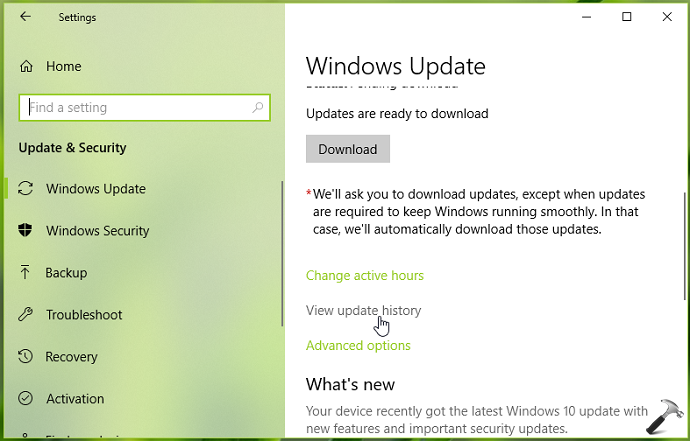
3. Now in right pane of Windows Update, click View update history.
4. Under View update history, you can check the list of installed and failed updates with date. These updates are grouped into Quality Updates, Feature Updates, Definition Updates, Other Updates etc.
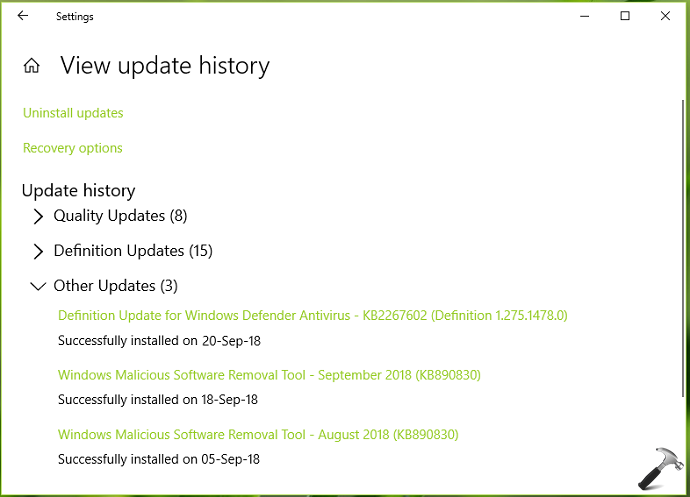
So in this way, you can view installed update history.
You can also explore alternatives to view installed update history below.
WAY 2 – Via Control Panel
1. Open Control Panel by searching for it via Cortana or Windows Search.
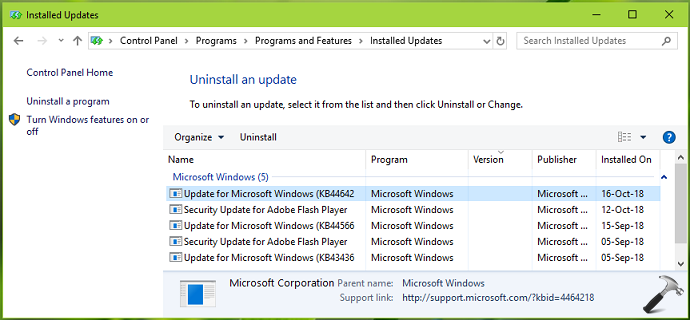
2. Go to Programs > Programs and Features > Installed Updates.
3. You can view installed updates here. If you like to uninstall update, you can highlight the update and click Uninstall.
WAY 3 – Via Windows PowerShell
1. Right click Start Button or press + X keys and select Windows PowerShell (Admin).
2. In administrative Windows PowerShell window, type/paste following and press Enter key:
get-wmiobject -class win32_quickfixengineering
This will list all the updates with detailed description.
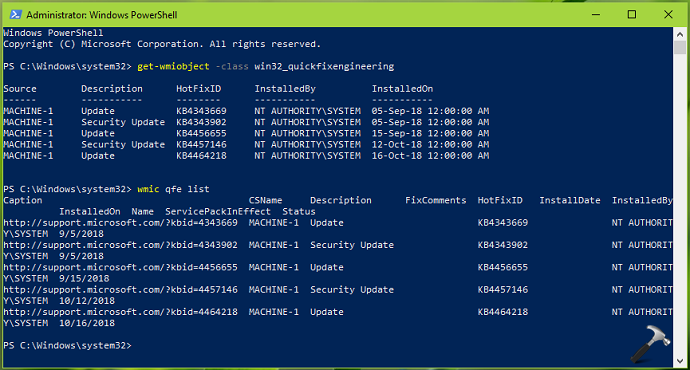
3. You can then also execute wmic qfe list to get installed updates listed with short description.
So in this way, all the ways to view installed update history are discussed. You can use either of the methods as per your convenience.
That’s it!

![[How To] Clear Address Bar History For File Explorer In Windows 10](https://www.kapilarya.com/assets/File-Explorer-6-768x512.png)

Get-Hotfix also works in powershell
^^ Sounds good!